
Sellers can now add YouTube video links to their product listings directly through the Seller Portal. Videos are displayed on the Product Detail Page (PDP) header area, behind the main image. Each item supports a maximum of 3 videos.
Note: Submitted videos are subject to an internal review process before they appear on the product detail page.
Available platforms: Newegg.com, Neweggbuseinss.com, Newegg.ca
Adding Videos to Your Listing
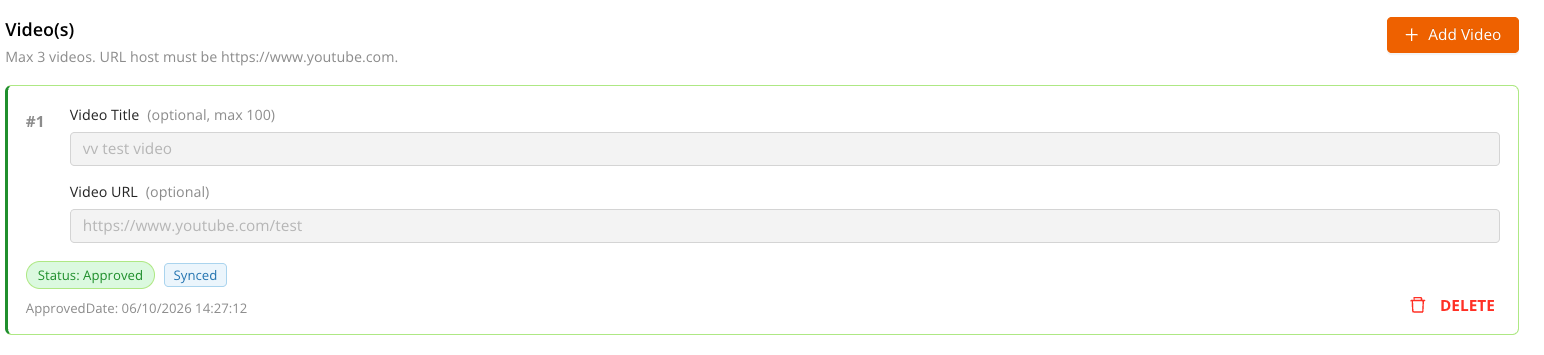
The video management section is available on both the Create Item and Edit Item pages, under the Video(s) section.

To add a video:
- Navigate to the Create Item or Edit Item page for your product.
- Scroll to the Video(s) section.
- Click + Add Video.
- Enter a Video Title and a Video URL.
- Click Save Item to submit.

Requirements:
- The Video URL must begin with
https://www.youtube.com/ - Each item supports a maximum of 3 videos (across all statuses combined).
- Both the Video Title and Video URL are required fields — they must be filled in together.
- Duplicate Video Titles or Video URLs are not allowed within the same item.
Video Statuses
After submission, each video will display one of the following statuses:
| Status | Description |
|---|---|
| Pending | The video has been submitted and is awaiting review. |
| Approved | The video has passed review and is displayed on the Product Detail Page. |
| Declined | The video did not pass review. You can view the reason for rejection in the Memo field. |
Editing and Deleting Videos
- Pending videos: The Title and URL can be modified.
- Approved / Declined videos: These are read-only and cannot be edited.
- Videos in any status can be deleted at any time.
Important Notes
- Only the Item Owner can manage videos on a listing. Non-Item Owners will have read-only access.
- Make sure your video URL is a valid YouTube link starting with
https://www.youtube.com/before submitting.