Overview
The batch create promotion codes feature allows sellers to create multiple promotion codes at once using an Excel template.
NOTE: Creating a single promotion code for all products in the store is not possible as this scenario can be easily handled through the standard Seller Portal workflow.
How To:
-
Get the template:
- Navigate to Batch Create Promotion Codes page:
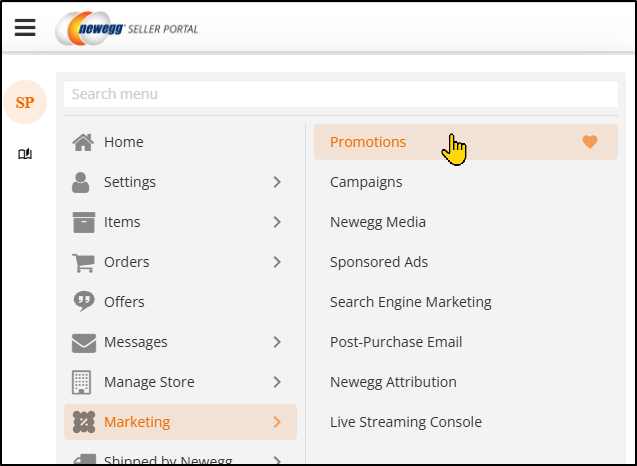
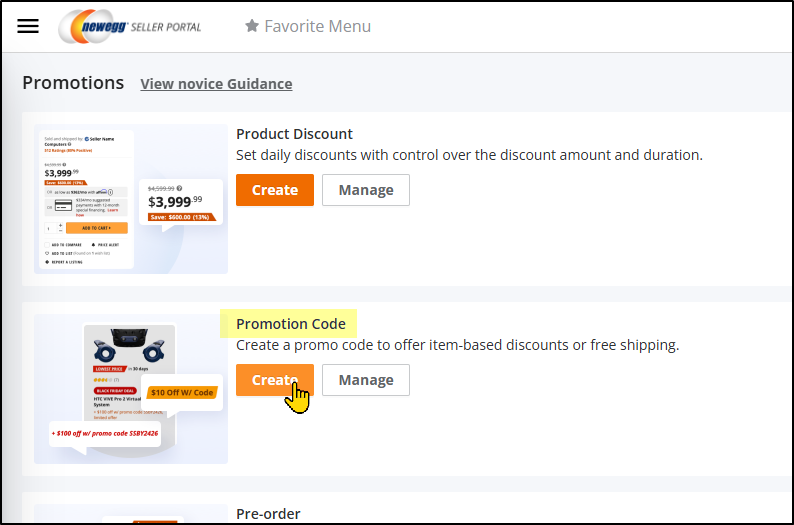
- Click on Create or Manage to advance to the next page
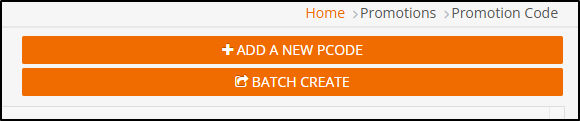
- Then click BATCH CREATE to get started
- Specify the NE Item(s) #.

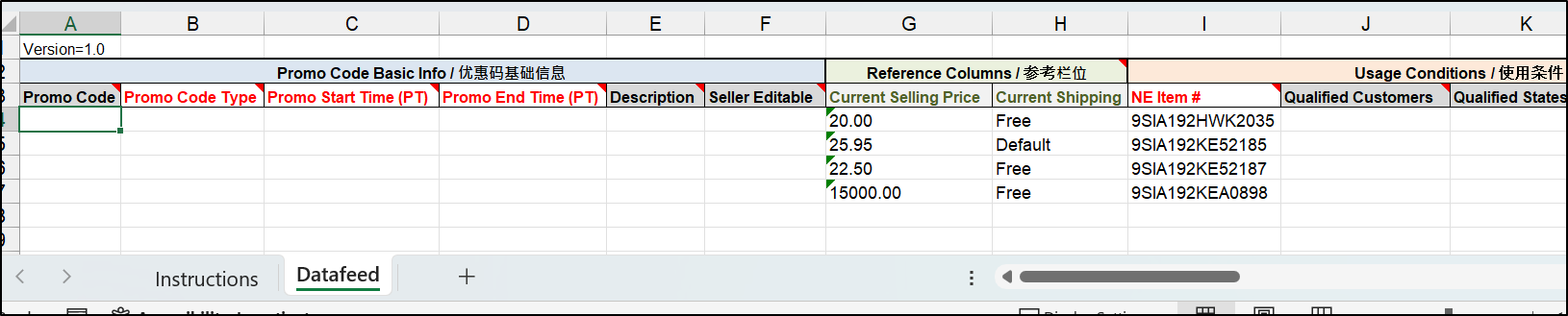
- Download the template file; the system will automatically populate reference information.
- Navigate to Batch Create Promotion Codes page:
-
Updating template:
- Open template.
- Do not modify the column and sheet names, doing so will cause the upload to fail.
- Please refer to the Instructions sheet for definitions, accepted values, and requirements.
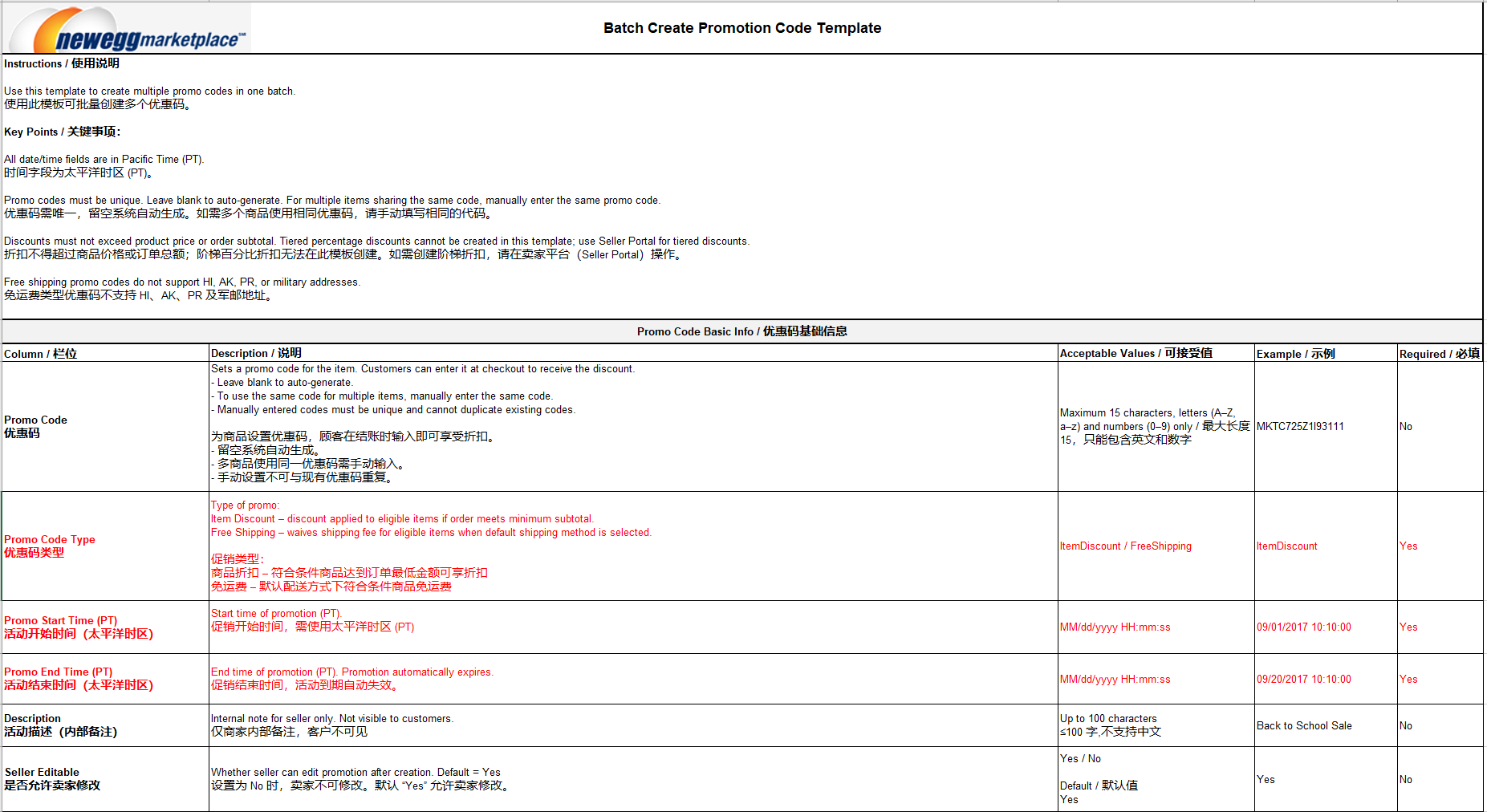
- Note, refer to Item List in Newegg Seller Portal for the items to be added for promotion.
-
Uploading template:
- Click Select files… to upload the file from the local drive.
- Click UPLOAD FILES.
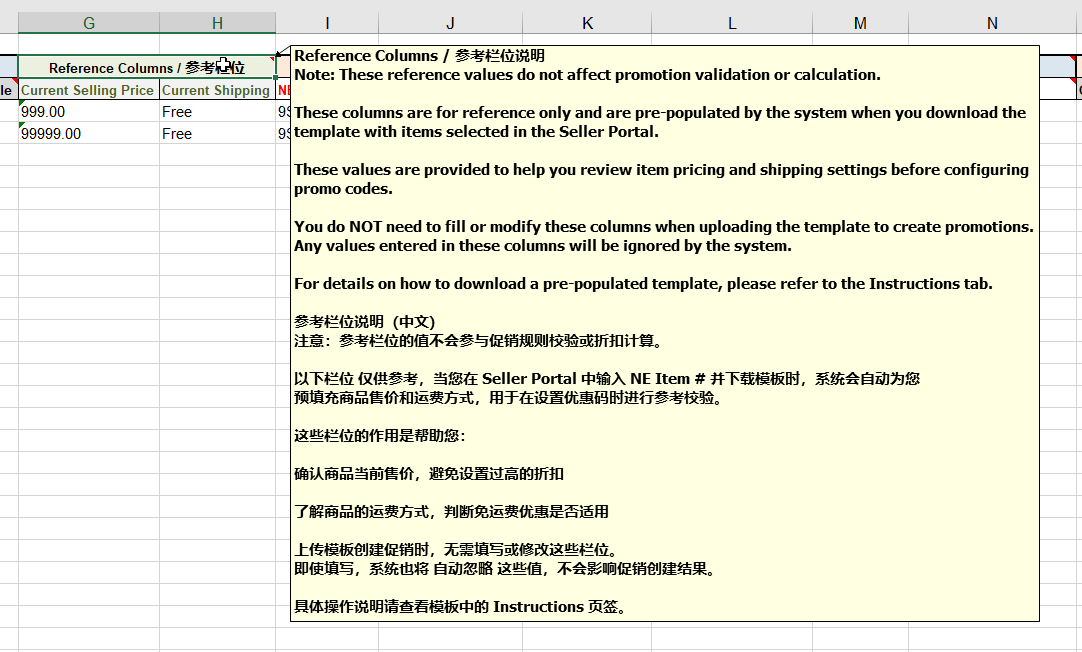
Pre-Filled Fields: Current Selling Price and Current Shipping
⚠️ Note: Pre-filled fields are for reference only. The system does not use these fields when creating promotion codes, so there is no need to modify them before uploading the template.
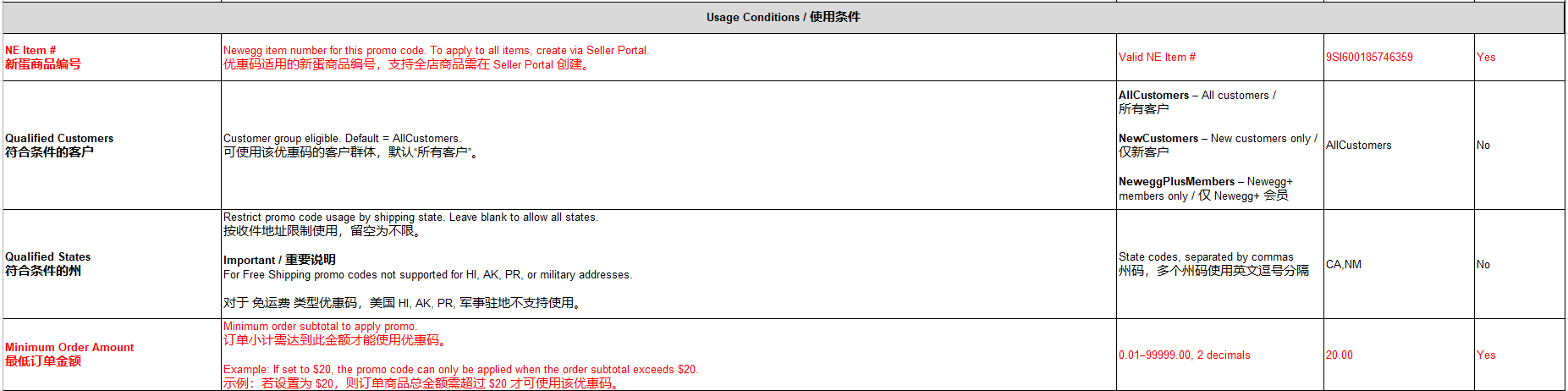
 Minimum order subtotal to apply to the promotion.
Example: if set to 20, the promo code can only be applied when the order subtotal exceeds $20
Reminder: Required properties must be provided.
-
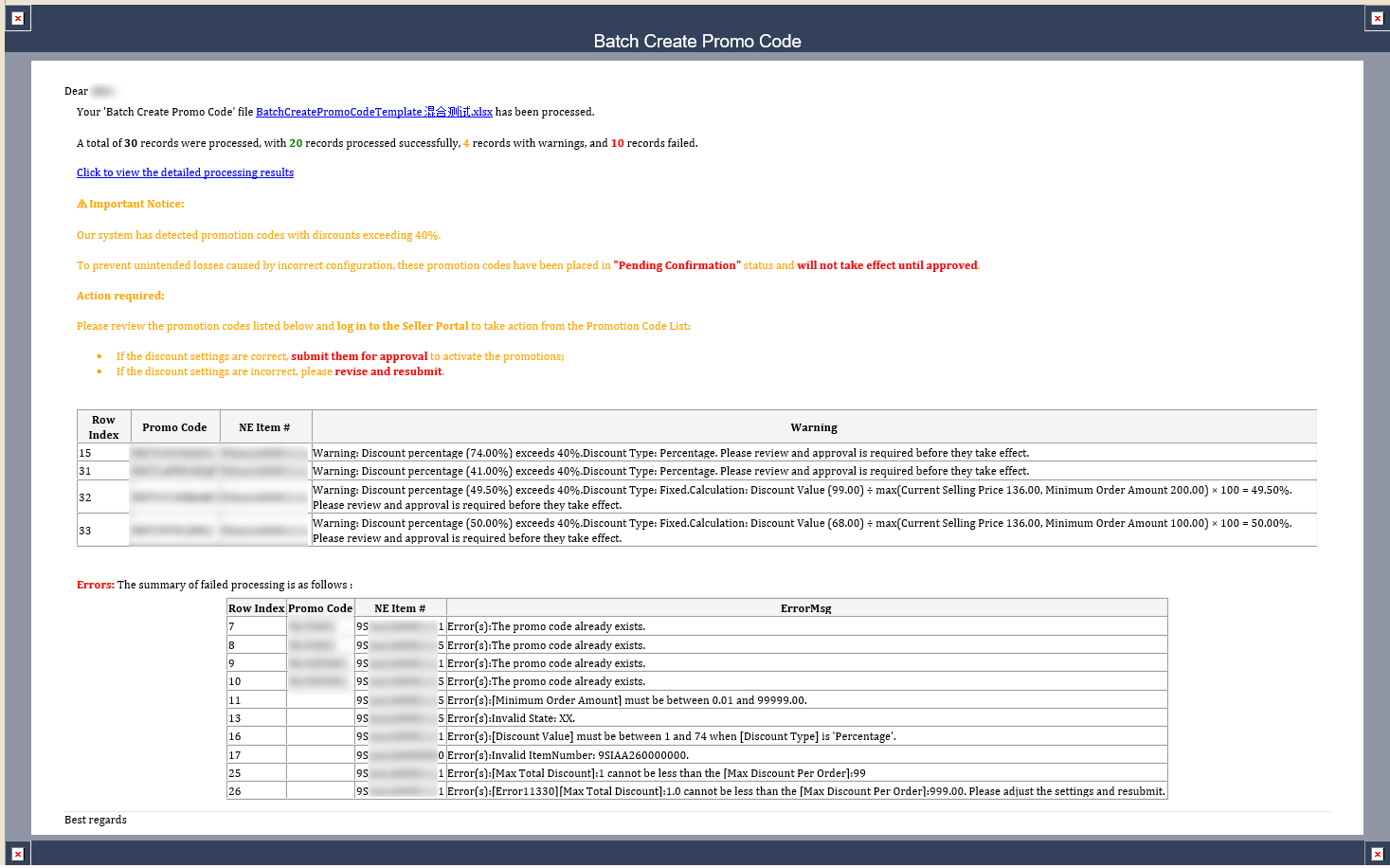
Protection Mechanism









- Discount Rate > 40%
- Promotion codes automatically enter Pending status.
- Codes take effect only after manual review and approval.
- The system flags the risk in the processing results and notifies users via email.
- Percentage Discount > 74%
- For product percentage discounts exceeding 74%, the system blocks creation.
- Users must adjust the discount and re-upload the template.