Video Tutorial
About
Update your existing item’s content and shipping. Please note that if you do not have ownership of this listing, you will not be able to edit its content.
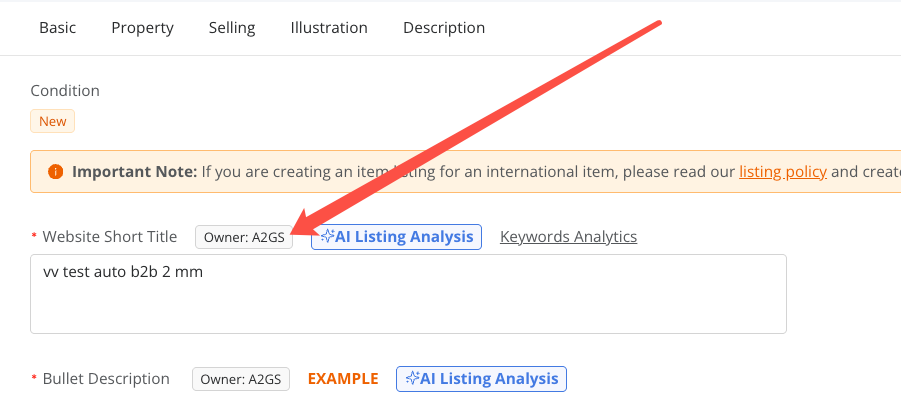
How can I tell if I have ownership of a specific listing?
Available platforms: Newegg.com, Neweggbusiness.com, Newegg.ca
How-To:
-
- Go to Seller Portal and hover your mouse pointer over the list icon (upper left corner) then select Items > Pricing & Inventory.

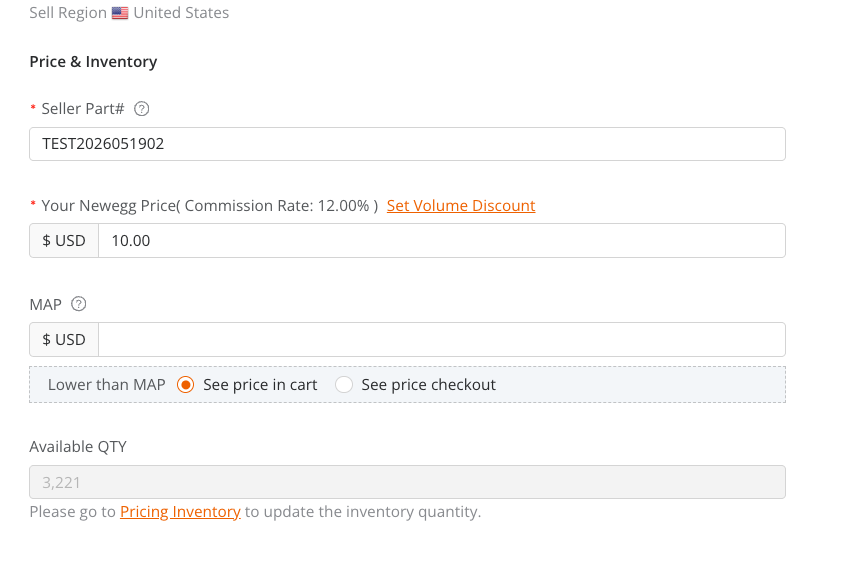
- Under the Action column, click the Edit link.
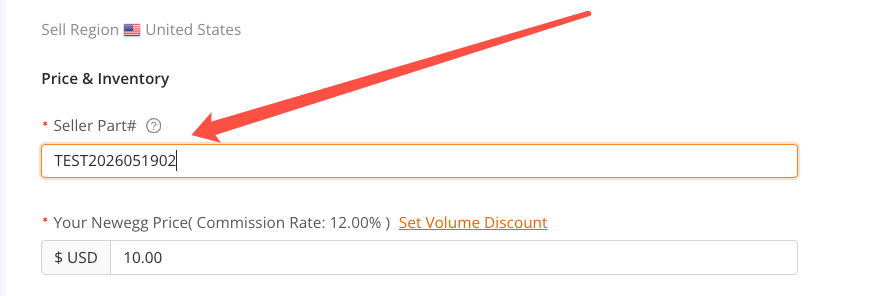
 Sellers can now update the Seller Part # for existing listings from both the listing page and the item details page.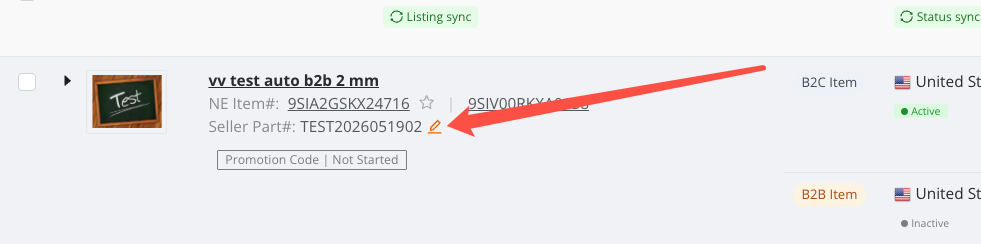
- Update the fields accordingly for Basic, Property, Selling, Shipping, Illustration, and Description then click the SUBMIT button to save the changes.
- Go to Seller Portal and hover your mouse pointer over the list icon (upper left corner) then select Items > Pricing & Inventory.
-
-
- Description: Include a bullet and product description of the product.
- California Proposition 65 Warning (applicable to brand owners and item creator) – If you’re the brand owner or the item creator, you’ll have the option to include or remove a California Prop 65 warning.
- To add, click on “Add California Proposition 65 Warning” and then select the applicable warning message

- To remove, click the minus button next to the warning message

- To add, click on “Add California Proposition 65 Warning” and then select the applicable warning message
- California Proposition 65 Warning (applicable to brand owners and item creator) – If you’re the brand owner or the item creator, you’ll have the option to include or remove a California Prop 65 warning.
- Description: Include a bullet and product description of the product.
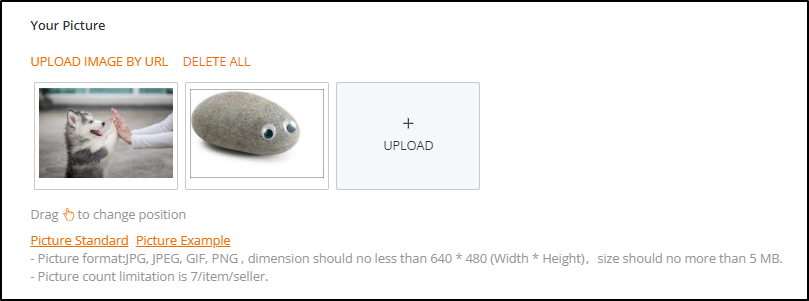
- To update your item images please note the following guidelines:
-
– Picture format: JPG, JPEG, GIF, PNG , dimension should no less than
640 * 480 (Width * Height),size should no more than 5 MB.
640 * 480 (Width * Height),size should no more than 5 MB.
– Picture count limitation is 7 items per seller (…but there can be many sellers selling the same item)
– The seller must be the Content Owner of the item. Follow these steps:
-
- Click to upload either a URL link or a PNG/JPG appropriate image
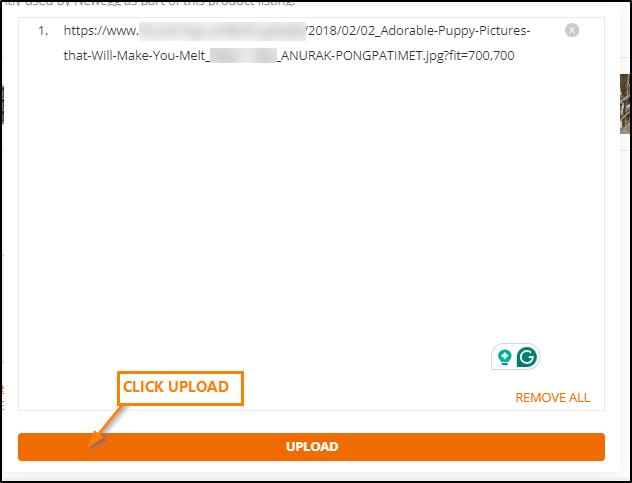
Adding an image from a URL
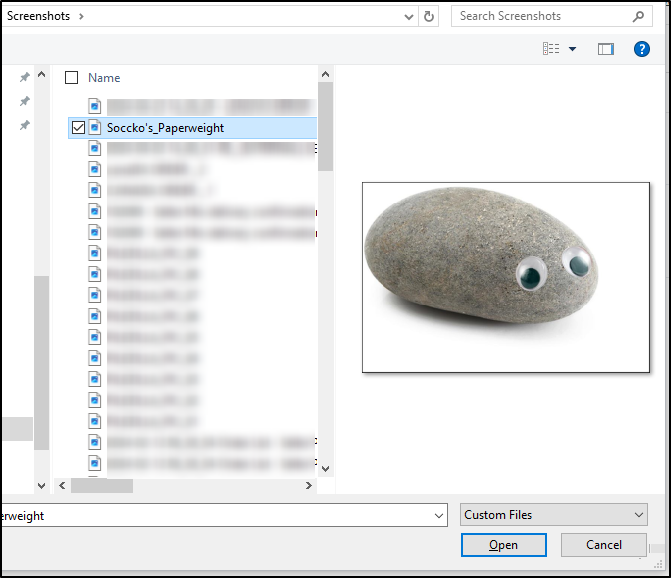
Adding an image from your computer
-
- Click the Illustration link to go to that section
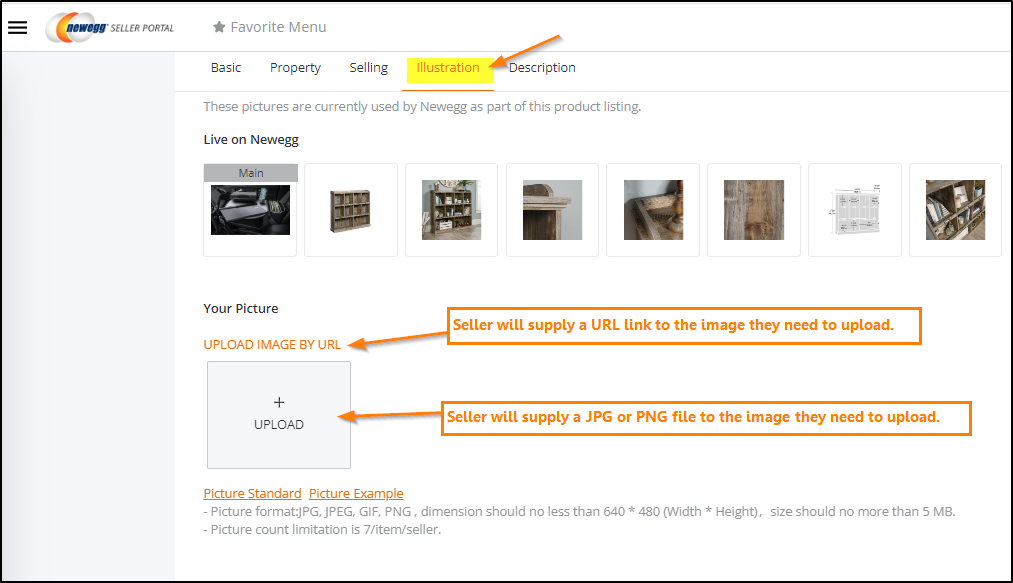
- Click the [SUBMIT] button to complete

- Click the Illustration link to go to that section
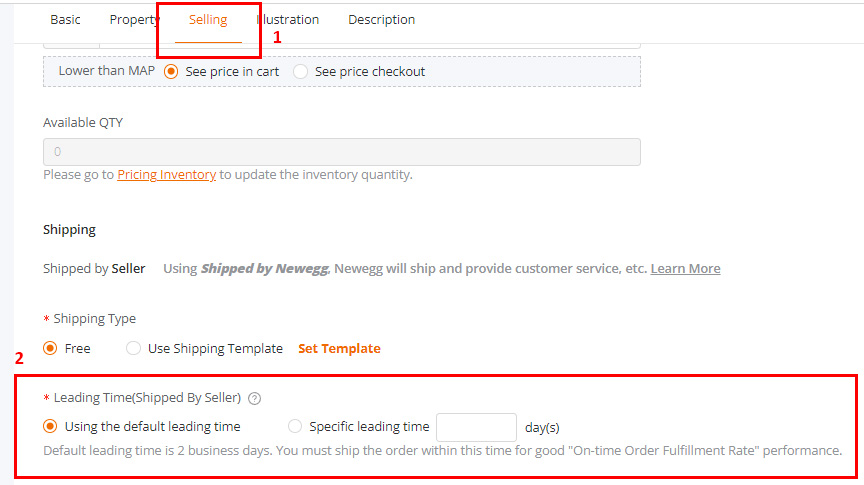
To update the Shipping Lead Times, go to Selling -> Shipping and look for *Leading Time (Shipped by Seller).