
View specific items or all items created in your account. By default, Seller Portal will list your last set of items automatically.
Available platforms: Newegg.com, Neweggbusiness.com, Newegg.ca
How-To:
Go to Seller Portal and hover your mouse pointer over the list icon (upper left corner) then select Items > Pricing & Inventory.


1) SEARCH FEATURE
-
- This area will display the listings that align with your filtering selections.
- The pull-down menu offers the seller the option to adjust search to a specific field type. Multiple items can be searched for if separated by a semicolon.
(Seller Part, Newegg Item, Item Title, Manufacturer Part, UPC)

-
- Input specific information based on selection. Leaving blank will list all items.
- Click the magnifying glass to have Seller Portal start a search with the current set of parameters.
- The Seller Portal search box for Price & Inventory viewing applies an Approximate Match on the search terms entered.
- There is also an Exact Match option that will only return the seller items that match the search terms exactly for Seller Part# or Manufacturer Part#.

2) TOTAL ITEMS
-
- Indicates the total number of potential listing items. (Note: An item will be listed for every targeted country set in the account. Unneeded item listings can be set to Inactive.)
3) MORE FILTER
-
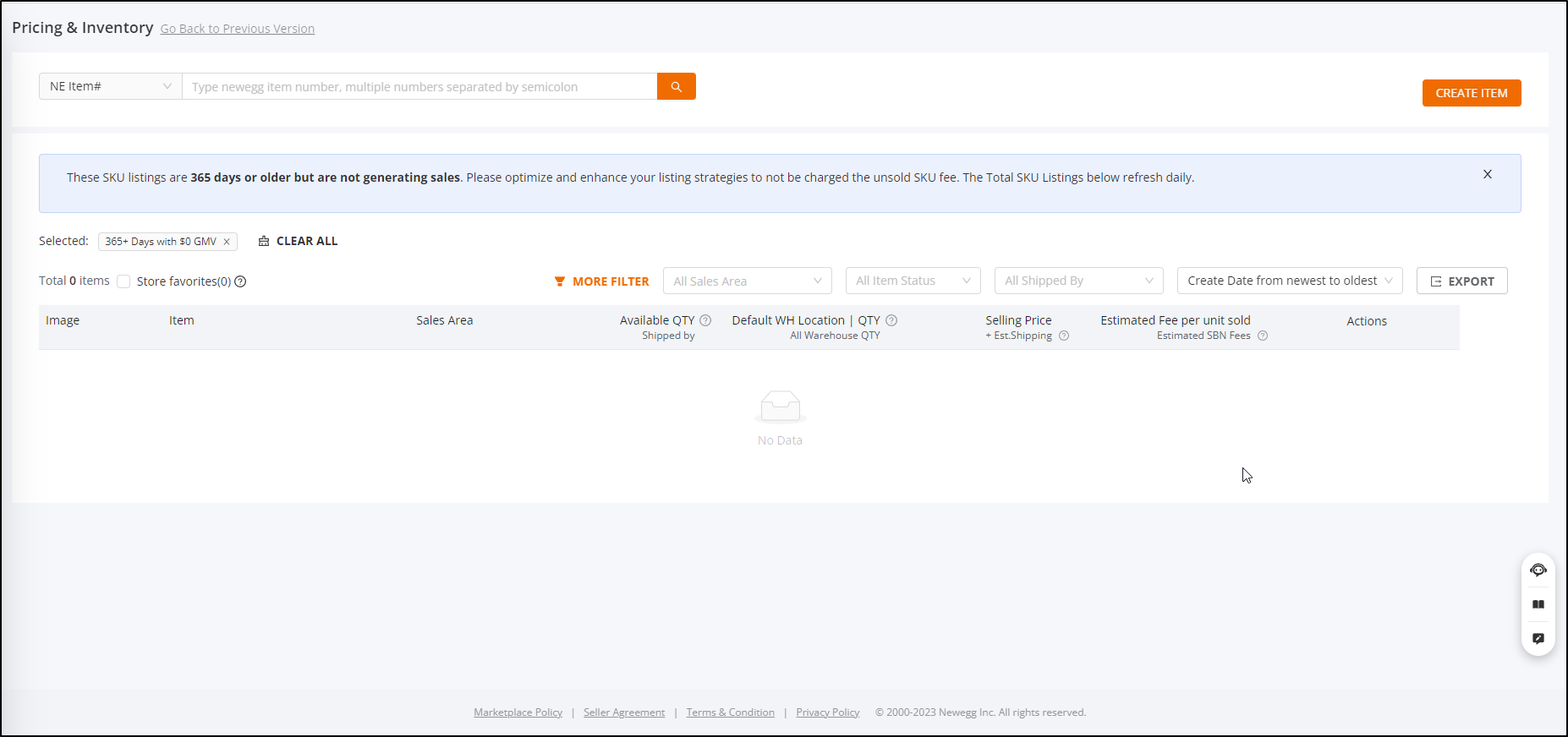
- [Optional] Adjust search by Seller Part#, Mfr Part#/ISBN, NE Item#, or Item Title if searching for a specific item in the account.


NOTE: When using the MORE FILTER and applying the “0 GMV” filter, seller can only select one or the other of these two filters.


Seller can filter with 90+, 180+, 270+, 365+ “Days with $0 GMV”
4) COUNTRY FILTER
-
- Seller and select specific targeted countries such as only USA listing. The default is [All Sales Area] to list all items regardless of country.
5) ITEM STATUS FILTER
-
- Select between Active and Inactive listings to be brought up in the search list window. The default is [All Item Status] to list all items regardless of status.
6) SHIPPED BY FILTER
-
- Select between Ship by Newegg (SBN) and Shipped by Seller (SBS) Inactive listings to be brought up in the search list window. The default is [All Shipped By] to list all items regardless of who shipped the item. Click the title here learn about Ship by Newegg
- When updating your inventory under Shipped By Newegg, please remember that you will be sending in a shipment to Newegg and we will update your inventory for you. Updating Available Quantity for Shipped by Newegg
7) LIST ORDER
-
- Select the order in which you desire the listings to appear. The default is [ Create Date from newest to oldest ] which will allow you to view your latest times first.

8) EXPORT
-
- Select this to begin to download the items you have in your list. There is a hard limit of 50,000 items that can be in the download. Sellers can filter larger lists to get just what they need to export. If you need a full list of your items, please use the Batch Items templates.
- Example: Batch Update Items Contents (Basic and Subcategory Information)
9) CREATE ITEM
-
- Click this to start the process of creating and item. It will take you to the Create Item page.
10) PRICING & INVENTORY DISPLAY
Competitor Price Feature:
-
- This feature is designed to enhance our sellers’ pricing strategies by adding competitor price information to the item list.
- This feature assists sellers in making informed pricing decisions to stay competitive in the market.
- Allows users to immediately see if they have the lowest, featured, or a competitive price ( ✔ )
- If not, sellers can click match on the price to match the shown price.
Key Features:
- Price Column Updated:
- The item list will display several competitive price information points.
- Column headers have been updated to include new pricing status.

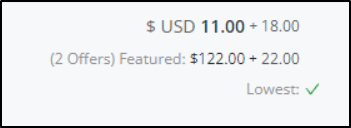
- Pricing Status: Provides a comparison of your offer price (including shipping) with competitive prices outside Newegg and the lowest price on Newegg.
- Featured: Indicates the offer at the top of a product detail page, the buybox price. A green checkmark indicates the item itself is the buybox item.
- Lowest: The current lowest price on Newegg. A green checkmark indicates your price is lower or equal to the lowest price.
- Competitive: The lowest price for the item from major retailers outside Newegg. A green checkmark indicates your price is lower or equal to the competitive price.
- Pricing Status Types:
- This feature is only applicable to items with condition of new and refurbished. Used items are excluded.
- Applies to Newegg.com (excluding Global), Neweggbusiness.com, and Newegg.ca.
- Lowest Price Indicators:
- Featured: Only shown if there is an offer. If the item has the Featured Offer placement, a green checkmark is displayed instead.
- Lowest: Only shown if there is an offer. If the current price is the lowest, a green checkmark is shown.
- Competitive: If the current price is lower or equal to the competitive price, a green checkmark is shown. If no competitive price is available, it will not be displayed.
- Match Feature:
- Provides a quick way for sellers to match their prices to the competitive prices.
- The “Match” option is displayed when hovering over the price, provided the seller can update the price and the current price does not already match the competitive price.
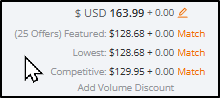
- A confirmation prompt will appear before updating the price.





11) Listing Quality Dashboard
-
- Sellers can get a list of the items that have poor content or wrong dimensions from the Pricing and Inventory page. We have created a dashboard for this purpose.
- Navigate to Items > Pricing and Inventory
- Click the “Listing Quality Dashboard” link at the top of the page

- Seller can find the item in different list based on the type:

- Seller can click the Edit to update the related fields to correct item.

- Click the “Listing Quality Dashboard” link at the top of the page


12) Viewing and Exporting Your Restricted Listings
-
- Sellers can get a list of the items that get restricted due to a brand requesting restriction
- Navigate to Items > Pricing and Inventory
a. Click the “More Filter”

b. Select “All Types” and then click APPLY


c. You will now notice that all of the items listed are from your restricted

d. Click [Export] to get that list and send that to datafeed@newegg.com

AI Social Media Share
Overview
The AI Social Media Share feature lets you instantly transform any active product listing into a ready-to-post social media promotion — complete with AI-generated lifestyle imagery and platform-optimized copy. You choose the destination platform and content style; the system handles everything else.
This feature is available directly from your Pricing & Inventory page for all active listings, including both B2C and B2B items.
Supported platforms:

Fig. 1 — Pricing & Inventory page — Share button visible next to each active product listing
Before You Begin
Understanding the Credit System
Each AI generation consumes 6 credits. Your account has a fixed credit allocation that you can review at any time inside the Share modal before confirming a generation.
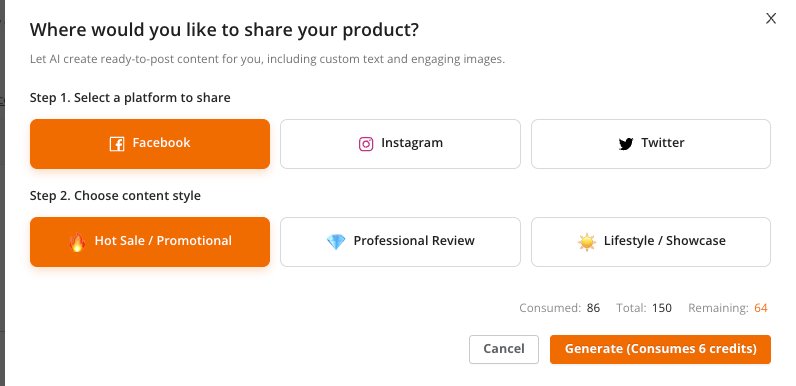
Fig. 2 — Share modal showing platform/style selection with credit balance (Consumed / Total / Remaining) and the Generate button
NOTE: If your remaining credit balance is below 6, the Generate button will be disabled. Contact Newegg Seller Support to request additional credits.
Product Images & Videos
The AI scene-image generator draws on your existing listing images to compose lifestyle and showcase visuals. For best results, ensure your listing has at least one high-quality main image uploaded before using the Share feature.
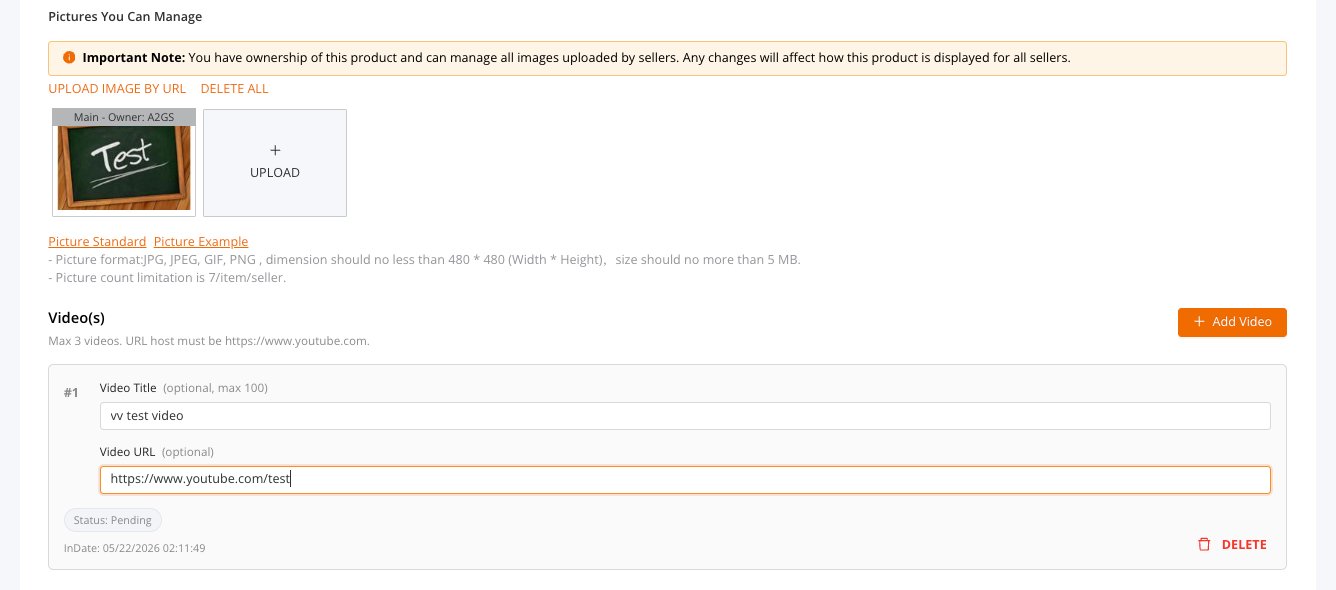
Fig. 3 — Pictures You Can Manage section — product image upload area and YouTube video management
Image requirements:
-
- Accepted formats: JPG, JPEG, GIF, PNG
- Minimum dimensions: 480 × 480 px
- Maximum file size: 5 MB per image
- Maximum images: 7 per seller
- Videos: Up to 3 YouTube links (URL must start with https://www.youtube.com)
How-To: Share a Product on Social Media
Step 1 — Access the Share Feature
-
- Log in to the Newegg Seller Portal.
- Items > Pricing & Inventory.
- Locate the product you want to promote. In the right-hand action column, click
NOTE: The Share option is available for Active listings only. If the button is not visible, verify that your item status is set to Active.
Step 2 — Select a Platform
The “Where would you like to share your product?” modal opens. Under Step 1 – Select a platform to share, choose your destination:
-
- Facebook — Best for longer-form promotional posts with multiple images.
- Instagram — Optimized for visual, square-format content.
- Twitter — Concise, link-driven posts with a single headline image.
Click the button for your desired platform (it will highlight in orange).
Step 3 — Choose a Content Style
Under Step 2 – Choose content style, select the tone for your post:
-
- Hot Sale / Promotional — Urgency-driven copy with pricing emphasis. Ideal for flash sales and limited-time offers.
- Professional Review — Technical, feature-forward language. Best for enthusiast and B2B audiences.
- Lifestyle / Showcase — Aspirational, experience-first copy. Best for broad consumer brand-building.
Step 4 — Generate AI Content
Once your platform and content style are selected, review your credit balance, then click Generate (Consumes 6 credits). The system processes in two stages:
-
- Generating post content — AI writes the caption and hashtags.
- Generating images — AI composes lifestyle scene images using your product photos.
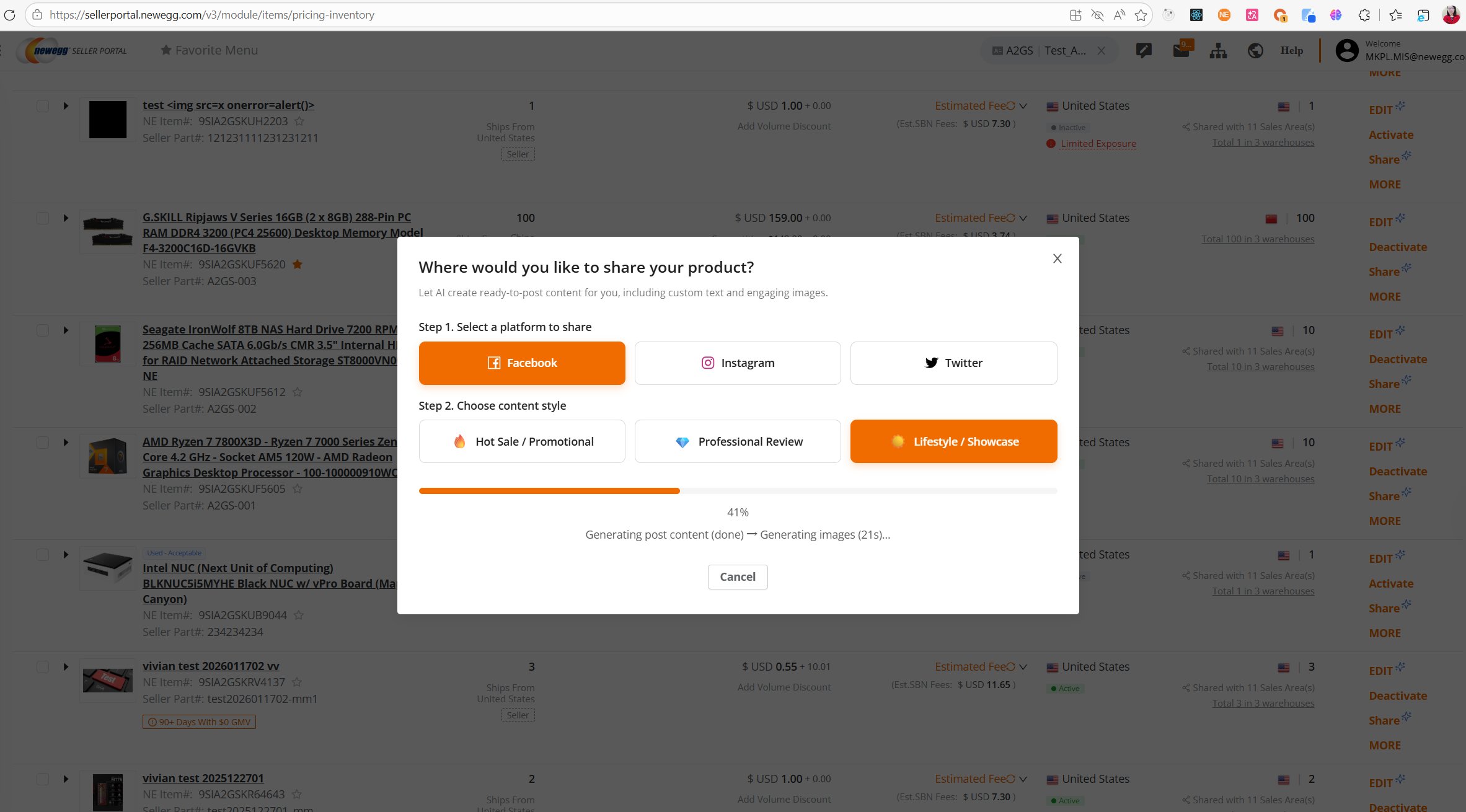
Fig. 4 — Share modal showing the AI generation progress bar (41%) — Facebook selected, Lifestyle/Showcase style, images generating
IMPORTANT: Do not close the modal while generation is in progress. Closing will cancel the process and the 6 credits will not be refunded.
Step 5 — Review & Post
When generation is complete, the modal transitions to the Post Ready to Share! view. Review the generated content, then choose how to proceed:
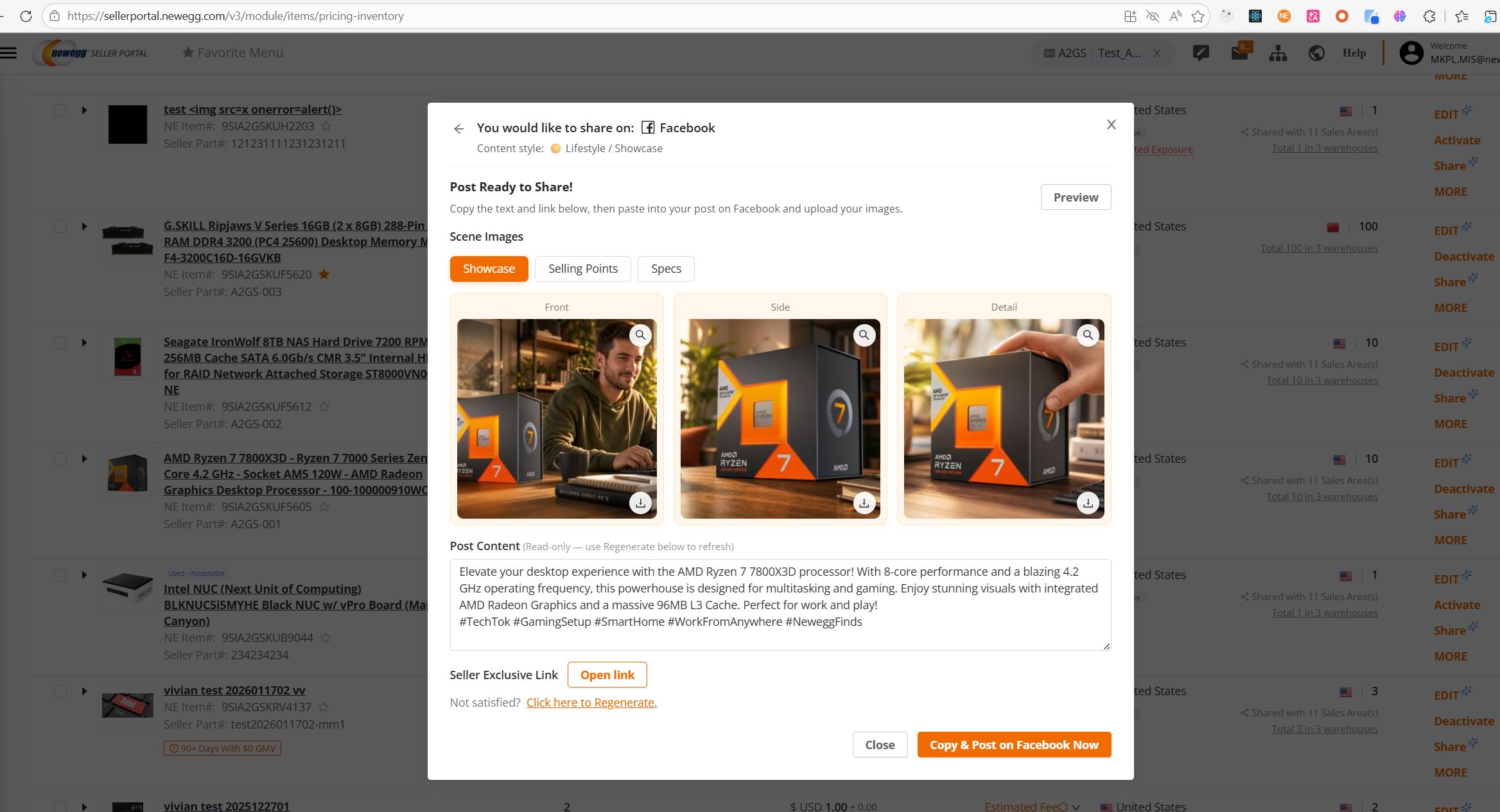
Fig. 5 — Post Ready to Share! view — three scene image tabs (Showcase, Selling Points, Specs), post content, Seller Exclusive Link, and Copy & Post button
-
- Click Preview to see a mockup of the post on the selected platform.
- Switch between image tabs (Showcase / Selling Points / Specs) to choose your preferred scene set.
- Click the download icon on any individual image tile to save it locally.
- Click Copy & Post on [Platform] Now to copy all content to your clipboard and open the platform in a new tab.
- Click here to Regenerate if the output is unsatisfactory. Note: Regeneration costs an additional 6 credits.
Understanding the Generated Output
Scene Image Tabs
The AI generates three sets of scene images from your product photos:
-
- Showcase — Lifestyle context imagery — the product in a real-world setting such as a home office or gaming setup.
- Selling Points — Images paired with key feature callouts highlighted visually.
- Specs — Clean, spec-focused product shots on a neutral background.
Within each tab, three angles are available: Front, Side, and Detail. Download individual images using the download icon (↓) on each tile.
Post Content
The Post Content field (read-only) contains the AI-generated caption and hashtags, pre-optimized for character limits and engagement on the selected platform. Example output (Facebook, Lifestyle/Showcase, AMD Ryzen 7 7800X3D):
“Elevate your desktop experience with the AMD Ryzen 7 7800X3D processor! With 8-core performance and a blazing 4.2 GHz operating frequency, this powerhouse is designed for multitasking and gaming. #TechTok #GamingSetup #SmartHome #WorkFromAnywhere #NeweggFinds”
NOTE: Post Content is read-only in the modal. Use Copy & Post to paste into your platform’s composer, where you can make final edits before publishing.
Seller Exclusive Link
A trackable URL pointing directly to your product page on Newegg. Click Open link to preview the destination before posting. This link is automatically included when you use Copy & Post.
Using Share with B2B Listings
If you maintain both B2C and B2B configurations for a single product, both rows appear in Pricing & Inventory. The Share action is displayed at the product level in the right-hand action column and generates content based on the item’s primary listing information.

Fig. 6 — Pricing & Inventory row for Intel Core i5-14400F showing separate B2C and B2B item rows with Share visible in the action column
Tips for Best Results
-
- Upload high-resolution product images first. The AI scene generator performs significantly better with clear, well-lit images. Aim for at least 1000 × 1000 px.
- Match content style to your campaign goal. Use Hot Sale / Promotional for active discounts, Professional Review for tech-enthusiast audiences, and Lifestyle / Showcase for brand-building.
- Monitor your credit balance. With 6 credits per generation, prioritize high-performing or high-margin listings.
- Switch styles before regenerating. Choosing a different content style before clicking Regenerate produces more varied results than repeating the same style.
- Download images before closing. Scene images are not stored permanently in the portal — save any images you want to reuse before closing the modal.
- Edit captions on-platform for compliance. Review your social network’s promotional content policies and make any edits in the platform’s composer before publishing.