Newegg Marketplace Seller AcademyNewegg Marketplace Seller Academy
    • Seller Success Guide
    • How to Register as a Seller
    • Apply to Sell on Newegg Marketplace
    • Seller Portal & Service Guides
    • Link to Seller Portal
    • Download App
      • Campaign Type
      • SEM Tool
      • Marketing Tools
    • Shipping & Fulfillment
    • Newegg Marketing
      • Accelerated Payment
      • Capital Advance
    • Seller Academy
      • Seller Payment Disbursement
      • Global Seller Payment Options
      • View Payment Reports
    • Success Stories
    • Integration and Service Partners
    • Policies & Forms
    • Frequently Asked Questions
    • Navigation List/Taxonomy Guide
  • Developer API
  • Contact Us
  1. Home
  2. Marketing Tools
  3. Sponsored Ads
  4. Create a Sponsored Product Ad Campaign

Create a Sponsored Product Ad Campaign

Contents

  • Video Tutorial
  • How do Sponsored Products Ads work?
  • How are sellers charged for Sponsored Products Ads?
  • How do you find the Sponsored Product Ads tool?
  • Where does your ad appear?
  • How to create Your Sponsored Products Ads Campaign:
  • View Your Existing Campaigns
  • Export Campaign Report
  • Campaign Report Details

Video Tutorial

How do Sponsored Products Ads work?

The Sponsored Products tool is a keyword-targeting search function that enables sellers to promote their listings more prominently on the search results page. This advertising model charges advertisers when customers click on an ad (pay-per-click).

Sponsored Products Ads use keyword targeting to match a customer’s search with the relevant sponsored product listings. The goal is to drive increased visibility for high-intent searches to enhance conversion, with a low-cost sales model.

How are sellers charged for Sponsored Products Ads?

Sellers will be charged against any existing payment balance every week on Mondays. If there is no pending payment balance, the credit card on file will be charged for any SPA usage.

How do you find the Sponsored Product Ads tool?

The Sponsored Product Ads tool is located in the Seller Portal menu under “Marketing”. Sellers who meet the performance requirements will be able to view this tool and create campaigns.

Where does your ad appear?
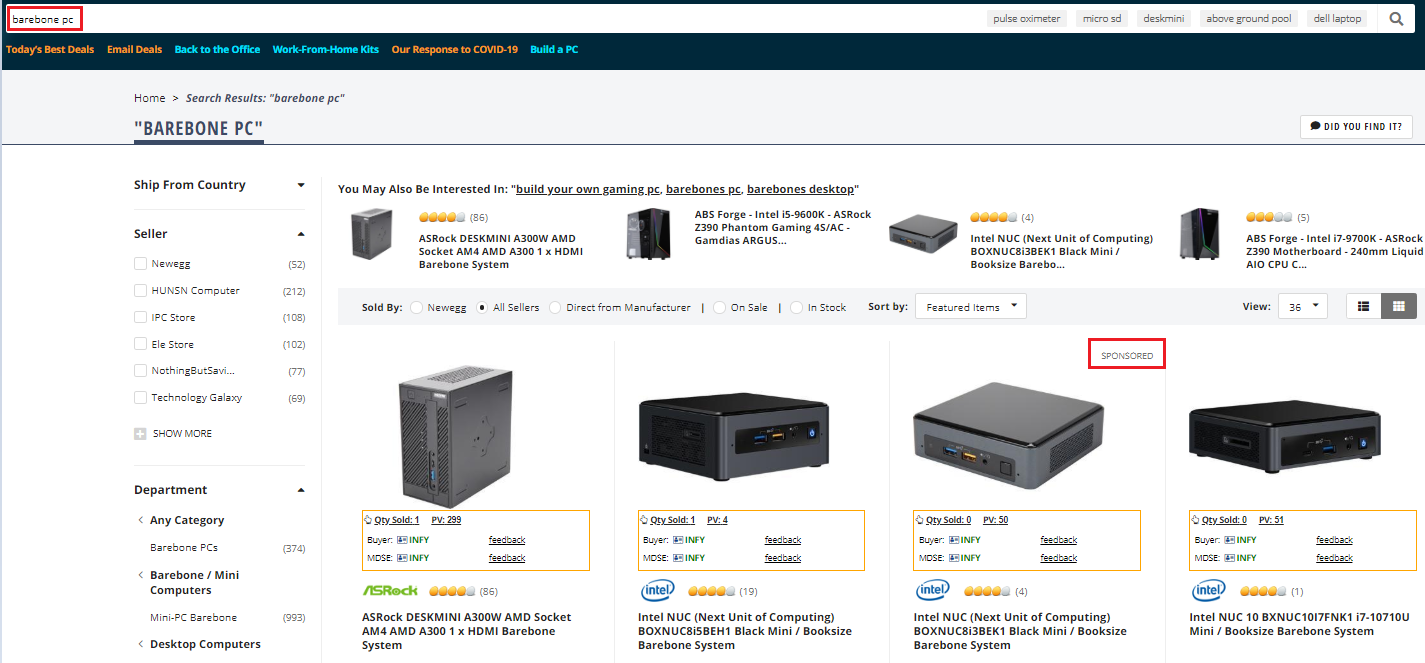
 Creating a campaign is easy. The following list summarizes the terms you need to know before ad creation:

  • Campaign: the basic setup of your ads. You choose the keywords for which you wish your ad to be triggered and related item listings.
  • Ad Group: an Ad group is a group of campaigns sharing the same set of keywords and products.
  • Total Budget: is an estimated amount of money you will spend for a campaign in a specific period.(Effective June 28, total budget will no longer be available. Instead, there will be a new feature called “monthly budget” which you’ll be able to monitor your spending limit monthly. The monthly spending limit is the maximum amount you can pay for a campaign over the month. You’ll never pay more than your monthly budget. )
  • Products: your listings that you want to promote in the same campaign.
  • Keyword Targeting: you can specify keywords (word combinations and phrases) to match your ads with search terms, and customers, using them to find products.

Available platforms: Newegg.com, Newegg.ca

How to create Your Sponsored Products Ads Campaign:

  1. Go to Seller Portal and hover your mouse pointer over the list icon (upper left corner) then select Marketing > Sponsored Ads.
  2.  Click Create Campaign and then click Sponsored Products afterward click CONTINUE to start a new campaign.

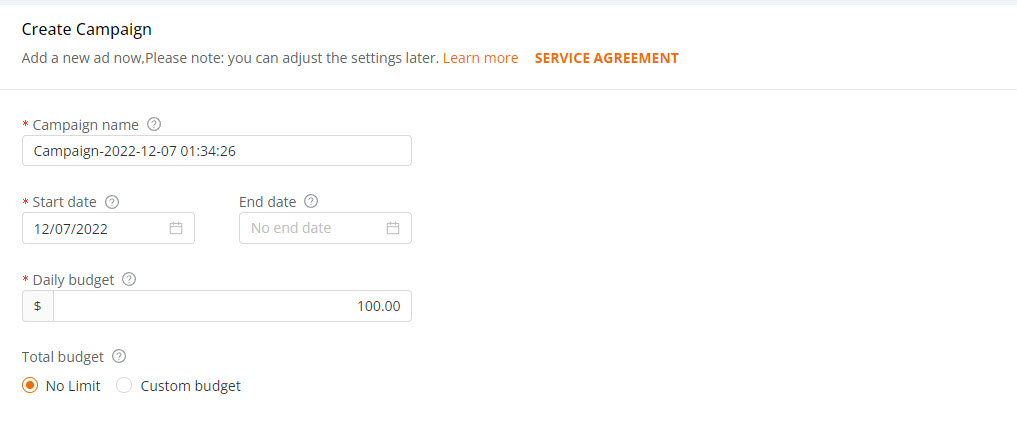
  3. On the “Create Campaign Setting” page, fill in all the required information.
    1. Campaign Name. Specify a campaign name to help organize your ads. This is for reference only and not visible to external viewers.
    2. Start date and End Date. Specify when the campaign will start and end. If you plan to have current campaigns last indefinitely, you can select “No End Date”
    3. Daily Budget. The amount that you’re willing to spend on this campaign for each day.
    4. Total Budget. The estimated amount of money you will spend for a campaign in a previously specified period.
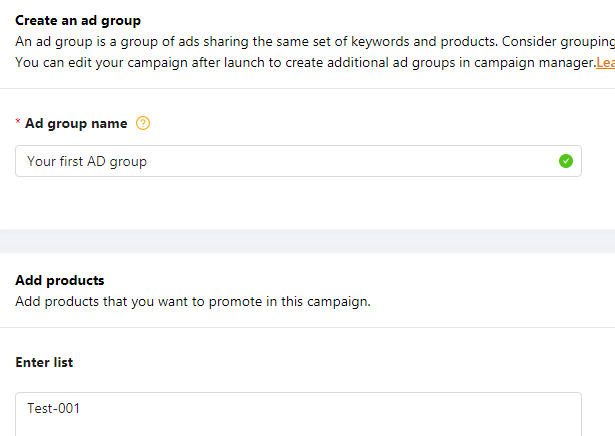
    5. Create an ad Group. Specify an ad name to help organize your ads. It is for reference only and not visible to external viewers.
    6. Add Products. Adding your listings that you want to promote in the same campaign.
    7. Managing Keyword Targeting. The keywords (word combinations and phrases) will be used to match your ads to the search terms customers are using to find products. There are two matching options available for targeting keywords and two bidding options for SPA campaigns.
      1. Automatic Targeting – A match type with four options that leverage Newegg’s proprietary relevancy algorithms to automatically match your ads with relevant keywords. These options should be used to narrow or widen the audience target for your campaign. Generalized targeting increases the quantity of views to your ad where more specific targeting narrows the views, closely matching to what the searcher is looking for.
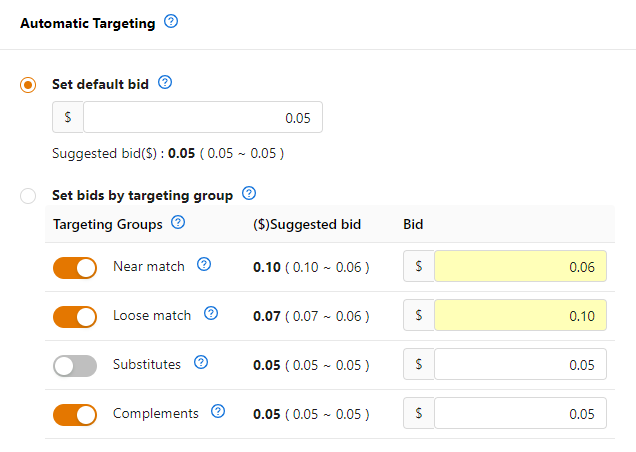
        1. Near match – Your ad will be seen by shoppers who use keywords that are closely related to the products in your campaign group. If your product is “400 thread count cotton sheets,” we’ll show your ad when shoppers use search terms like “400 thread count”, “cotton sheets” and “400 count sheets.”
        2. Loose match – Your ad will be seen by shoppers who use keywords that are loosely related to the products in your campaign group. If your product is “400 thread count cotton sheets,” we’ll show your ad when shoppers use search terms like “bed sheets”, “bath sheets” and “bath towels.”
        3. Substitutes – your ad will be seen by shoppers who use keywords that are substitutes of the products in your campaign group. If your product is “400 thread count cotton sheets,” we’ll show your ad when shoppers use search terms like “300 count cotton sheets”, “queen 400 count sheets” and “500 count sheets.”
        4. Complements – Your ad will be seen by shoppers who use keywords that are compliments to the products in your campaign group. If your product is “400 thread count cotton sheets,” we’ll show your ad on detail pages that include “queen comforter” and “feather pillows.”
        5. Setting bids under Automatic Targeting – This method of targeting requires the least effort and provides you with two options for setting bid levels.
          1. “Set default bid” allows setting a single bid level that’s applicable to all match type categories. The Seller Portal will offer a suggested bid which you can adjust.
          2. “Set bids for targeting group” allows setting a bid for each specific match group type. Sellers can select which match group to use and can adjust the budget.
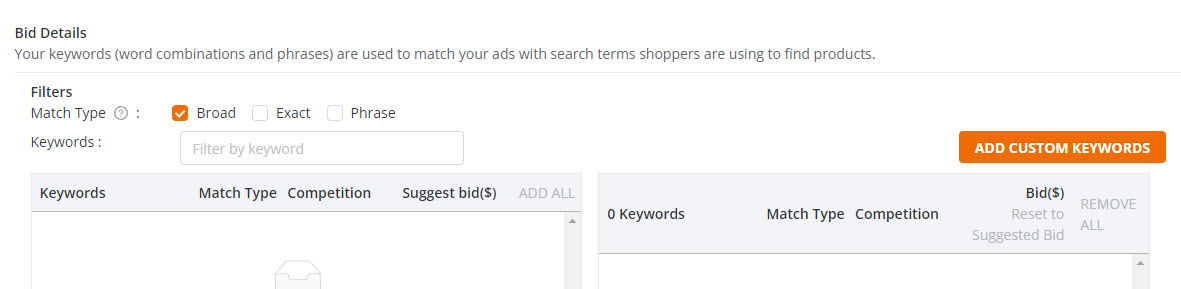
      2. Manual Targeting – A match type that gives you the option of choosing exactly what keywords you would like to bid.  This is the match type that provides you with the most direct control over where your ads appear and how much you spend per keyword.
        • Keyword Targeting:
          1. Broad: Contains all the keywords in any order and includes plurals, variations and related keywords.
          2. Exact: Exactly matches the keyword or sequence of keywords.
          3. Phrase: Contains the exact phrase or sequence of keywords and includes plurals.
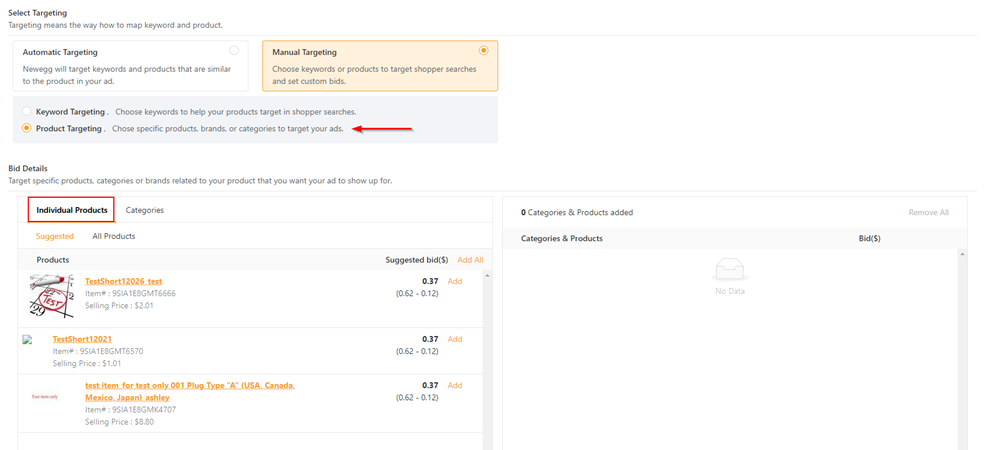
        • Product Targeting:
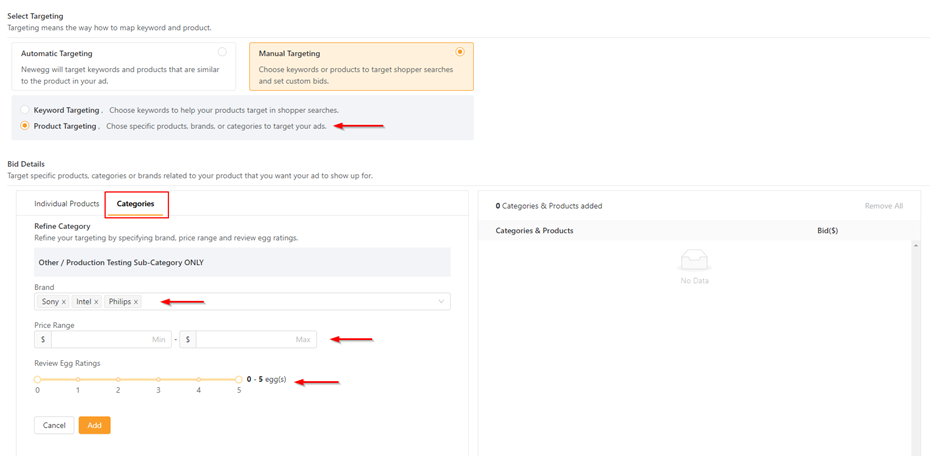
          1. Select specific items, categories, or brands where you want your ads to show.
          2. By selecting categories you can refine the search into specific brands, price range, and egg ratings.
      3. Negative Keyword Targeting – Both Automatic Targeting & Keyword Targeting include the feature called Negative Keyword Targeting.
        • This is where you can specify keywords and phrases that you do not want your Ads to show for – when those keywords and phrases are used in a search.
        • This is an optional feature and does not have to be applied.
  4. Click the SAVE button to complete the campaign.

View Your Existing Campaigns

View existing Sponsored Product Ad campaigns that you have created.

How-To:

  1. Go to Seller Portal and hover your mouse pointer over the list icon (upper left corner) then select Marketing > Sponsored Ads.
  2. On the All Campaigns section, you are able to view your existing campaigns as seen below. For each campaign, the following information is available:
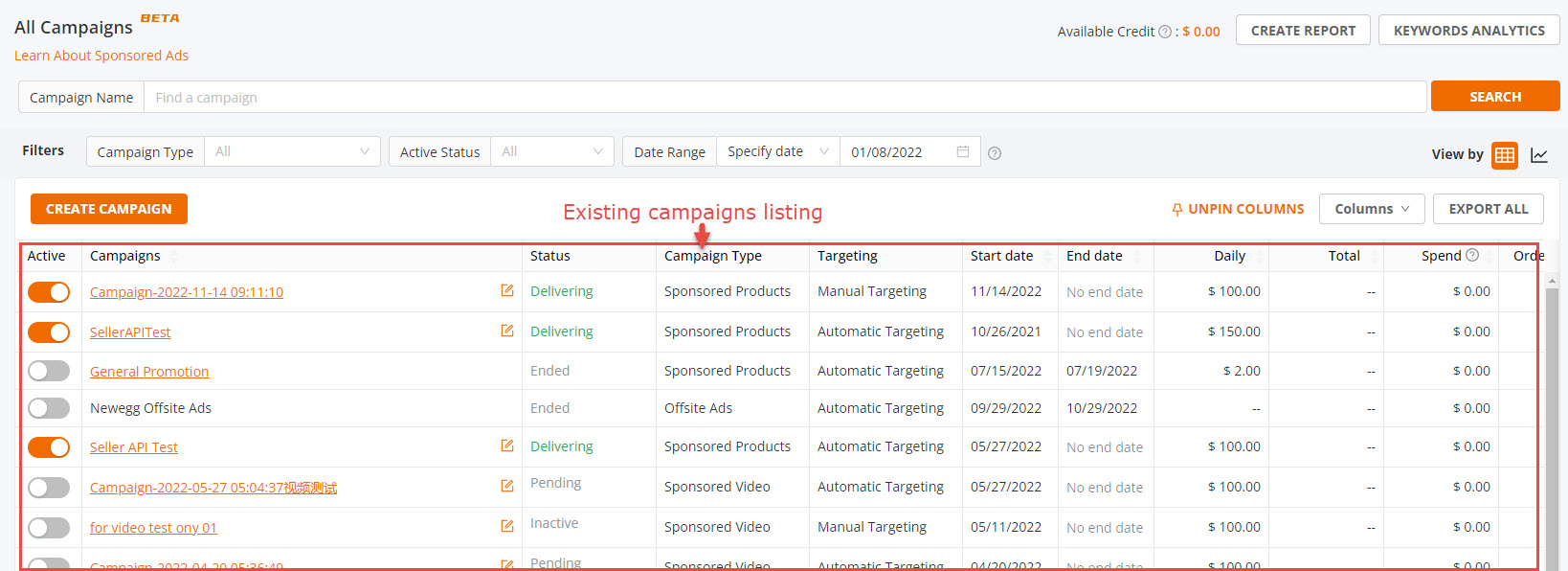
    • Active: Specify whether the current campaign is Active or Deactivated.
    • Campaigns: The name to identify the current campaign.
    • Status: The status of the current campaign includes Processing, Delivering, Ended.
    • Date Range. The start and end date for the current campaign.
    • Total Budget. The estimated amount of money you will spend for the current campaign.
    • Indicators:
      • Spend: The total click charges for a product ad.
      • Sales: Sales is the total value of products sold within the specified timeframe for a current campaign.
      • ACOS: Advertising cost of sales (ACOS).  ACOS is the percentage of attributed sales spent on advertising. This is calculated by dividing the total spend by attributed sales.
      • Impressions: The total page views of the current campaign.
      • Clicks: The number of times your ads were clicked.
      • CTR: Click-through Rate. The ratio of how often shoppers click on your product ad when displayed. This is calculated as clicks divided by impressions.
      • Orders: The total count of orders customers placed after clicking on your ADs.
      • CPC: Cost-per-click (CPC). This is the average amount you paid for each click on an AD.
      • CR: Conversion rate is the number of orders generated after clicks on your ads. This is calculated as orders divided by clicks.

Export Campaign Report

You can export a report to review your campaign performance.

How-To:

  1. Go to Seller Portal and hover your mouse pointer over the list icon (upper left corner) then select Marketing > Sponsored Ads.
  2. Click on the Create Report at the top of the “All Campaigns” section.

  3. Click on the New Report button (upper right corner of Create Campaign Report) then set the criteria of your report afterward click Create button.
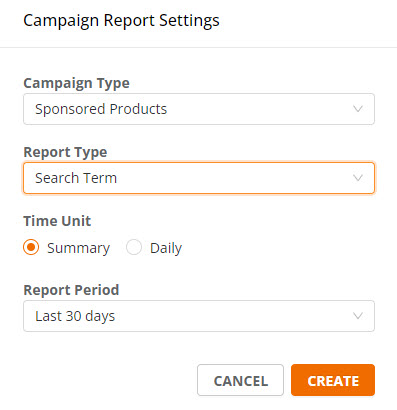
  4. When the report is ready click the “Download” link under the Operation column.

Campaign Report Details

How to read the campaign report you exported:

  • Start Date: starting date of the campaign
  • End Date: ending date of the campaign
  • Currency: type of currency that was used for the campaign
  • Campaign Name: name of the campaign created
  • Campaign Sponsor: who create the campaign
  • Targeting Type: type of keyword targeting used – automatic or manual
  • Ad Group Name: name of the ad group created
  • Targeting: keyword used to match your ads to the search term customer used; click here to view the two different targeting types
  • Customer Search Term: what the customer types in the search bar when looking for a product
  • Match Type: what Newegg will display to the customer’s search results; click here to view the different types of Match Types and their meaning

Additional Resources:

  • COVID-19 Keyword Restrictions Terms and Conditions


Updated on July 29, 2026
Tagged: Advertising CampaignCreate a Sponsored Product Campaigncustomer search termmatch typePromotionsSeller AccountSponsored AdsSponsored Producttargetingtool

Was this article helpful?

Yes No

Related Articles

  • Create a Sponsored Brand Ad
  • Sponsored Ads Negative Product Targeting
  • Automated Offsite Ads – Sponsored Ads
  • Create a Sponsored Display Campaign
  • Create Sponsored Video Ads Guide
  • Seller Success Guide
  • Marketplace Policies
    • Prohibited Seller Activities
    • Prohibited Items List
    • Firearms, Weapons, and Knives Policy
    • Offensive Content Policy
    • Miscategorized SKU Policy
    • Inaccurate Content and International Version Products Listing Policy
    • Refurbished Items Policy
    • Restocking Fee Policy
    • Website Short Title Policy & Guidelines
    • Product Description Policy and Guidelines
    • Content Ownership – Item Creation & Modifying Existing Item Content
    • Product Image and Video Policies and Guidelines
    • Seller Logos
    • Search Engine Optimization (SEO) Guidelines
    • Customer Payment Chargebacks
    • Marketplace Chargeback Guide
    • MATCH List
    • Chargeback Reason Code
    • Shipped by Newegg (SBN) Inventory Reimbursement Policy
    • California Proposition 65 (CA Prop 65) Compliance & Warning Clause
    • California Energy Commission (CEC) Regulations
    • California Covered Battery-Embedded (CBE) List
    • 中华人民共和国的平台企业涉税信息报送要求通知
  • New Seller Account Registration
    • Seller Account Registration
    • Update Ownership and INFORM Act Information
    • Update Financial Information
    • Update Credit Card Information
    • Update Business Information
    • Updating Return Policy and Information
    • Update Return Policy & Info (B2B, CAN)
    • Update Shipping Methods and Rates
    • Update Shipping Methods and Rates (B2B, CAN)
    • Seller Logos
    • Create New Item 3.0
    • Create Existing Item 3.0
    • Seller Payment Disbursement
    • Seller Certificate of Insurance
    • 卖家账户注册
  • Account
    • Vacation Settings
      • Vacation Mode 3.0
    • Account Settings
      • Update Business Information
      • Update Financial Information
      • Add/Update Address Information
      • Add/Update Seller Notification Email Settings
      • Login Email & Password Reset
      • Add User
      • Manage User Access
      • Disable User
      • Product Subcategories Reference List
      • Update Credit Card Information
      • Update Return Policy & Info (B2B, CAN)
      • Update Ownership and INFORM Act Information
    • Membership Settings
      • Elite Seller Program
    • Data Feed Settings
      • API Access Authorization – Requesting API Credentials
      • Global Price Sync
    • Shipping Settings
      • Add or Update Fulfillment Center
      • Prioritize Fulfillment Center
      • Updating Return Policy and Information
      • Updating Inventory Return Address on Newegg.com
      • Update Shipping Methods and Rates
      • Update Shipping Methods and Rates (B2B, CAN)
      • Setup Newegg International Shipping Program
      • NISP
      • Remove Newegg International Shipping Program
      • Update Warehouse/Fulfillment Center (B2B, CAN)
      • Update Tax Settings (CAN)
      • Enable or Disable Newegg Return Service
      • Update Shipping by Item Level
  • Seller Portal Home Navigation
    • Seller Portal Interface & Navigation 3.0
    • Seller Quote Confirmation
  • Items
    • Pricing & Inventory
      • Updating Items 3.0
      • Update Active/Inactive Items 3.0
      • Update Pricing and Inventory 3.0
      • Create Individual Product Variations
      • Create Individual Product Variations 3.0
      • Create/Update Product Variant Groups 3.0
      • Favorite Listing 3.0
      • View Items 3.0
      • View Items
      • Customize Item List
      • Update Active/Inactive Items
      • Update Item Content
      • Update Price Information and/or Shipping
      • Check Available Quantity
      • Update Available Quantity
      • Delete Items
      • Setup Third-party Warranty per Item
      • Removed Listings
      • View Estimated SBN Fee
      • View Local & USD Currency
      • Add Sales Area
      • Automate Pricing
      • California Energy Commission (CEC) Regulations
      • Creating Items with Customized Upgraded Parts
      • Listing Quality Score (LQS): Improve Your Listing Quality and Sales Performance
      • Managing B2C–B2B Product Sync
      • Share Feature in Pricing & Inventory
    • A+ Content
      • A+ Content Portal User Guide
      • One-Click A+ Content Image Generation
    • Item Creation
      • Create New Item 3.0
      • Create Existing Item 3.0
      • Listing Quality Score
    • Batch Item Creation/Update
      • Batch Create New Items
      • Batch Create Existing Items
      • Batch Update Items Contents (Basic and Subcategory Information)
      • Batch Update Items Contents (Basic Information)
      • Batch Group Related/Variant Items
      • Batch Item Deletion
    • Batch Update Price
      • Batch Update Items Price, Shipping, Limit Quantity and Activation
      • Batch Update International Price
      • International Price Mirroring
      • Global Price Sync
    • Batch Update Inventory
      • Batch Update Items Inventory per Fulfillment Center
      • Batch Update Items Inventory, Price, Shipping, Limit Quantity and Activation (B2B, CAN)
    • How to Create Product Variations
      • Create/Update Product Variant Groups 3.0
      • Create Individual Product Variations 3.0
      • Create Individual Product Variations
      • Batch Group Related/Variant Items
    • Volume Discount
      • Create Volume Discount
    • Batch Warranty Settings
      • Setup Third-party Warranty by Batch
    • Pricing Safeguards
      • Account Safeguard Setting
      • Item Safeguard Setting
      • Price Alter
      • Batch Item Price Safeguard
    • Manage Your Delivery Time
    • Video Managment
      • Add Videos on Product Detail Page
  • Orders
    • Order List
      • Order List 3.0 User Interface
      • Ship Order 3.0
      • Edit Shipment and Updating Your Tracking Number
      • Cancel Items in Order 3.0
      • Newegg International Shipping Program Ship Order
      • Batch Print Order Packing List or Commercial Invoice
      • Issue Courtesy Credit
      • View Order Processing History
      • Newegg Authorized Carriers
      • Buy Shipping Labels
      • Attention: Inventory Rollback
      • Edit Multi-Channel Seller Order ID 3.0
    • Return List
      • Create Return Merchandise Authorization and Returnless Refund 3.0
      • Complete Return Request
      • Appeal Types and Use Cases
      • Edit Return Merchandise Authorization
      • View Return Process History
      • Edit Return Merchandise Authorization from Replacement to Refund
    • Pre-order List
      • Create and Manage Pre-orders
    • Batch Ship Order
      • Batch Process Unshipped Orders
    • Create Multi-Channel Order (SBN Management Only)
      • Create Multi-Channel Order
    • Signature Options
      • Newegg Shipping Label Service
      • Multi-Channel Order
    • Claims
      • View & Resolve Claims
    • Appendix Obtaining Additional Order Information Report
  • Messages
    • Messages 3.0
    • View Customer Message
    • Customer Message Reply/Send
    • Send Message to Customer
  • Manage Store
    • Manage Store (Non-Elite Sellers)
    • Manage Premium Store
  • Marketing Tools
    • Promotions
      • Submit Newegg Campaigns
      • Newegg Promotion Dashboard
      • Add Product Discounts (General Promotions)
      • Batch Create Product Discounts (General Promotions)
      • View and Update Product Discounts (General Promotions)
      • Create Promotion Code
      • View and Update Existing Promotion Codes
      • Batch Create Promotion Codes
      • Feature: Free Gift Auto Add-to-Cart (AATC)
      • Combo Promotion
    • Newegg Attribution
    • Campaigns
      • Campaign Types
    • Post Purchase Email
      • Manage Post Purchase Email (Enterprise Sellers)
    • Search Engine Marketing
      • Sponsored Products Ads – Seller Search Engine Marketing (SEM) Tool
    • Sponsored Ads
      • Automated Offsite Ads – Sponsored Ads
      • Create a Sponsored Brand Ad
      • Create a Sponsored Display Campaign
      • Create a Sponsored Product Ad Campaign
      • Create Sponsored Video Ads Guide
      • Sponsored Ads Negative Product Targeting
    • 直播推广
  • Shipped by Newegg
    • Shipped by Newegg (SBN) & Shipping Settings
    • Work on Shipment List for Newegg Warehouse – Shipped by Newegg (SBN)
    • View Inventory Dashboard
    • View Received History
    • View Replacement Reports
    • Updating Available Quantity for Shipped by Newegg
    • Share SBN Inventory between B2B/B2C
    • How to Create a Return Inventory Shipment
    • View Newegg Return Service Report
    • Enable Signature Services for SBN
    • Get Alerted when Shipped by Newegg Inventory is Low or Out of Stock
    • Automated Multi-Channel Order Fulfillment
    • Shipped by Newegg (SBN) Inventory Reimbursement Policy
  • Manage Offers and Quotes
    • B2C Offer Management
    • B2B Quote Management
  • Brands
    • Brands Enhancement
      • Add or Reference Manufacturer in Newegg Marketplace
      • Product Review
      • Claim Brand Ownership Request
      • Brand Authorization and Syndicated Reviews
      • UPC Exemption Application/Approval Process
  • Analytics
    • Sales Dashboard and Seller Traffic Report
    • View Sales
    • View Payment Reports
    • Reserved Balance
    • View Commission Rates
    • View Item Report
    • View Voided Orders Report
    • View Returns Report
    • View Sales by Region
    • View the Buybox Report
    • Unsold Listing Fees
    • Item Overage Fees
    • Return Report
  • Performance
    • View Seller Account Health Dashboard
    • Seller Review
    • Top Rated Seller
  • Integration and Service Partners
  • Seller Programs & Features
    • Program Introductions
  • Resources
    • Global Seller Payment Options
    • Agreements, Policies and Forms Information
    • Navigation List/Taxonomy Guide
    • User & Service Guides
    • Micromobility Device Products Testing and Certification Information
    • Product Recalls and Safety Information
  • Activate Global Shipping
    • Newegg Global Setup
  • Help
    • Newegg Chatbot
    • Seller Case Management
  • Manage Returns
    • Issue Courtesy Credit
    • Create Return Merchandise Authorization and Returnless Refund 3.0
    • Complete Return Request
    • Appeal Types and Use Cases
    • Edit Return Merchandise Authorization
    • View Return Process History
    • Edit Return Merchandise Authorization from Replacement to Refund
  • FAQ

Need Support?

Can’t find the answer you’re looking for? Don’t worry we’re here to help!

Contact Support

© Copyright NeweggMarketplace|Cookies Preferences