Newegg Marketplace Seller AcademyNewegg Marketplace Seller Academy
    • Seller Success Guide
    • How to Register as a Seller
    • Apply to Sell on Newegg Marketplace
    • Seller Portal & Service Guides
    • Link to Seller Portal
    • Download App
      • Campaign Type
      • SEM Tool
      • Marketing Tools
    • Shipping & Fulfillment
    • Newegg Marketing
      • Accelerated Payment
      • Capital Advance
    • Seller Academy
      • Seller Payment Disbursement
      • Global Seller Payment Options
      • View Payment Reports
    • Success Stories
    • Integration and Service Partners
    • Policies & Forms
    • Frequently Asked Questions
    • Navigation List/Taxonomy Guide
  • Developer API
  • Contact Us
  1. Home
  2. New Seller Account Registration
  3. Create New Item 3.0
  1. Home
  2. Items
  3. Item Creation
  4. Create New Item 3.0

Create New Item 3.0

Contents

  • Video Tutorial
    • How-To:
      • Getting Started
        • Manual Create
          • Basic Information
          • AI Enhanced Item Description
        • AI Auto-Match
        • Draft Creation Methods
          • (1) Product URL (Link Mode)
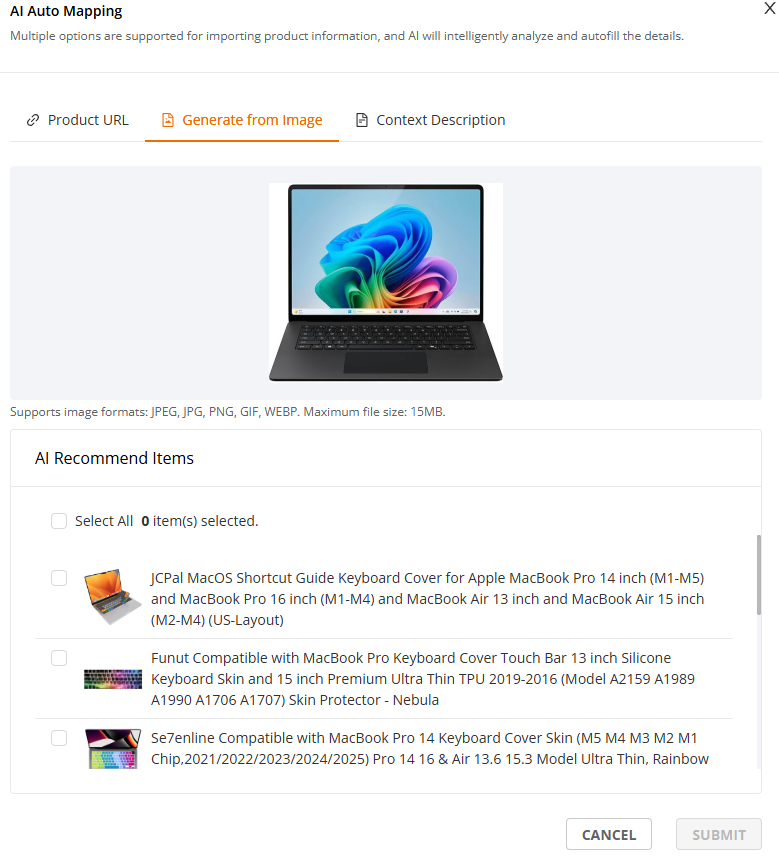
          • (2) Generate from Image (Product Image Mode)
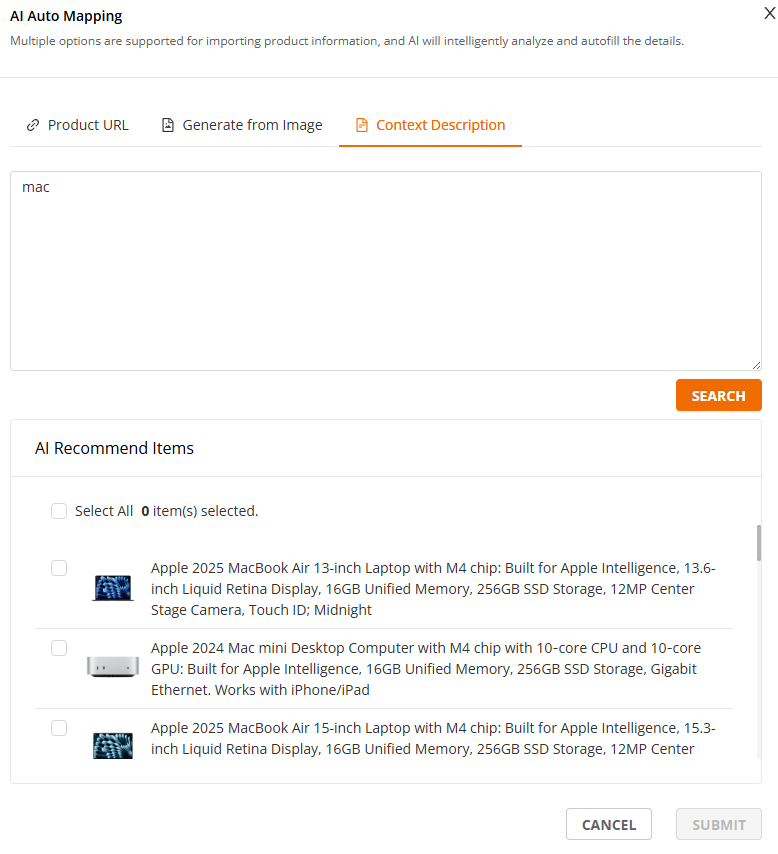
          • (3) Context Description (Text Mode)
      • Other Features
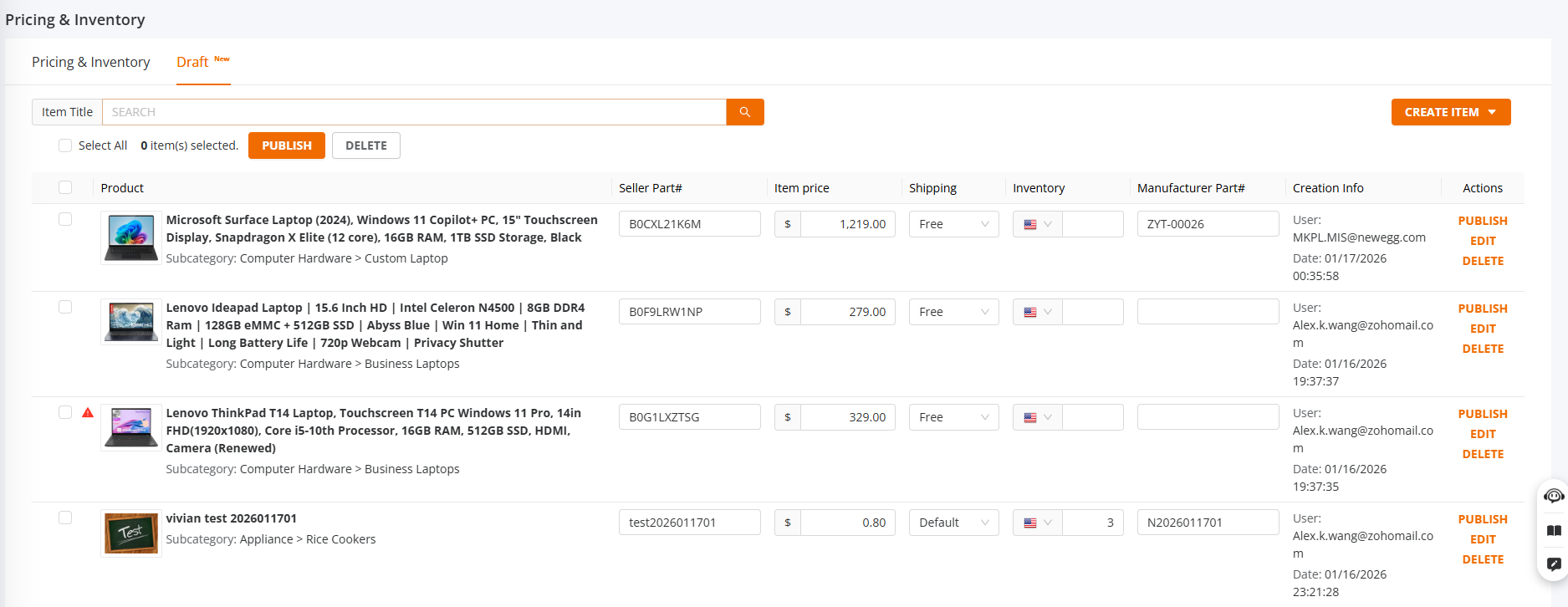
        • 1. Draft List
        • 2. Draft Search
        • 3. Quick Publish
        • 4. Edit Draft

Video Tutorial

This function will allow you to create an item not currently listed in your account.

IMPORTANT
During item creation for Manufacturer Part# and/or UPC(GTIN)  verified by GS1-US entered for specific Manufacturer/Brand:

  • If our system finds a match within our catalog, you will be prompted if you want to list the matched product.
  • If no match is found, the system will create a new listing based on your product information.
  • NOTE: If you’re selling an International Version item, please indicate on the listing on both the item description and specifications that the item is an “International Version”. For more information, please click here.

Available platforms: Newegg.com, Neweggbusiness.com, Newegg.ca

How-To:

Getting Started

Sellers can quickly and accurately create Newegg product listings through AI-driven product information mapping. Sellers can upload product data from other e-commerce platforms (such as Amazon, eBay, Walmart, and TikTok) or provide a product page URL directly. The system automatically parses the product content, extracts key information, intelligently maps product attributes to Newegg’s category standards, and pre-populates a product draft—significantly improving listing efficiency.

Sellers can choose to do a regular Manual Create or to use AI Auto Mapping

Manual Create

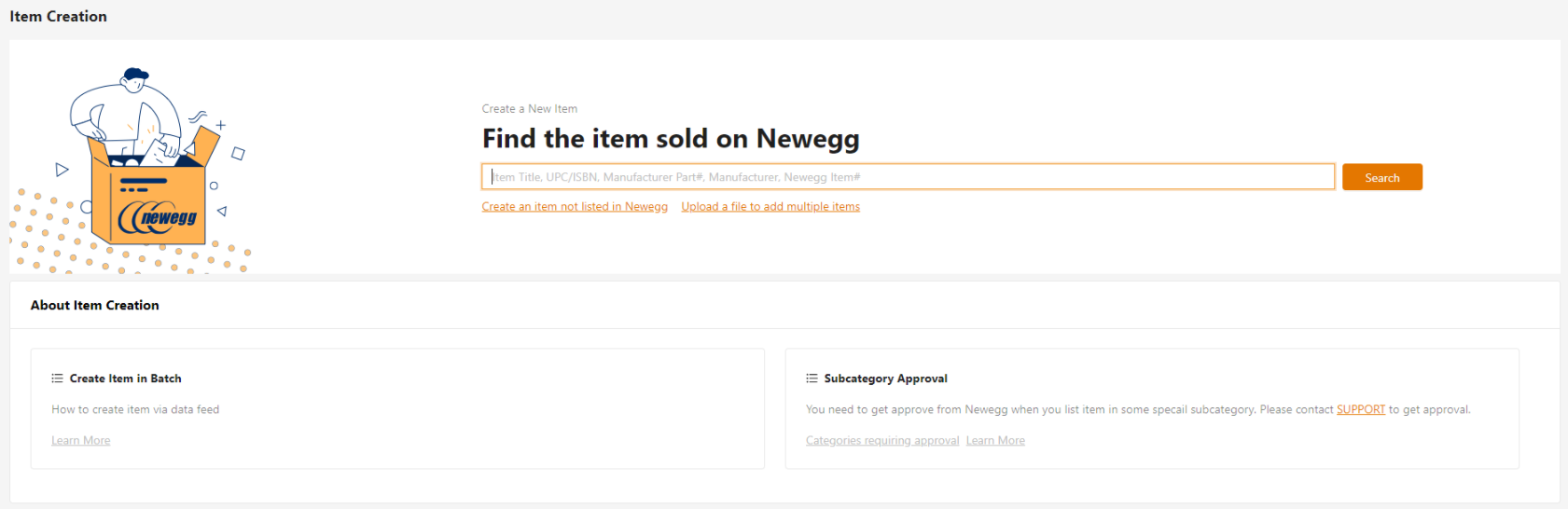
  1. Go to Seller Portal and hover your mouse pointer over the list icon (upper left corner) then select Items > Item Creation.

  2. Select “Create an item not listed in Newegg”.
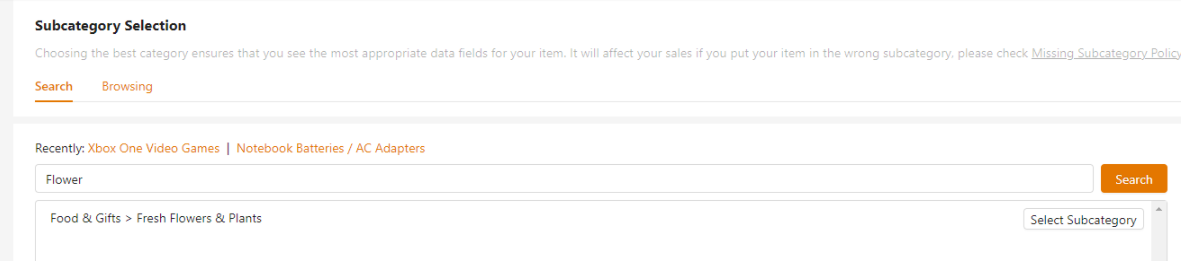
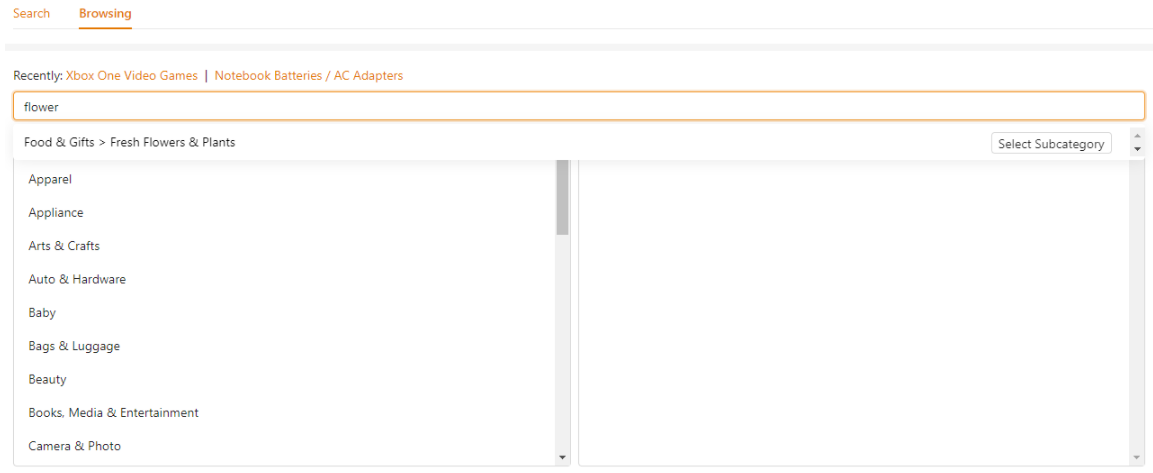
  3. You must select a subcategory, there are two ways to do this Search or Browsing.
    1. Search by item-related information to get the subcategory you want.
    2. Browsing manually select the Industry and Subcategory.
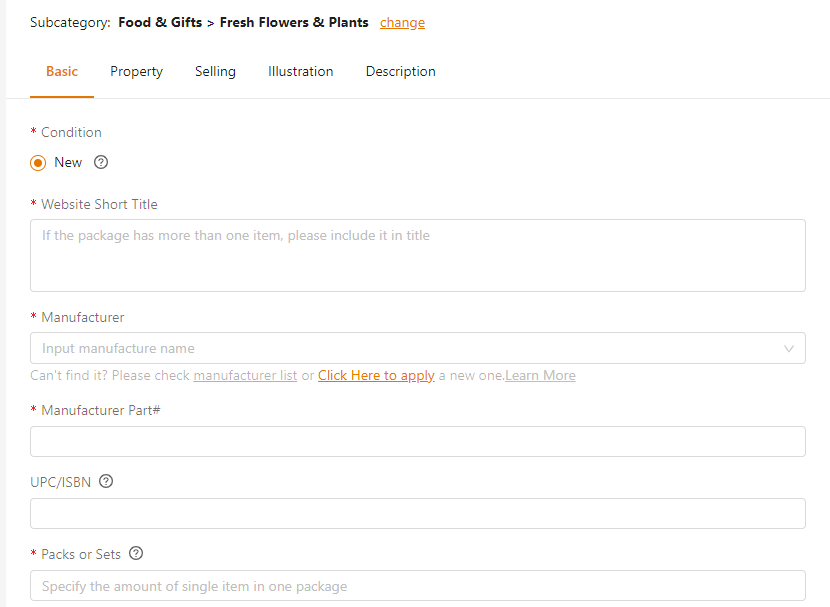
  4. Item information with a (*) red asterisk for Basic, Property, Selling, Illustration, and Description sections are required fields and you are required to enter it to create the item.
Basic Information
  1. Basic: The basic information that you will enter about the product includes item condition, title, manufacturer, manufacturer part number, UPC, and packs or sets.  
      • For some specific subcategories, UPC is enforced meaning you are required to enter a valid UPC for the product.  List of subcategories enforced UPC:
        • SubCategoryCode Description
          14 Hard Drives
          20 Monitors – LCD Flat Panel
          147 Memory (Desktop Memory)
          233 Accessories – Monitors
          343 Processors – Desktops
          380 Hard Drives – Notebooks / Laptops
          381 Memory (Notebook Memory)
          414 Hard Drives – Desktop External
          514 Monitors – Touchscreen
          540 Intel Processors
          541 Memory (Server Memory)
          542 Memory (Gaming System Memory)
          3568 Gaming Monitors
          3360 Hard Drives – Portable External
          3236 Wireless Attached Storage
          3016 Processors – Servers – Processor Servers
          3050 Server – System Processors
          2021 Solid State Disk – Enterprise
          2022 Solid State Disk – External
          759 Processors – Mobile
          727 Processors – Server
          543 Memory (System Specific Memory)
          551 Mac – Memory
          552 Mac – Storage
          636 Solid State Disk

          If your item needs to be considered UPC Exempt, please follow the guide here.

          These are the required proofs accepted for UPC exemption review:

          • Seller must provide brand sales authorization documents from direct manufacturer
          • Clear visible UPC exemption authorized documents from manufacturer (if available)
          • Physical product and product packaging
          • USPTO # registered
          • Photos of the actual product and images of ALL angles of the packaging
          • Image must show Brand name and labels on the packaging
          • Product subcategories – indicate how many subcategories seller is providing
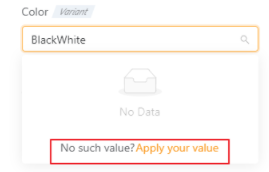
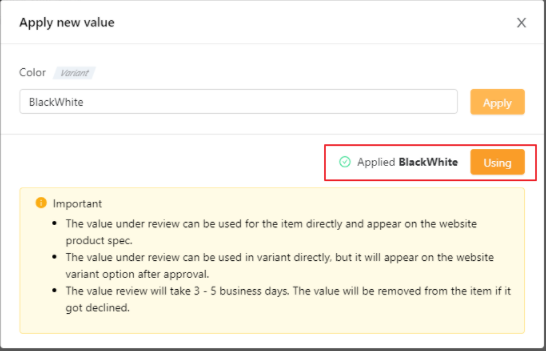
      1. Property: The subcategory-specific properties. For required and/or variant properties, if you can’t query the value then you can request to add it.  See the steps below to learn how to add a new value.
      2. Click Apply your value.
      3. Enter in your value then click the Apply button and once the system accepts the value, click the Using button to use it directly.
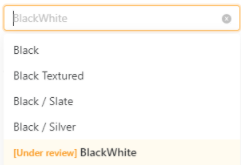
      4. The value will show as Under Review in the value list.  Note: The value will not be shown on the product page till it is approved.
      5. Price & Inventory
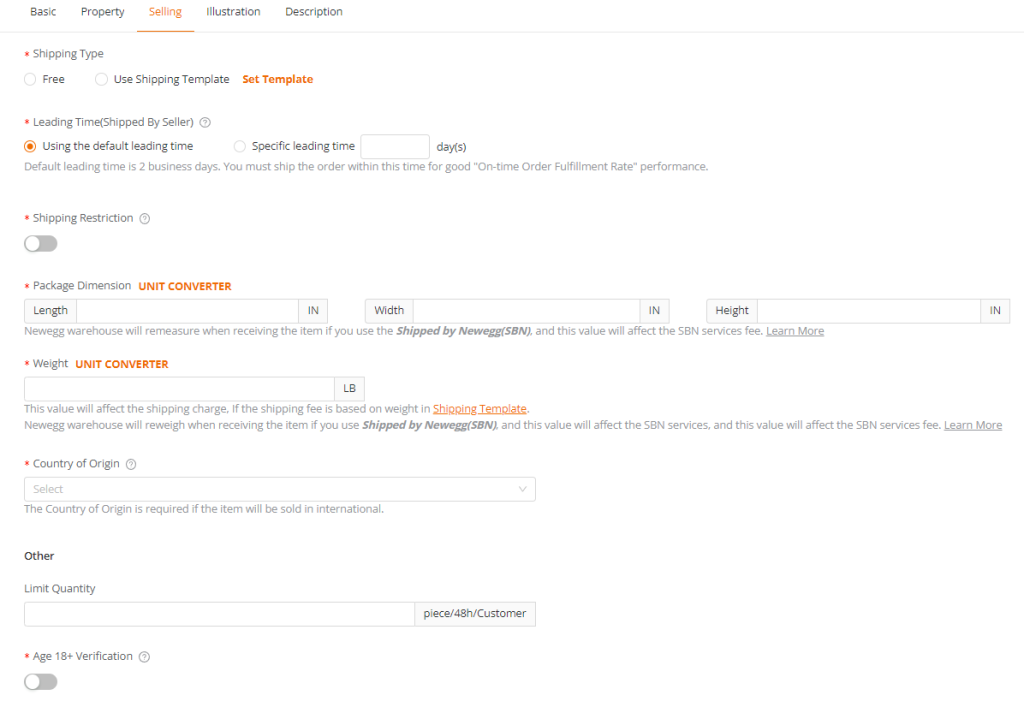
      6. Selling Information: Shipped by Seller settings which you’ll set Shipping Type, Lead Times, Shipping Restrictions, Package Dimension, Weight, and Country of OriginNote: The maximum allowed lead time is 14 days for the following sub-categories only while maximum allowed lead time for the rest of the other sub-categories is 2 days:
        1. Desktop PCs
        2. Notebooks
        3. 2-in-1 Laptops
        4. Gaming Notebooks
      7. Illustration: Add up to 7 images. Image requirements:
        Format: JPG, JPEG, GIF, PNG
        Dimension: No less than 640 * 480 (Width * Height)
        Size: No more than 5 MB
      8. Description: Include a bullet and product description of the product.
      9. California Proposition 65 Warning (applicable to brand owners and item creator) – If you’re the brand owner or the item creator, you’ll have the option to include or remove a California Prop 65 warning.
        1. To add, click on “Add California Proposition 65 Warning” and then select the applicable warning message

        2. To remove, click the minus button next to the warning message
      10. Contains Embedded Battery – A California Covered Embedded-Battery (CBE) product is one containing a battery that is not designed to be easily removed by the user with no more than commonly used household tools. For example, a smartphone with a battery that is not designed for easy user removal would generally be considered a CBE product.A manufacturer is responsible for making determinations regarding which of their products fall within the definition of a CBE product. Retailers may consult with their manufacturer for specific products that meet the statutory definition of a CBE product.

        The field that the item list uses is titled Contains Embedded-Battery

        CBE products do NOT include the following:

        • Covered electronic device subject to the eWaste recycling fee (video display devices)
        • Certain medical devices
        • Certain energy storage systems
        • Electronic nicotine delivery systems
        • Click here for the current list of identified CBE products.

2. Click Submit button to send the request to create the item.

Once you’re done creating your items, enroll in A+ Content to enhance your content for these product pages. Click here to learn how to enroll and get started.

AI Enhanced Item Description

It is now possible to almost eliminate the labor of creating quality content for your product’s item description. Newegg helps you leverage the power of AI for enhancing your description, bullet points and images, as well as unlocking multilingual capabilities.

NOTE: Please know that your AI Writer assistance will be limited to 50 submissions a day per account.

How To:

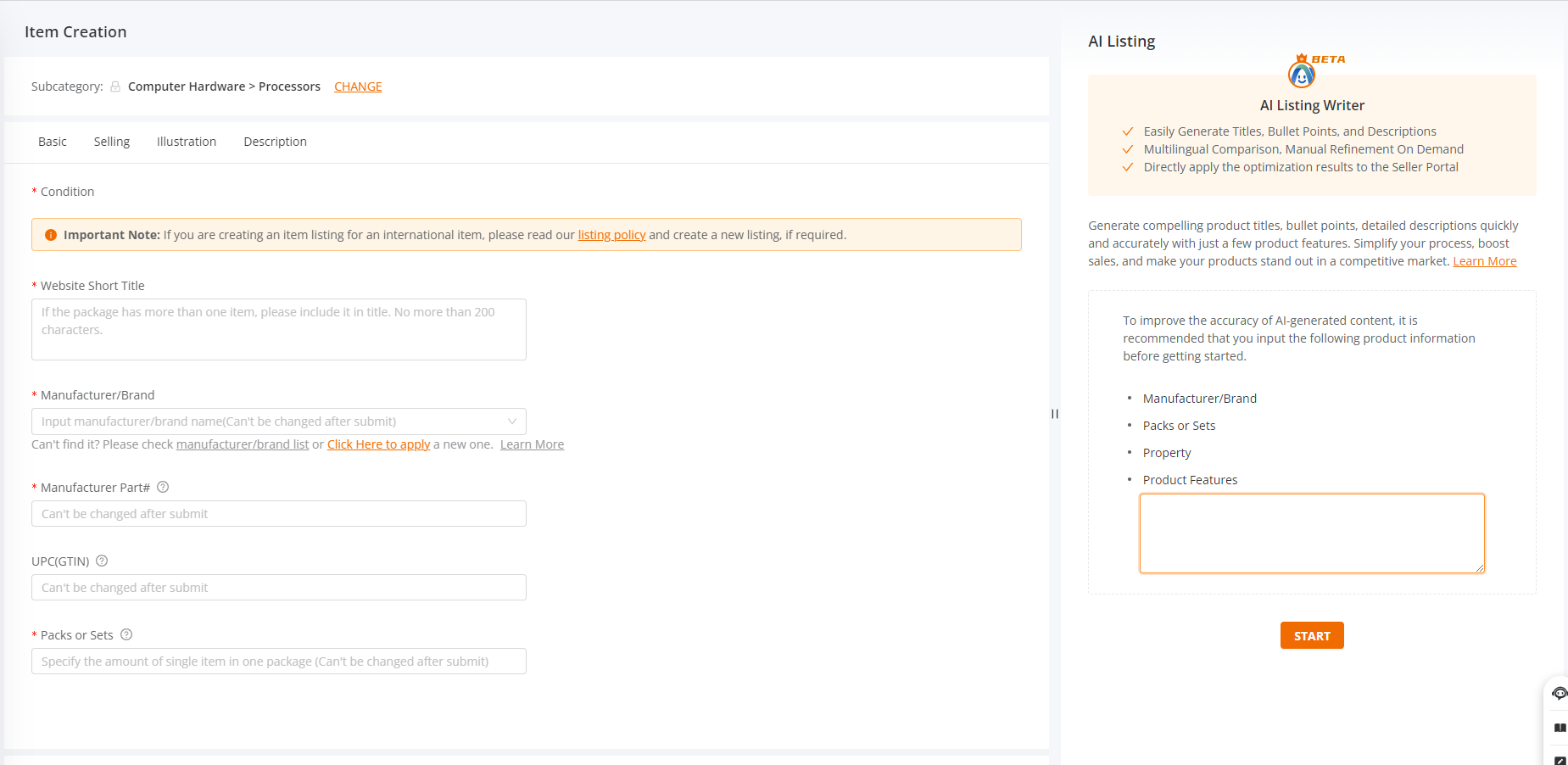
  1. Go to Seller Portal and hover your mouse pointer over the list icon (upper left corner) then select Items > Item Creation.
  2. Select “Create an item not listed in Newegg (AI New).
  3. Sellers can use the AI Writer will be listed on the right side.
  4. Seller needs to provide Manufacture/ Parks Or Sets/ Properties (If any)/ Product Features before click Start.
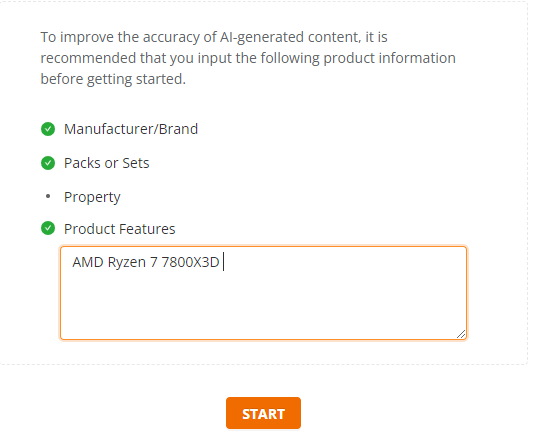
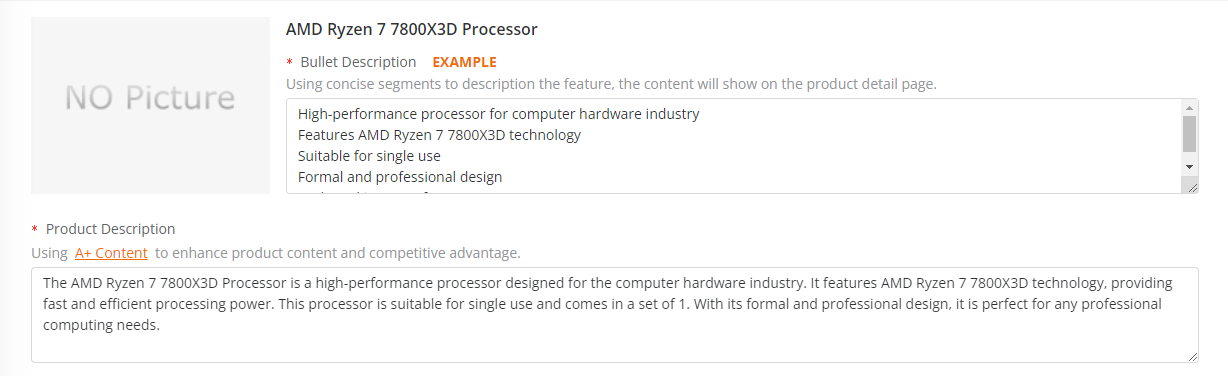
    • Seller can review the content generated by AI and if the seller is not satisfied with the result, the seller can click the Regenerate button to get a new result.
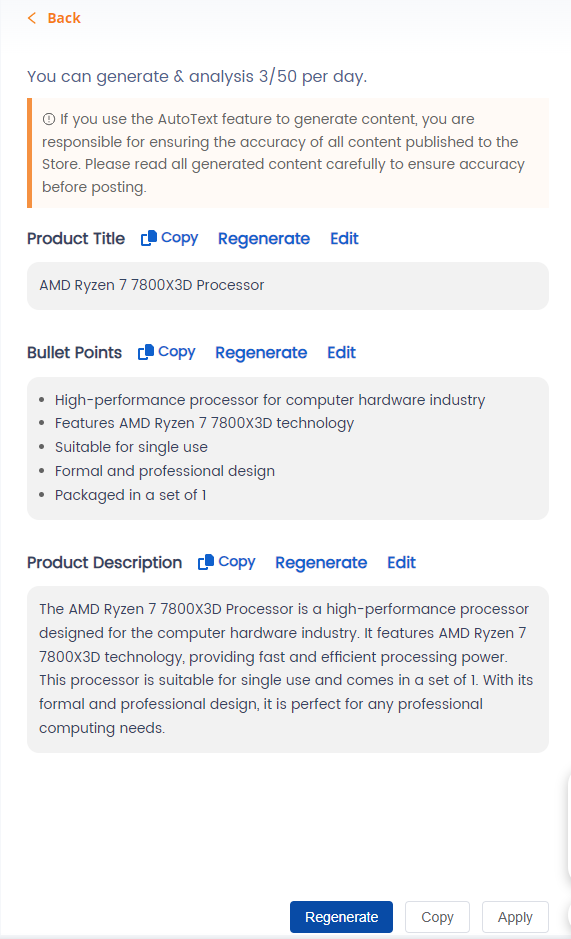
  5. If seller does satisfy the result, the seller can click the apply button, the system will copy the data to the related fields.

AI Auto-Match

After selecting AI Auto-Match, the AI Draft Creation side panel opens.
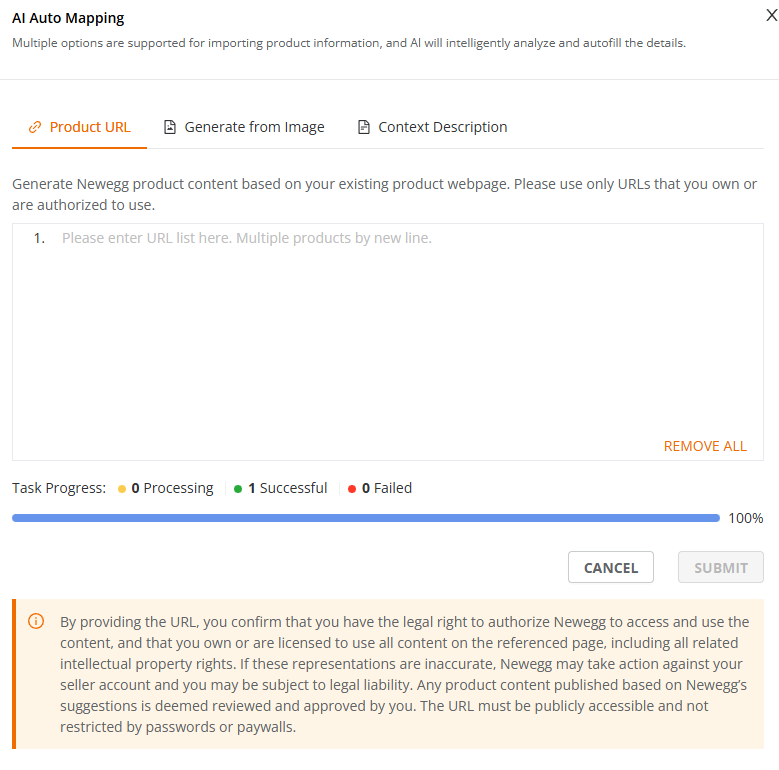
Disclaimer (prominently displayed in the side panel):

    • The system will generate Newegg product information based on the product webpage you provide.
    • Please use only webpages that you own or for which you have obtained lawful authorization.

By providing a URL, you represent and warrant that:

        • You have the legal right to authorize Newegg to retrieve information from the URL and provide product information suggestions to you;
        • You are the owner of the content on the URL page, or you have lawfully obtained authorization to use it, including rights related to trademarks, copyrights, patents, and other relevant intellectual property;
        • If you fail to accurately declare the relevant rights, Newegg reserves the right to take appropriate actions against your seller account, and you may be subject to corresponding legal liabilities;
        • If you publish product information generated based on Newegg’s suggestions, it will be deemed that you have completed your review and confirmed that the content is true, accurate, complete, and compliant with applicable laws, regulations, and Newegg platform policies.

Notes:

      • The provided URL must be publicly accessible
      • No passwords, paywalls, or other access restrictions are allowed
Draft Creation Methods

Currently, the following three methods are supported for creating product drafts:
Product URL, Generate From Image and Context Description.

(1) Product URL (Link Mode)
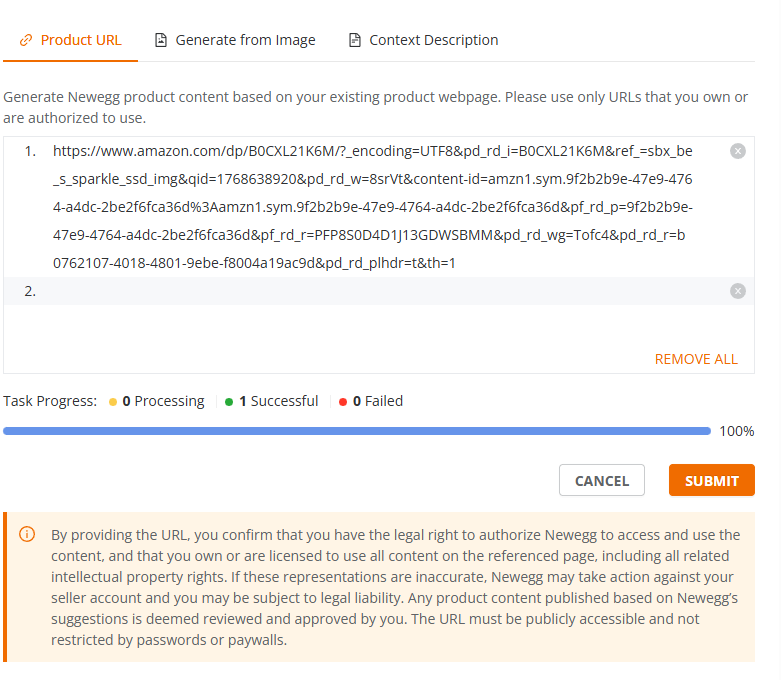
    • Supports entering multiple URLs of your own products
    • The system automatically parses the pages and generates corresponding product drafts
    • Copy URLs into the dialog text box and click the [SUBMIT] button.
(2) Generate from Image (Product Image Mode)
    • Based on the product images you upload, AI generates product information
    • A list of product drafts is produced for user selection
(3) Context Description (Text Mode)
    • Based on the product text description you provide, AI parses the content
    • A list of product drafts is generated for user selection
After submitting a task, the system displays the processing status for each :

  • Processing
  • Completed Successfully
  • Failed

Notes:

  • After submission, the task list can be closed.
  • Successfully processed product drafts will automatically appear in the Draft List.
  • Only one task of each type can be submitted at a time. A new task cannot be submitted until the previous one is completed.
  • Reopening the side panel allows you to view task progress.

Other Features

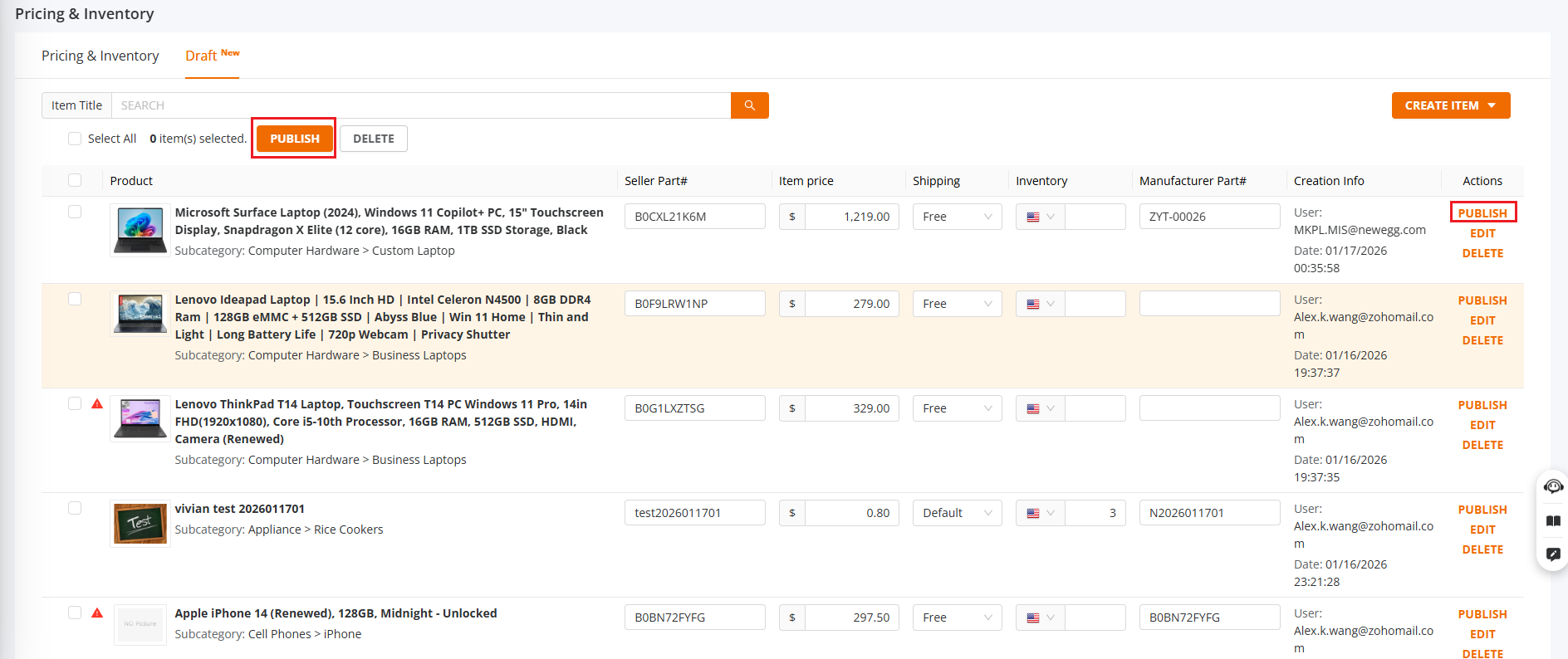
1. Draft List

Supports viewing drafts created from:

  • Seller Portal
  • External imports (AI-generated drafts)

What it does: The system highlights missing key information. Hovering over a warning displays detailed messages. Sellers only need to fill in the required fields as prompted to quickly complete product publication.

2. Draft Search

What it does: The Drafts page supports quick search by product title.

3. Quick Publish

What it does: When using Quick Publish, sellers only need to provide the following information on the draft page:

  • Seller Part Number
  • Selling Price
  • Shipping Method
  • Inventory Quantity
  • Manufacturer Part Number

After completion, the product can be published.

4. Edit Draft

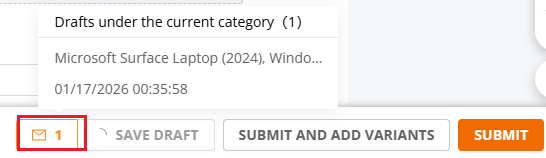
What it does: Supports quick switching and editing of the current draft via the Draft icon.

Click Publish to post the draft. After editing, the product can be published directly.
Click Edit to enter the product editing page and make changes.
Click Delete to remove the draft.
Updated on January 22, 2026
Tagged: 65AIartificial intelligencecontains embedded batteryContentCreate itemCreate Item 3.0GS1GTINportal item createprop 65proposition 65seller portal navigationUPC exemption

Was this article helpful?

Yes No

Related Articles

  • Listing Quality Score
  • Seller Certificate of Insurance
  • Seller Payment Disbursement
  • Seller Account Registration
  • Create Existing Item 3.0
  • Update Ownership and INFORM Act Information
  • Seller Success Guide
  • Marketplace Policies
    • Prohibited Seller Activities
    • Prohibited Items List
    • Firearms, Weapons, and Knives Policy
    • Offensive Content Policy
    • Miscategorized SKU Policy
    • Inaccurate Content and International Version Products Listing Policy
    • Refurbished Items Policy
    • Restocking Fee Policy
    • Website Short Title Policy & Guidelines
    • Product Description Policy and Guidelines
    • Content Ownership – Item Creation & Modifying Existing Item Content
    • Product Image and Video Policies and Guidelines
    • Seller Logos
    • Search Engine Optimization (SEO) Guidelines
    • Customer Payment Chargebacks
    • Marketplace Chargeback Guide
    • MATCH List
    • Chargeback Reason Code
    • Shipped by Newegg (SBN) Inventory Reimbursement Policy
    • California Proposition 65 (CA Prop 65) Compliance & Warning Clause
    • California Covered Battery-Embedded (CBE) List
  • New Seller Account Registration
    • Seller Account Registration
    • Update Ownership and INFORM Act Information
    • Update Financial Information
    • Update Credit Card Information
    • Update Business Information
    • Updating Return Policy and Information
    • Update Return Policy & Info (B2B, CAN)
    • Update Shipping Methods and Rates
    • Update Shipping Methods and Rates (B2B, CAN)
    • Seller Logos
    • Create New Item 3.0
    • Create Existing Item 3.0
    • Seller Payment Disbursement
    • Seller Certificate of Insurance
  • Account
    • Vacation Settings
      • Vacation Mode 3.0
    • Account Settings
      • Update Business Information
      • Update Financial Information
      • Add/Update Address Information
      • Add/Update Seller Notification Email Settings
      • Login Email & Password Reset
      • Add User
      • Manage User Access
      • Disable User
      • Product Subcategories Reference List
      • Update Credit Card Information
      • Update Return Policy & Info (B2B, CAN)
      • Update Ownership and INFORM Act Information
    • Membership Settings
      • Elite Seller Program
    • Data Feed Settings
      • API Access Authorization – Requesting API Credentials
      • Global Price Sync
    • Shipping Settings
      • Add or Update Fulfillment Center
      • Prioritize Fulfillment Center
      • Updating Return Policy and Information
      • Updating Inventory Return Address on Newegg.com
      • Update Shipping Methods and Rates
      • Update Shipping Methods and Rates (B2B, CAN)
      • Setup Newegg International Shipping Program
      • NISP
      • Remove Newegg International Shipping Program
      • Update Warehouse/Fulfillment Center (B2B, CAN)
      • Update Tax Settings (CAN)
      • Enable or Disable Newegg Return Service
      • Update Shipping by Item Level
  • Seller Portal Home Navigation
    • Seller Portal Interface & Navigation 3.0
    • Seller Quote Confirmation
  • Items
    • Pricing & Inventory
      • Updating Items 3.0
      • Update Active/Inactive Items 3.0
      • Update Pricing and Inventory 3.0
      • Create Individual Product Variations 3.0
      • Create/Update Product Variant Groups 3.0
      • Favorite Listing 3.0
      • View Items 3.0
      • View Items
      • Customize Item List
      • Update Active/Inactive Items
      • Update Item Content
      • Update Price Information and/or Shipping
      • Check Available Quantity
      • Update Available Quantity
      • Delete Items
      • Setup Third-party Warranty per Item
      • Removed Listings
      • View Estimated SBN Fee
      • View Local & USD Currency
      • Add Sales Area
      • Automate Pricing
      • California Energy Commission (CEC) Regulations
      • Creating Items with Customized Upgraded Parts
      • Listing Quality Score (LQS): Improve Your Listing Quality and Sales Performance
      • Managing B2C–B2B Product Sync
      • Share Feature in Pricing & Inventory
    • A+ Content
      • A+ Content Portal User Guide
      • One-Click A+ Content Image Generation
    • Item Creation
      • Create New Item 3.0
      • Create Existing Item 3.0
      • Listing Quality Score
    • Batch Item Creation/Update
      • Batch Create New Items
      • Batch Create Existing Items
      • Batch Update Items Contents (Basic and Subcategory Information)
      • Batch Update Items Contents (Basic Information)
      • Batch Group Related/Variant Items
      • Batch Item Deletion
    • Batch Update Price
      • Batch Update Items Price, Shipping, Limit Quantity and Activation
      • Batch Update International Price
      • International Price Mirroring
      • Global Price Sync
    • Batch Update Inventory
      • Batch Update Items Inventory per Fulfillment Center
      • Batch Update Items Inventory, Price, Shipping, Limit Quantity and Activation (B2B, CAN)
    • How to Create Product Variations
      • Create/Update Product Variant Groups 3.0
      • Create Individual Product Variations 3.0
      • Batch Group Related/Variant Items
    • Volume Discount
      • Create Volume Discount
    • Batch Warranty Settings
      • Setup Third-party Warranty by Batch
    • Pricing Safeguards
      • Account Safeguard Setting
      • Item Safeguard Setting
      • Price Alter
      • Batch Item Price Safeguard
    • Manage Your Delivery Time
    • Video Managment
      • Add Videos on Product Detail Page
  • Orders
    • Order List
      • Order List 3.0 User Interface
      • Ship Order 3.0
      • Edit Shipment and Updating Your Tracking Number
      • Cancel Items in Order 3.0
      • Newegg International Shipping Program Ship Order
      • Batch Print Order Packing List or Commercial Invoice
      • Issue Courtesy Credit
      • View Order Processing History
      • Newegg Authorized Carriers
      • Buy Shipping Labels
      • Attention: Inventory Rollback
      • Edit Multi-Channel Seller Order ID 3.0
    • Return List
      • Create Return Merchandise Authorization and Returnless Refund 3.0
      • Complete Return Request
      • Appeal Types and Use Cases
      • Edit Return Merchandise Authorization
      • View Return Process History
      • Edit Return Merchandise Authorization from Replacement to Refund
    • Pre-order List
      • Create and Manage Pre-orders
    • Batch Ship Order
      • Batch Process Unshipped Orders
    • Create Multi-Channel Order (SBN Management Only)
      • Create Multi-Channel Order
    • Signature Options
      • Newegg Shipping Label Service
      • Multi-Channel Order
    • Claims
      • View & Resolve Claims
    • Appendix Obtaining Additional Order Information Report
  • Messages
    • Messages 3.0
    • View Customer Message
    • Customer Message Reply/Send
    • Send Message to Customer
  • Manage Store
    • Manage Store (Non-Elite Sellers)
    • Manage Premium Store
  • Marketing Tools
    • Promotions
      • Submit Newegg Campaigns
      • Newegg Promotion Dashboard
      • Add Product Discounts (General Promotions)
      • Batch Create Product Discounts (General Promotions)
      • View and Update Product Discounts (General Promotions)
      • Create Promotion Code
      • View and Update Existing Promotion Codes
      • Batch Create Promotion Codes
      • Feature: Free Gift Auto Add-to-Cart (AATC)
      • Combo Promotion
    • Newegg Attribution
    • Campaigns
      • Campaign Types
    • Post Purchase Email
      • Manage Post Purchase Email (Enterprise Sellers)
    • Search Engine Marketing
      • Sponsored Products Ads – Seller Search Engine Marketing (SEM) Tool
    • Sponsored Ads
      • Automated Offsite Ads – Sponsored Ads
      • Create a Sponsored Brand Ad
      • Create a Sponsored Display Campaign
      • Create a Sponsored Product Ad Campaign
      • Create Sponsored Video Ads Guide
      • Sponsored Ads Negative Product Targeting
  • Shipped by Newegg
    • Shipped by Newegg (SBN) & Shipping Settings
    • Work on Shipment List for Newegg Warehouse – Shipped by Newegg (SBN)
    • View Inventory Dashboard
    • View Received History
    • View Replacement Reports
    • Updating Available Quantity for Shipped by Newegg
    • Share SBN Inventory between B2B/B2C
    • How to Create a Return Inventory Shipment
    • View Newegg Return Service Report
    • Enable Signature Services for SBN
    • Get Alerted when Shipped by Newegg Inventory is Low or Out of Stock
    • Automated Multi-Channel Order Fulfillment
    • Shipped by Newegg (SBN) Inventory Reimbursement Policy
  • Manage Offers and Quotes
    • B2C Offer Management
    • B2B Quote Management
  • Brands
    • Brands Enhancement
      • Add or Reference Manufacturer in Newegg Marketplace
      • Product Review
      • Claim Brand Ownership Request
      • Brand Authorization and Syndicated Reviews
      • UPC Exemption Application/Approval Process
  • Analytics
    • Sales Dashboard and Seller Traffic Report
    • View Sales
    • View Payment Reports
    • Reserved Balance
    • View Commission Rates
    • View Item Report
    • View Voided Orders Report
    • View Returns Report
    • View Sales by Region
    • View the Buybox Report
    • Unsold Listing Fees
    • Item Overage Fees
    • Return Report
  • Performance
    • View Seller Account Health Dashboard
    • Seller Review
    • Top Rated Seller
  • Integration and Service Partners
  • Seller Programs & Features
    • Program Introductions
  • Resources
    • Global Seller Payment Options
    • Agreements, Policies and Forms Information
    • Navigation List/Taxonomy Guide
    • User & Service Guides
    • Micromobility Device Products Testing and Certification Information
    • Product Recalls and Safety Information
  • Activate Global Shipping
    • Newegg Global Setup
  • Help
    • Newegg Chatbot
    • Seller Case Management
  • Manage Returns
    • Issue Courtesy Credit
    • Create Return Merchandise Authorization and Returnless Refund 3.0
    • Complete Return Request
    • Appeal Types and Use Cases
    • Edit Return Merchandise Authorization
    • View Return Process History
    • Edit Return Merchandise Authorization from Replacement to Refund
  • FAQ

Need Support?

Can’t find the answer you’re looking for? Don’t worry we’re here to help!

Contact Support

© Copyright NeweggMarketplace|Cookies Preferences