
Methods and Rates (B2B, CAN)
For sellers selling on Neweggbusiness.com or Newegg.ca platform as Shipped by Seller (SBS), sellers will be able to designate the shipping methods and rates. Here are the details:
- Sellers can set rates for local shipping or international shipping.
- If the seller is domestic, then local shipping rates will apply.
- If an international seller has a domestic SBS Warehouse Location, then local shipping rates will apply.
- If an international seller has an international SBS Warehouse Location, then international shipping rates will apply.
- Sellers cannot set shipping rates at an item level; all shipping charges will be applied to all items with Default shipping settings.
- There are different shipping methods available for Local Shipping and International Shipping. Please note this will be determined by the SBS Warehouse Location. Sellers may enable all or some methods; however, to activate a listing, at least one shipping method must be enabled. Each shipping method has a pre-defined shipping transit time Service Level Commitment (SLC):
- Local Shipping (Neweggbusiness.com only):
- Super Saver (7-14 business days) ONLY applicable to Neweggbusiness.com
- Standard Shipping (5-7 business days)
- Expedited Shipping (3-5 business days)
- Two-Day Shipping (2 business days)
- One-Day Shipping (Next day)
- International Shipping:
- International Economy Shipping (8-15 business days)
- International Standard Shipping (5 – 7 business days)
- International Expedited Shipping (2 – 5 business days)
Sellers can work with any shipping carrier and have its services support these shipping methods as long as the transit time SLC can be met and real-time tracking information can be provided.
Available Platforms: Neweggbusiness.com, Newegg.ca
How-To:
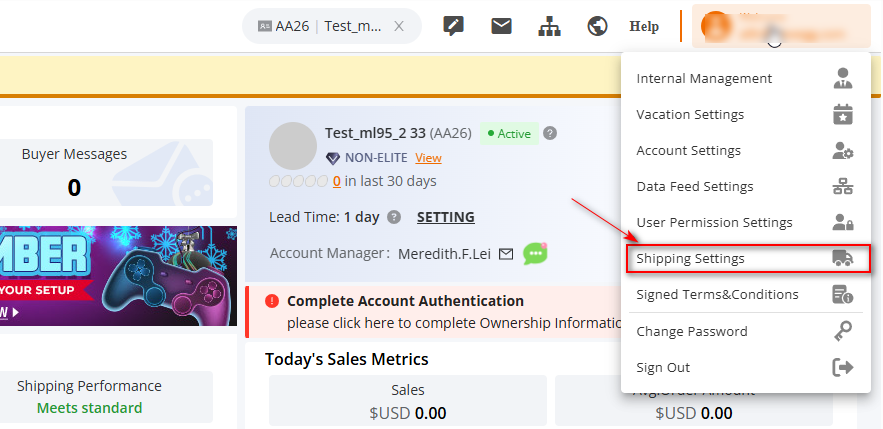
- Go to Seller Portal and hover your mouse pointer over your user name (upper right corner) then select “Shipping Settings” > click “NEXT” until the “Shipping Rate” section is reached.
- Domestic Seller Local Shipping:
- Set Shipping Model, and set shipping charge calculation:
- Order Amount: Shipping rate based on the total amount of order.
- Weight: Shipping rate based on the total weight of the order.
- Unit: Shipping rate based on the total units of order.
- Set Shipping Model, and set shipping charge calculation:

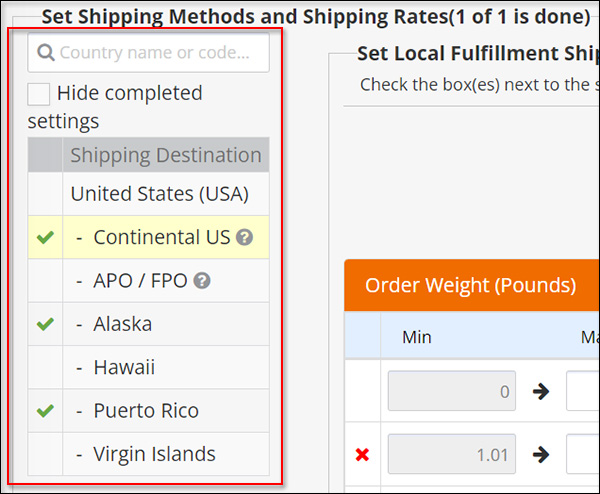
3. Select Shipping Destination, to apply local shipping methods and rates. Not applicable to Newegg.ca.
- Unchecked countries’ shipping rates have not been completed.
4. Set Fulfillment Shipping Rates:
-
-
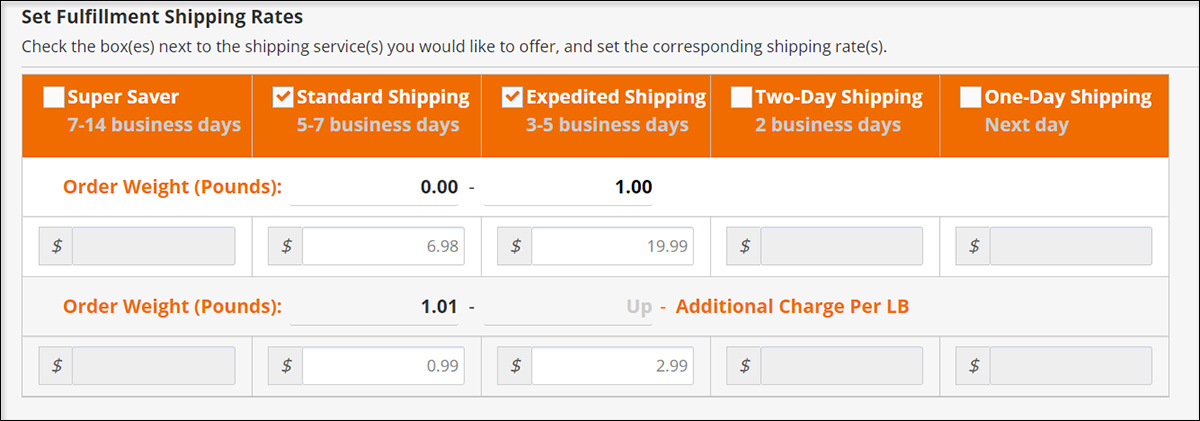
- Shipping Model (i.e. Order Amount, Weight, Unit), Shipping Services, and Rates table.
- Select a service for one or more services.
- Set min/max range based on the model.
- Set rates accordingly for each selected service.
- Shipping Model (i.e. Order Amount, Weight, Unit), Shipping Services, and Rates table.
-
-
-
-
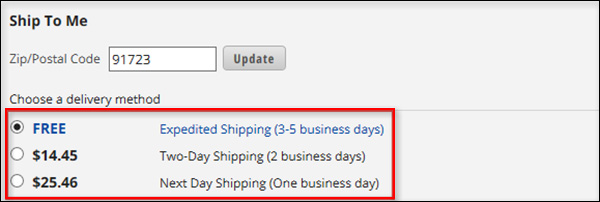
- Example from above shipping rates by Order Weight for a USA customer. If the order weight is greater than 0. On the checkout page on the Newegg website, shipping options will be available to customers.
-
-
International Seller International Shipping:
5. Set Shipping Model, and set shipping charge calculation:
-
-
- Order Amount: Shipping rate based on the total amount of order.
- Weight: Shipping rate based on the total weight of the order.
- Unit: Shipping rate based on the total units of order.
-
6. Set Fulfillment Shipping Rates:
-
-
- Shipping Model (i.e. Order Amount, Weight, Unit), Shipping Services, and Rates table.
- Select a service for one or more services.
- Set min/max range based on the model.
- Set rates accordingly for each selected service.
- Shipping Model (i.e. Order Amount, Weight, Unit), Shipping Services, and Rates table.
-
7. Click “SAVE” to update “Shipping Settings”.
Set Shipping by State (B2B)
Supported Scope
| Applies To: | Does Not Apply To: |
Domestic Shipping only |
|
Available Platform:
- Newegg.com, Newegg Business
How-To:
Shipping by State Settings
- Navigate to Seller Portal Profile > Settings > Shipping Settings
- Edit Regions : Select the states and regions that are necessary for your business, those that your account is setup for, or those that you’d like to begin to ship to.
- Add Shipping Rule : Define shipping cost & conditions
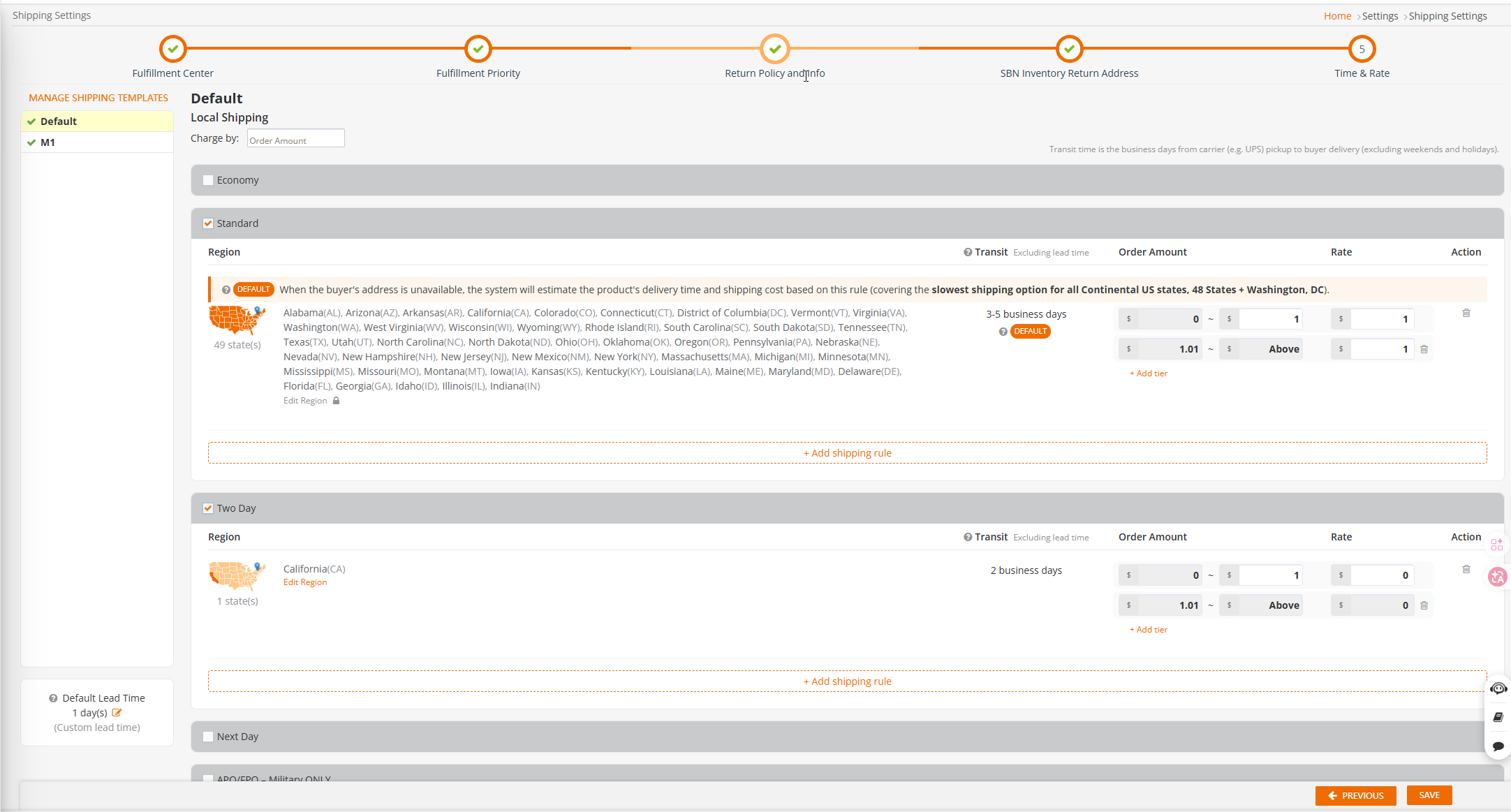
Set your configuration
- Select or Add Shipping Services
- Examples:
- Economy (5–7 business days)
- Standard (3–5 business days)
- 2-Day / Next Day

- Examples:
- Define Regions & Rules
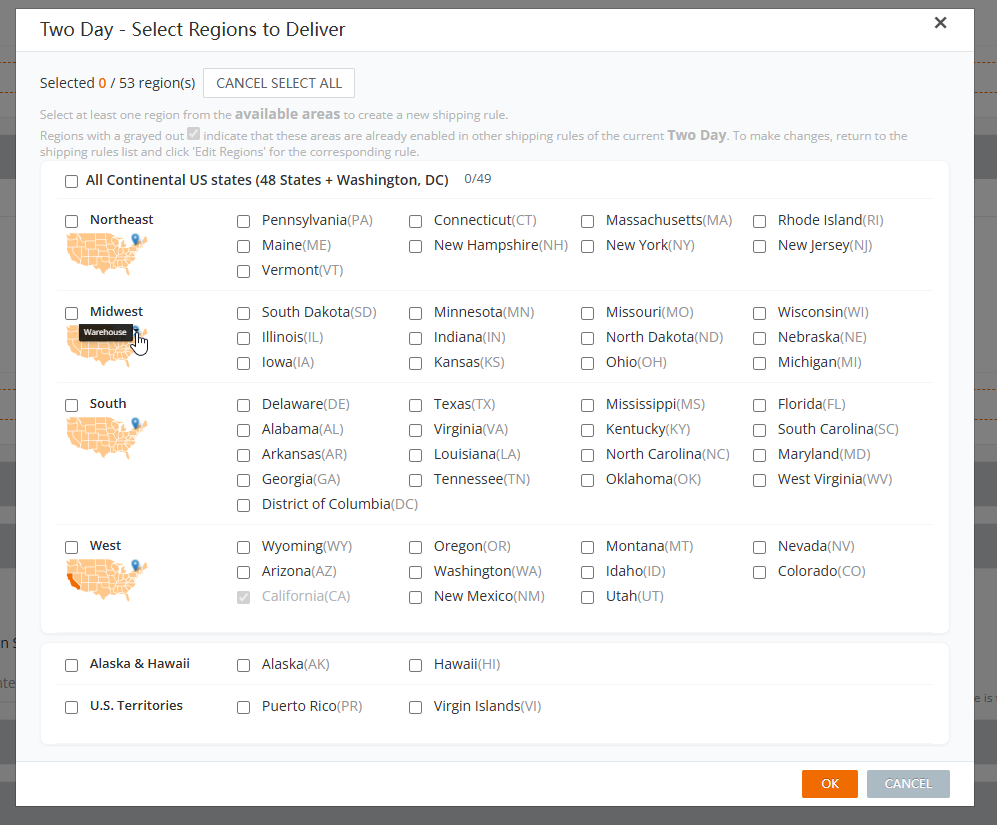
Click 「Edit Region」- Select states or regions
- Use quick selection:
- All Contiguous U.S. States
- West / Midwest / South / Northeast
- View warehouse location on map
- Configure Shipping Rates
Select the rates that are necessary for your business, those that your account is setup for, or those that you’d like to begin to ship under.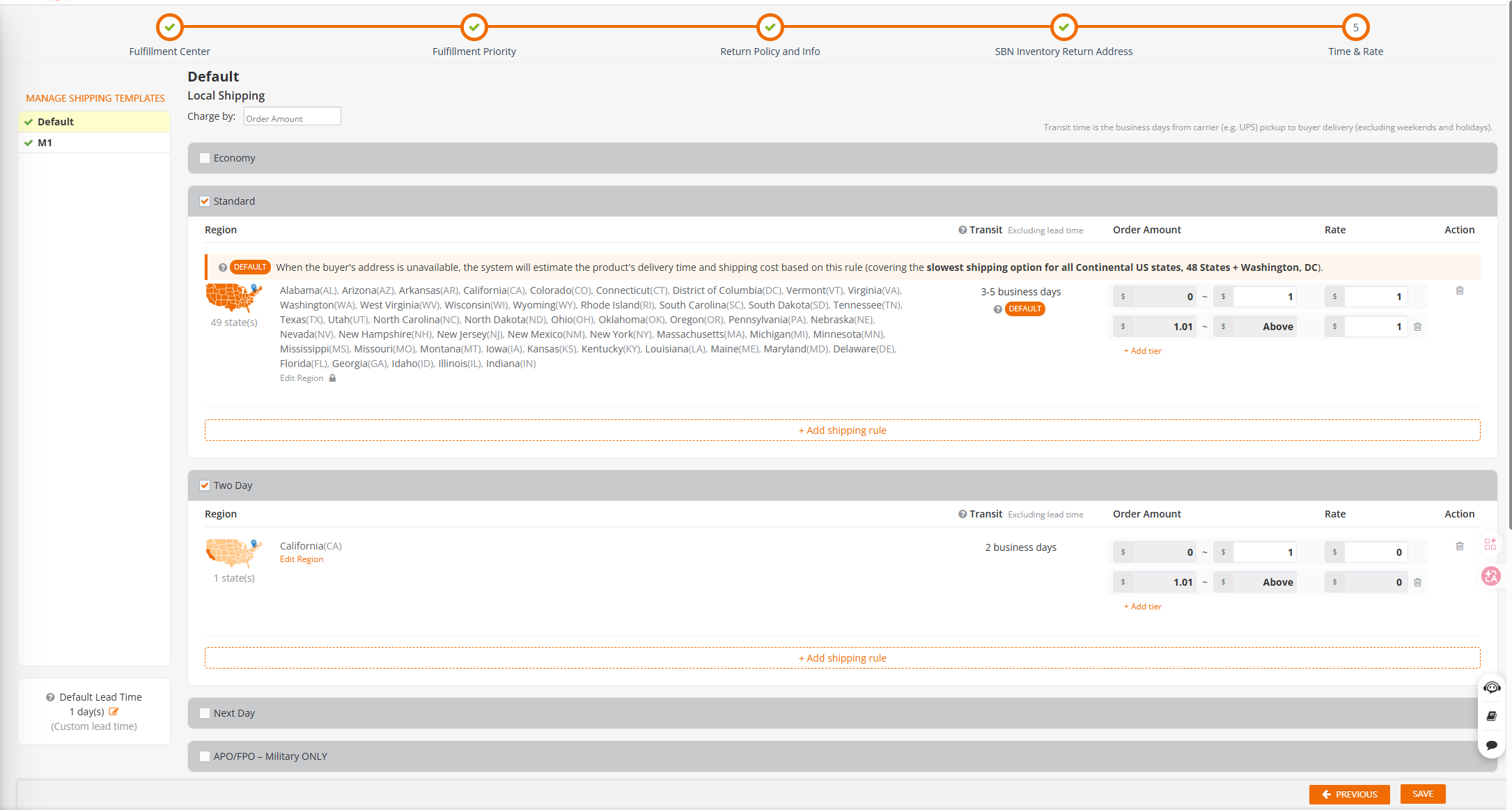
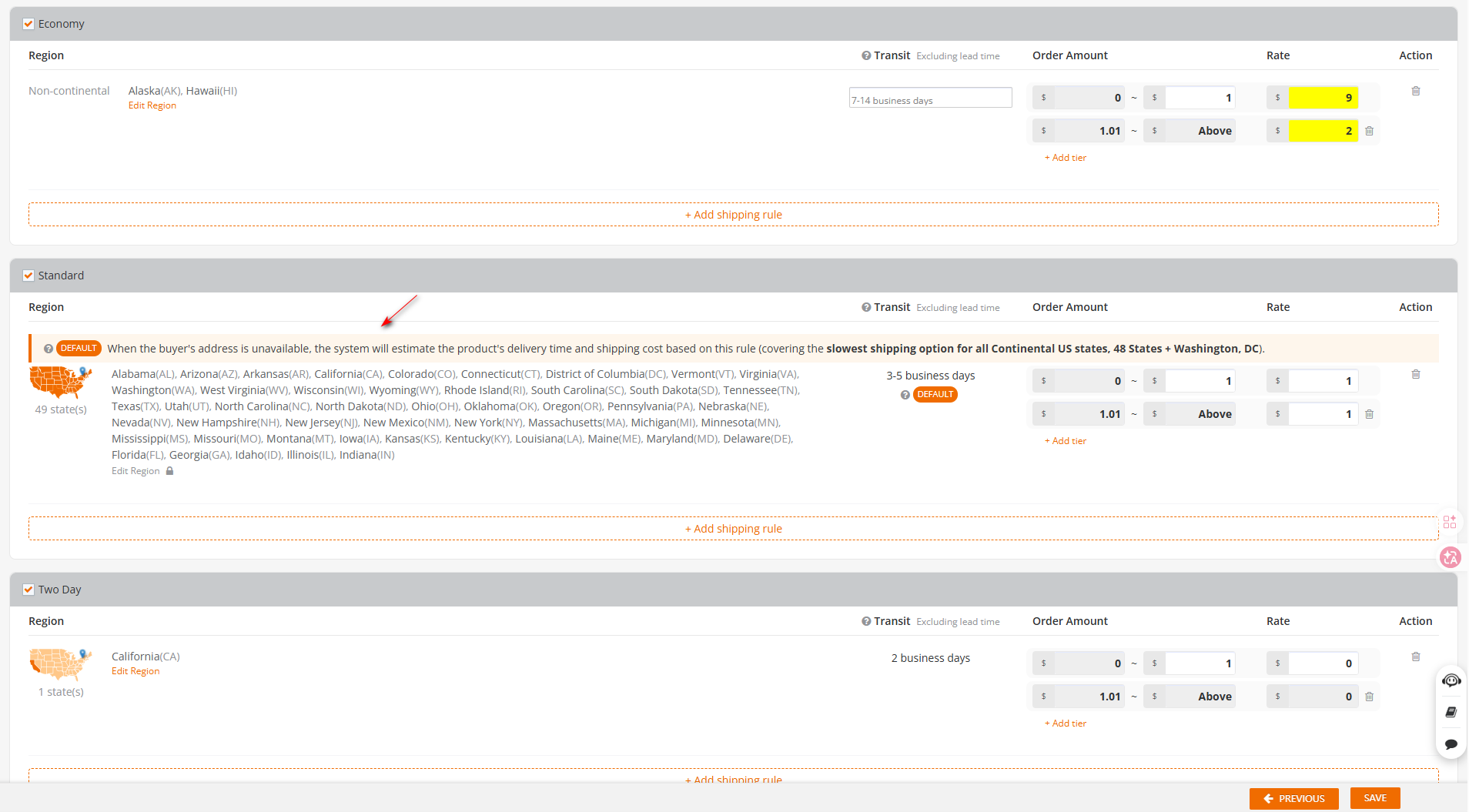
Default Shipping Rule
How It Is Determined
The system automatically identifies the slowest domestic shipping service as the Default Shipping Rule.
Used when:
- Buyer is not logged in
- No shipping address is selected
If Free Shipping is enabled → applies to default rule
Mandatory Requirements
- Full Coverage:
Must cover all 48 contiguous states + DC (49 regions) - Single Rule:
Must be configured in one rule with one unified shipping rate - Auto-switch:
If a slower service is added, it becomes the new default
Purpose
- Ensure accurate ETA estimation
- Maintain Free Shipping coverage
- Ensure system consistency
⚠️ Note:
This does NOT mean you can only use slow shipping
Faster services can still be configured and split by region
Shipping Services Overview
Local Delivery
| Service | Transit | Notes |
|---|---|---|
|
5-7 business days | Newegg Marketplace: 7–14 days supported for non-contiguous regions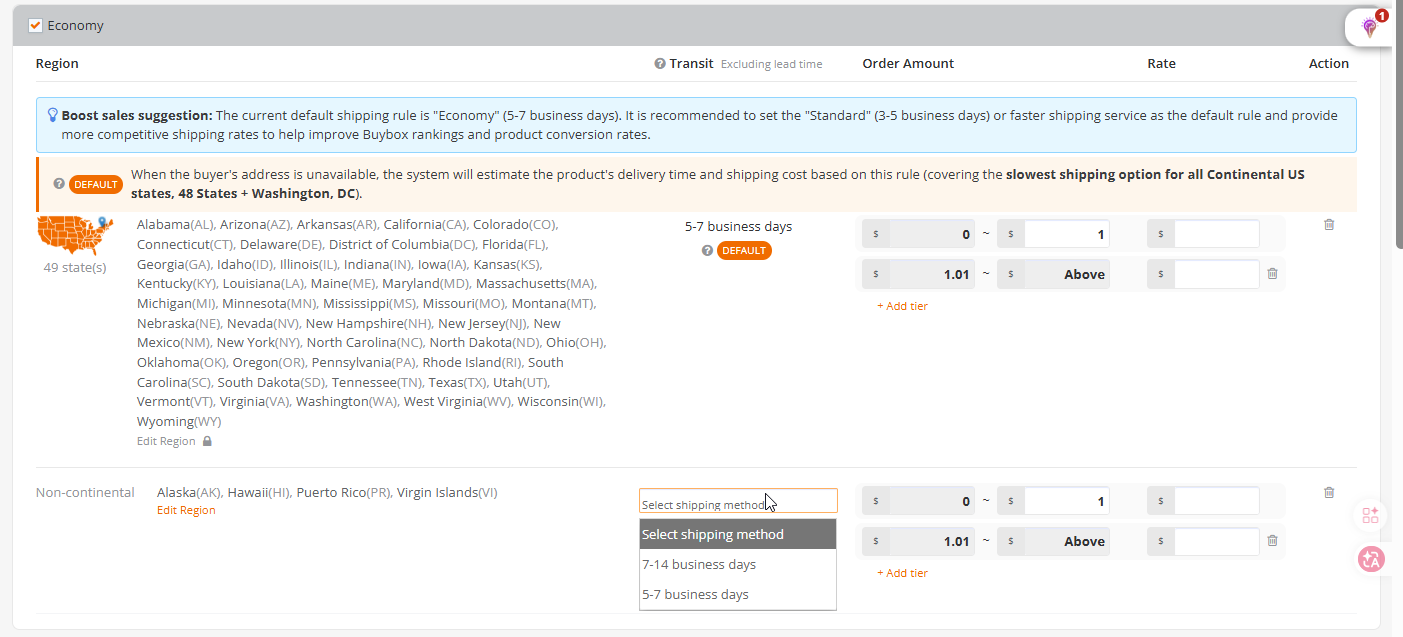 Newegg Business: All U.S. regions support two delivery time options. Newegg Business: All U.S. regions support two delivery time options. |
| 7-14 business days | ||
|
3-5 business days | |
|
2 business days | For nearby regions |
|
1 business days | |
|
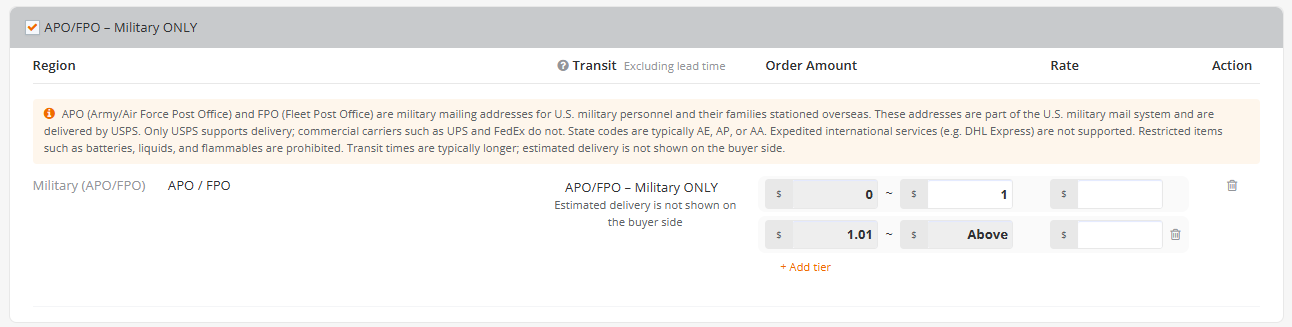
The estimated delivery time (ETA) is not displayed to buyers. | This shipping option is only available for Local (Domestic) shipping within the U.S.
It is not included in delivery performance metrics. |
International Delivery
| Service | Transit | Notes |
|---|---|---|
|
8-15 business days | |
|
5-7 business days | |
|
2-5 business days | |
|
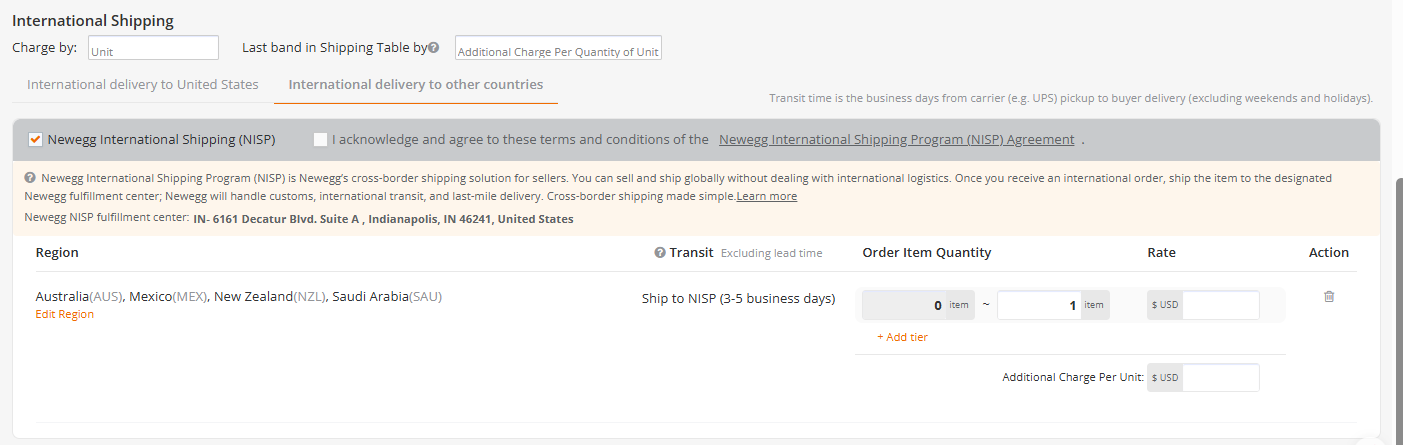
Ship to NISP (3-5 business days) | Only for Global shipping
Requirements:
Important:
|
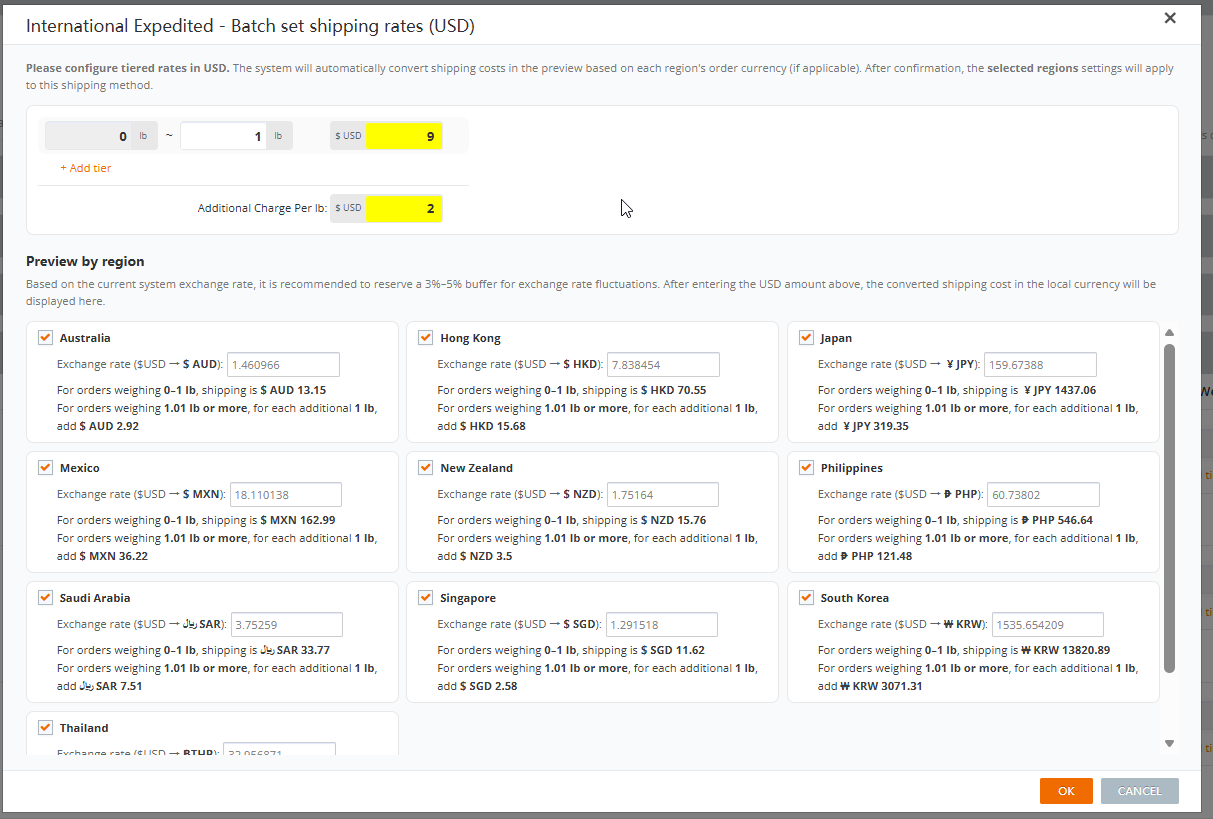
Global Bulk Shipping Rate Setup
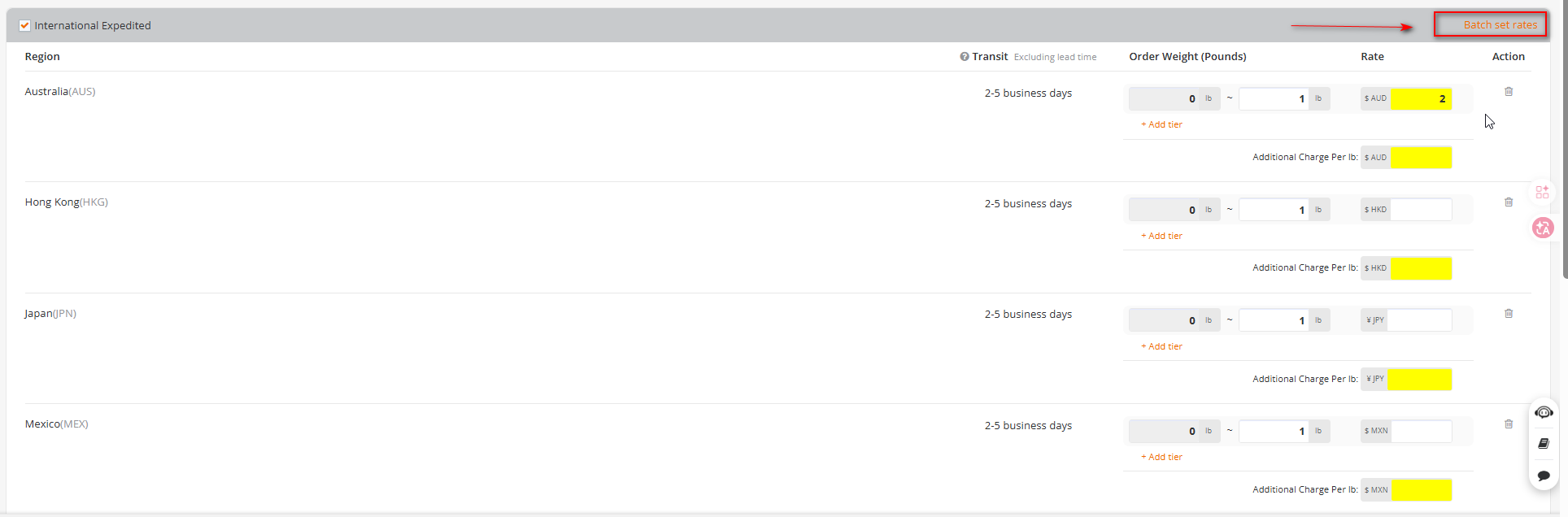
Designed to improve efficiency for multi-country shipping rate
Key Capabilities
- Sellers can enter their input rates in USD into the setup tool
- Values will Auto-convert to local currencies
- Bulk generate shipping rules
- Allow per-country adjustments
Applicable Scenarios
- Ship to Global
- Non-NISP international shipping
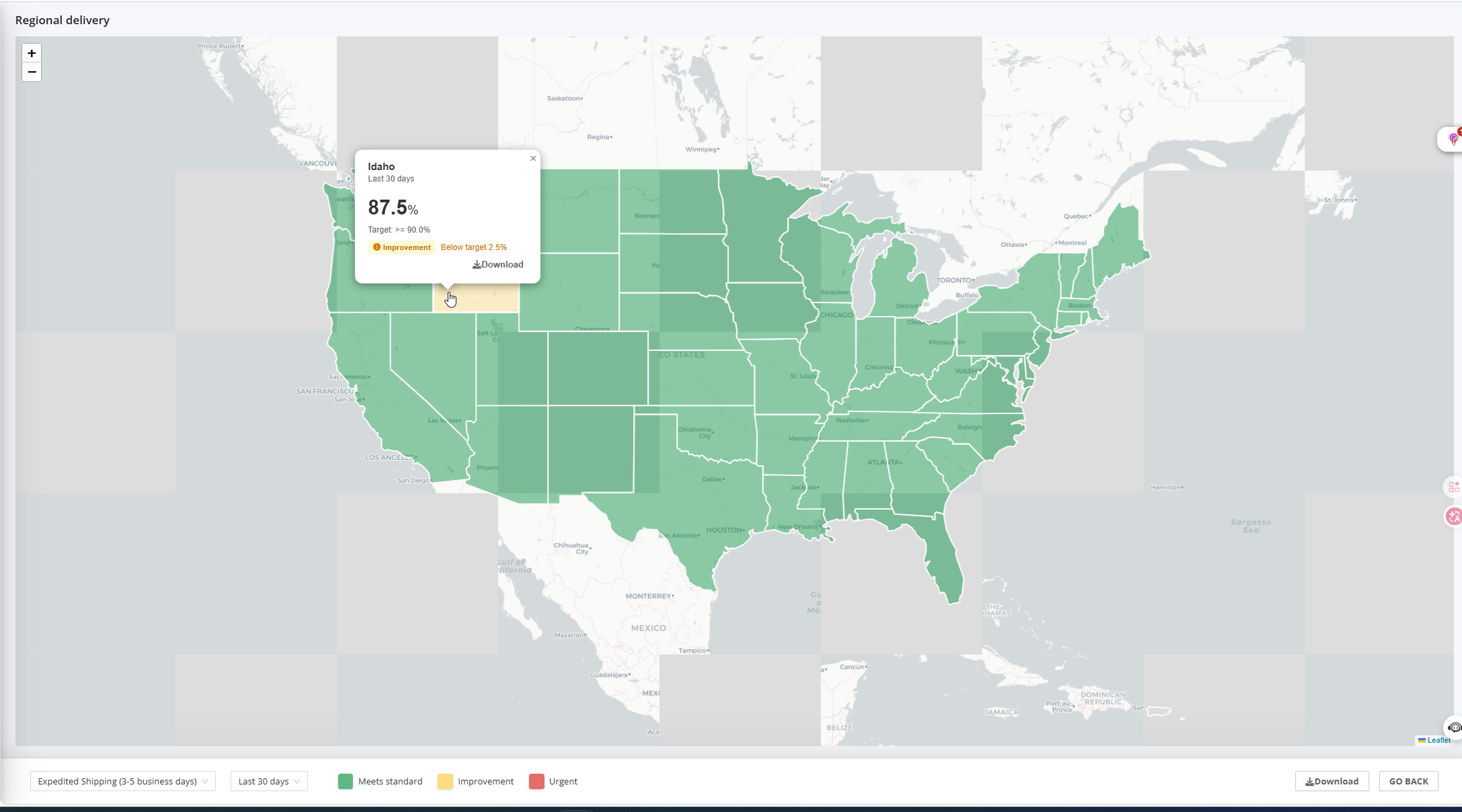
Logistics Performance Tool: On-Time Delivery Map
Sellers can use this tool to view on-time delivery performance by region, including:
- Regional fulfillment performance distribution
- On-time delivery rates
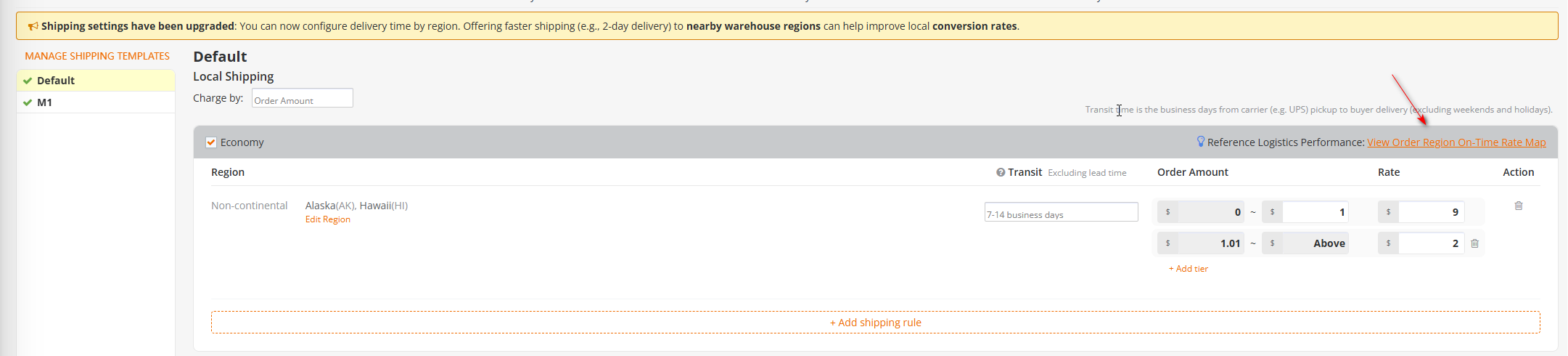
This helps assess regional shipping capability and risk. When used together with the Shipping by State feature, it enables more granular regional optimization, improving overall conversion rate and delivery reliability.
Displayed next to shipping service selection
Set Shipping by State FAQ
- Prioritize faster shipping for nearby regions (e.g., 2-Day)
- Use Standard (3–5 days) or faster as default when possible
- Offer Free Shipping if feasible
- Configure remote regions separately