Newegg Marketplace Seller AcademyNewegg Marketplace Seller Academy
    • Seller Success Guide
    • How to Register as a Seller
    • Apply to Sell on Newegg Marketplace
    • Seller Portal & Service Guides
    • Link to Seller Portal
    • Download App
      • Campaign Type
      • SEM Tool
      • Marketing Tools
    • Shipping & Fulfillment
    • Newegg Marketing
      • Accelerated Payment
      • Capital Advance
    • Seller Academy
      • Seller Payment Disbursement
      • Global Seller Payment Options
      • View Payment Reports
    • Success Stories
    • Integration and Service Partners
    • Policies & Forms
    • Frequently Asked Questions
    • Navigation List/Taxonomy Guide
  • Developer API
  • Contact Us
  1. Home
  2. Analytics
  3. Sales Dashboard and Seller Traffic Report

Sales Dashboard and Seller Traffic Report

Contents

  • Purpose
  • Sales Dashboard
  • Sales and Traffic by Date
    • Sales and Traffic by Date UI:
  • Sales and Traffic by Item

Purpose

The Sales Dashboard provides valuable insights into key customer metrics to support sellers’ business operations. Available to all sellers with Elite membership. To learn more about membership upgrades, click here.

Powerful analytics include:

  • Daily, weekly, and annual customer session/interaction count.
  • Product page views.
  • Orders sold.
  • Combined percentages of views/hits relative to a seller’s items.

Available Platform: Newegg.com

Sales Dashboard

To access this function, go to Seller Portal and hover your mouse pointer over the list icon (upper left corner), then select “Reports” > “Sales Dashboard.”
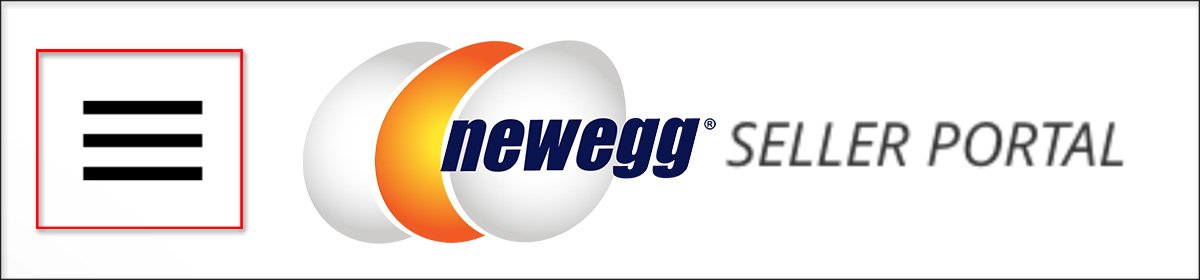

Sales Dashboard UI:

(1) Date Range:

    • Today: 12 am to 11 pm (Default).
    • WTD (Week to Date): Mon | Tue | Wed | Thu | Fri | Sat | Sun.
    • MTD (Month to Date): 1-31.
    • YTD (Year to Date): Jan – Dec.
    • Specify Date: Select Date.
    • Custom: Select From Start Date to End Date.

(2) Shipped By:

    • All Shipped (Default)
    • Shipped by Newegg
    • Shipped by Seller

(3) Search: Click this button to reload data if new options are selected for “Date Range” or “Shipped By“. Note that the page is initially auto-loaded with default values.

(4) Last Update: Date and time when the page was last updated.

(5) Sales Performance: Display sales snapshot with options to display sales metrics:

(6) Chart:  This shows the line chart based on the selected Sales Performance and data grid selections below for different time frames:

  • Today: 12 am to 11 pm.
  • Week to Date: Mon | Tue | Wed | Thu | Fri | Sat | Sun.
  • Month to Date: 1-31.
  • Year to Date: Jan – Dec.
  • Custom: Select From Start Date to End Date.

 (7) Data Grid: Shows detailed data according to the selected Data Range option with checkboxes on each row. If checked, the chart will show the related data line for different time frames:

  • Columns:
    • Date By Group.
    • By Day: One day on each row.
    • By Month: One month on each row, with the date being the first day of the month.
  • Sales: The number of ordered product sales, calculated by multiplying the price of ordered items and the number of units.
  • Orders Sold: Number of orders sold.
  • Avg. Units Sold Per Order: The average number of units for each order.
  • Avg. Unit Price: The average price of units sold, calculated by dividing the total product sales by the total units.
  • Avg. Order Amount: The average sales per order, determined by dividing the total product sales by the total order count.
  • Page Views: The total number of your product pages viewed.
  • Sessions: Sessions are visits to your product pages by a customer. All activity within a 24-hour period is considered a session.
  • Order Session Percentage: The order conversion rate indicates how many orders were purchased relative to the number of people who viewed the products.
  • Unit Session Percentage: The unit conversion rate indicates how many units were purchased relative to the number of people who viewed the products.
  • Units Refunded: Number of units refunded.
  • Refund Rate: Calculated by dividing the number of units refunded by the number of units sold.
Sales and Traffic by Date

To access this function, go to Seller Portal and hover your mouse pointer over the list icon (upper left corner), then select “Reports” > “Sales and Traffic by Date.”


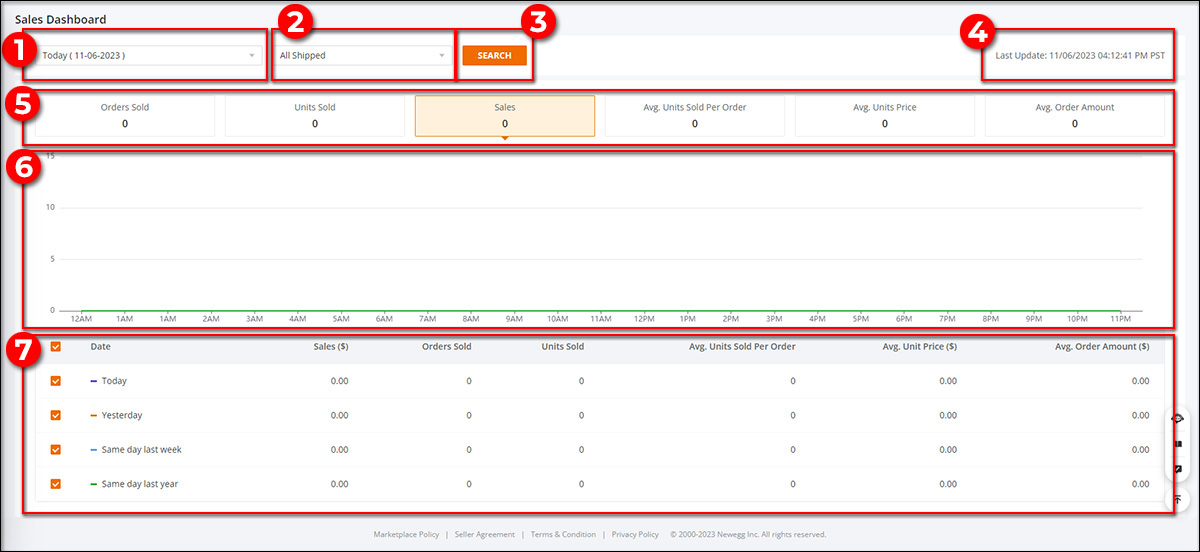
Sales and Traffic by Date UI:

(1) Group Type:

    • By Day: One day on each row (Default).
    • By Week: One week on each row, with the date being the first day of the week.
    • By Month: One month on each row, with the date being the first day of the month.

(2) Date Range:

    • Options:
      • Last 7 Days.
      • Last 30 Days.
      • Last 90 Days.
      • Last 1 Years.
      • Last 2 Years.
      • From-To: Updating the from-to dates will refresh the Chart/Thumbnail/Grid.  The date limit is from 2 years ago to yesterday.

(3) Download: Download the report in CSV format.

(4) Add Metrics: Options to list items by grid column.
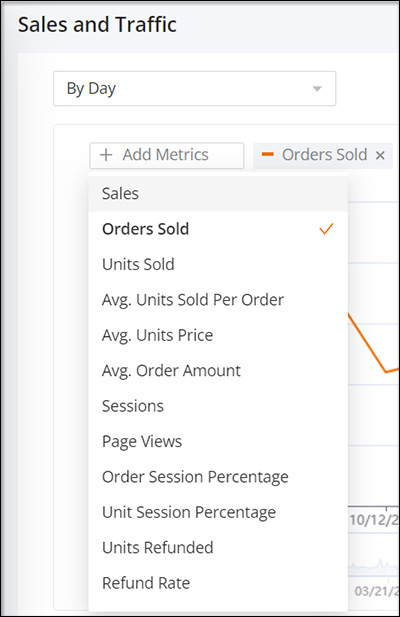
(5) Chart: This displays a line chart based on the selected Indicator Options and data grid selections.

(6) Thumbnail: Load 2 years of data.

(7) Data Grid:

    • Columns:
      • Date By Group:
        • By Day: One day on each row.
        • By Week: One week on each row, with the date being the first day of the week.
        • By Month: One month on each row, with the date being the first day of the month.
      • Sales: The number of ordered product sales, calculated by multiplying the price of ordered items and the number of units.
      • Orders Sold: Number of orders sold.
      • Units Sold: The total number of ordered items.
      • Avg. Units Sold Per Order: The average number of units for each order.
      • Avg. Unit Price: The average price of units sold, calculated by dividing the total product sales by the total units.
      • Avg. Order Amount: The average sales per order, determined by dividing the total product sales by the total order count.
      • Page Views: The total number of your product pages viewed.
      • Sessions: Sessions are visits to your product pages by a customer. All activity within a 24-hour period is considered a session.
      • Order Session Percentage: The order conversion rate indicates how many orders were purchased relative to the number of people who viewed the products.
      • Unit Session Percentage: The unit conversion rate indicates how many units were purchased relative to the number of people who viewed the products.
      • Units Refunded: Number of units refunded.
      • Refund Rate: Calculated by dividing the number of units refunded by the number of units sold.

Sales and Traffic by Item

To access this function, go to Seller Portal and hover your mouse pointer over the list icon (upper left corner), then select “Reports” > “Sales and Traffic by Item.”


Sales and Traffic by Item UI:

 (1) Date Range: The date limit is 2 years ago to yesterday.

(2) Search: Click this button to reload data if new options are selected by “Date Range“. Note that the page is initially auto-loaded with default values.

(3) Download:  Download the report in CSV format.

(4) Data Grid:

  • Columns:
    • Item#: Newegg Item Number.
    • Seller Part#: Merchant Product Number.
    • Title: Product Title.
    • Orders Sold: Number of orders sold.
    • Units Sold: The total number of ordered items.
    • Sales: The number of ordered product sales, calculated by multiplying the price of ordered items and the number of units.
    • Sessions: Sessions are visits to your product pages by a customer. All activity within a 24-hour period is considered a session.
    • Session Percentage: Percentage of sessions that contain at least one-page view for a particular product relative to the total number of sessions for all products.
    • Unit Session Percentage: The unit conversion rate indicates how many units were purchased relative to the number of people who viewed the products.
    • Page Views: The total number of your product pages viewed.
    • Page View Percentage: Percentage of page views that a particular product receives relative to the total number of page views for all products.

Updated on March 21, 2025
Tagged: Account InformationAccount SettingsAdd MetricsAverage Order AmountAverage Unit PriceAverage Units Sold Per OrderChartColumnsCustomer Session CountData GridDate RangeDownloadGroup TypeItem NumberLast UpdateOrders SoldPage View PercentagePage ViewsPercentage of ViewsProduct Page ViewsSalesSales and Traffic by DateSales and Traffic by ItemSales DashboardSales MetricsSales PerformanceSales reportSeller Part NumberSeller trafficSession PercentageSessionsShipped ByThumbnailTitleTrafficUnit Session PercentageUnits Sold

Was this article helpful?

Yes No

Related Articles

  • Return Report
  • Item Overage Fees
  • Unsold Listing Fees
  • View the Buybox Report
  • Reserved Balance
  • View Sales by Region
  • Seller Success Guide
  • Marketplace Policies
    • Prohibited Seller Activities
    • Prohibited Items List
    • Firearms, Weapons, and Knives Policy
    • Offensive Content Policy
    • Miscategorized SKU Policy
    • Inaccurate Content and International Version Products Listing Policy
    • Refurbished Items Policy
    • Restocking Fee Policy
    • Website Short Title Policy & Guidelines
    • Product Description Policy and Guidelines
    • Content Ownership – Item Creation & Modifying Existing Item Content
    • Product Image and Video Policies and Guidelines
    • Seller Logos
    • Search Engine Optimization (SEO) Guidelines
    • Customer Payment Chargebacks
    • Marketplace Chargeback Guide
    • MATCH List
    • Chargeback Reason Code
    • Shipped by Newegg (SBN) Inventory Reimbursement Policy
    • California Proposition 65 (CA Prop 65) Compliance & Warning Clause
    • California Energy Commission (CEC) Regulations
    • California Covered Battery-Embedded (CBE) List
    • 中华人民共和国的平台企业涉税信息报送要求通知
  • New Seller Account Registration
    • Seller Account Registration
    • Update Ownership and INFORM Act Information
    • Update Financial Information
    • Update Credit Card Information
    • Update Business Information
    • Updating Return Policy and Information
    • Update Return Policy & Info (B2B, CAN)
    • Update Shipping Methods and Rates
    • Update Shipping Methods and Rates (B2B, CAN)
    • Seller Logos
    • Create New Item 3.0
    • Create Existing Item 3.0
    • Seller Payment Disbursement
    • Seller Certificate of Insurance
    • 卖家账户注册
  • Account
    • Vacation Settings
      • Vacation Mode 3.0
    • Account Settings
      • Update Business Information
      • Update Financial Information
      • Add/Update Address Information
      • Add/Update Seller Notification Email Settings
      • Login Email & Password Reset
      • Add User
      • Manage User Access
      • Disable User
      • Product Subcategories Reference List
      • Update Credit Card Information
      • Update Return Policy & Info (B2B, CAN)
      • Update Ownership and INFORM Act Information
    • Membership Settings
      • Elite Seller Program
    • Data Feed Settings
      • API Access Authorization – Requesting API Credentials
      • Global Price Sync
    • Shipping Settings
      • Add or Update Fulfillment Center
      • Prioritize Fulfillment Center
      • Updating Return Policy and Information
      • Updating Inventory Return Address on Newegg.com
      • Update Shipping Methods and Rates
      • Update Shipping Methods and Rates (B2B, CAN)
      • Setup Newegg International Shipping Program
      • NISP
      • Remove Newegg International Shipping Program
      • Update Warehouse/Fulfillment Center (B2B, CAN)
      • Update Tax Settings (CAN)
      • Enable or Disable Newegg Return Service
      • Update Shipping by Item Level
  • Seller Portal Home Navigation
    • Seller Portal Interface & Navigation 3.0
    • Seller Quote Confirmation
  • Items
    • Pricing & Inventory
      • Updating Items 3.0
      • Update Active/Inactive Items 3.0
      • Update Pricing and Inventory 3.0
      • Create Individual Product Variations
      • Create Individual Product Variations 3.0
      • Create/Update Product Variant Groups 3.0
      • Favorite Listing 3.0
      • View Items 3.0
      • View Items
      • Customize Item List
      • Update Active/Inactive Items
      • Update Item Content
      • Update Price Information and/or Shipping
      • Check Available Quantity
      • Update Available Quantity
      • Delete Items
      • Setup Third-party Warranty per Item
      • Removed Listings
      • View Estimated SBN Fee
      • View Local & USD Currency
      • Add Sales Area
      • Automate Pricing
      • Abnormal Pricing Protection: Review and Release Restrictions
      • California Energy Commission (CEC) Regulations
      • Creating Items with Customized Upgraded Parts
      • Listing Quality Score (LQS): Improve Your Listing Quality and Sales Performance
      • Managing B2C–B2B Product Sync
      • Share Feature in Pricing & Inventory
    • A+ Content
      • A+ Content Portal User Guide
      • One-Click A+ Content Image Generation
    • Item Creation
      • Create New Item 3.0
      • Create Existing Item 3.0
      • Listing Quality Score
    • Batch Item Creation/Update
      • Batch Create New Items
      • Batch Create Existing Items
      • Batch Update Items Contents (Basic and Subcategory Information)
      • Batch Update Items Contents (Basic Information)
      • Batch Group Related/Variant Items
      • Batch Item Deletion
    • Batch Update Price
      • Batch Update Items Price, Shipping, Limit Quantity and Activation
      • Batch Update International Price
      • International Price Mirroring
      • Global Price Sync
    • Batch Update Inventory
      • Batch Update Items Inventory per Fulfillment Center
      • Batch Update Items Inventory, Price, Shipping, Limit Quantity and Activation (B2B, CAN)
    • How to Create Product Variations
      • Create/Update Product Variant Groups 3.0
      • Create Individual Product Variations 3.0
      • Create Individual Product Variations
      • Batch Group Related/Variant Items
    • Volume Discount
      • Create Volume Discount
    • Batch Warranty Settings
      • Setup Third-party Warranty by Batch
    • Pricing Safeguards
      • Account Safeguard Setting
      • Item Safeguard Setting
      • Price Alter
      • Batch Item Price Safeguard
    • Manage Your Delivery Time
    • Video Managment
      • Add Videos on Product Detail Page
  • Orders
    • Order List
      • Order List 3.0 User Interface
      • Ship Order 3.0
      • Edit Shipment and Updating Your Tracking Number
      • Cancel Items in Order 3.0
      • Newegg International Shipping Program Ship Order
      • Batch Print Order Packing List or Commercial Invoice
      • Issue Courtesy Credit
      • View Order Processing History
      • Newegg Authorized Carriers
      • Buy Shipping Labels
      • Attention: Inventory Rollback
      • Edit Multi-Channel Seller Order ID 3.0
      • Purchase Shipping Insurance
    • Return List
      • Create Return Merchandise Authorization and Returnless Refund 3.0
      • Complete Return Request
      • Appeal Types and Use Cases
      • Edit Return Merchandise Authorization
      • View Return Process History
      • Edit Return Merchandise Authorization from Replacement to Refund
    • Pre-order List
      • Create and Manage Pre-orders
    • Batch Ship Order
      • Batch Process Unshipped Orders
    • Create Multi-Channel Order (SBN Management Only)
      • Create Multi-Channel Order
    • Signature Options
      • Newegg Shipping Label Service
      • Multi-Channel Order
    • Claims
      • View & Resolve Claims
    • Appendix Obtaining Additional Order Information Report
  • Messages
    • Messages 3.0
    • View Customer Message
    • Customer Message Reply/Send
    • Send Message to Customer
  • Manage Store
    • Manage Store (Non-Elite Sellers)
    • Manage Premium Store
  • Marketing Tools
    • Promotions
      • Submit Newegg Campaigns
      • Newegg Promotion Dashboard
      • Add Product Discounts (General Promotions)
      • Batch Create Product Discounts (General Promotions)
      • View and Update Product Discounts (General Promotions)
      • Create Promotion Code
      • View and Update Existing Promotion Codes
      • Batch Create Promotion Codes
      • Feature: Free Gift Auto Add-to-Cart (AATC)
      • Combo Promotion
    • Newegg Attribution
    • Campaigns
      • Campaign Types
    • Post Purchase Email
      • Manage Post Purchase Email (Enterprise Sellers)
    • Search Engine Marketing
      • Sponsored Products Ads – Seller Search Engine Marketing (SEM) Tool
    • Sponsored Ads
      • Automated Offsite Ads – Sponsored Ads
      • Create a Sponsored Brand Ad
      • Create a Sponsored Display Campaign
      • Create a Sponsored Product Ad Campaign
      • Create Sponsored Video Ads Guide
      • Sponsored Ads Negative Product Targeting
    • 直播推广
  • Shipped by Newegg
    • Shipped by Newegg (SBN) & Shipping Settings
    • Work on Shipment List for Newegg Warehouse – Shipped by Newegg (SBN)
    • View Inventory Dashboard
    • View Received History
    • View Replacement Reports
    • Updating Available Quantity for Shipped by Newegg
    • Share SBN Inventory between B2B/B2C
    • How to Create a Return Inventory Shipment
    • View Newegg Return Service Report
    • Enable Signature Services for SBN
    • Get Alerted when Shipped by Newegg Inventory is Low or Out of Stock
    • Automated Multi-Channel Order Fulfillment
    • Shipped by Newegg (SBN) Inventory Reimbursement Policy
  • Manage Offers and Quotes
    • B2C Offer Management
    • B2B Quote Management
  • Brands
    • Brands Enhancement
      • Add or Reference Manufacturer in Newegg Marketplace
      • Product Review
      • Claim Brand Ownership Request
      • Brand Authorization and Syndicated Reviews
      • UPC Exemption Application/Approval Process
  • Analytics
    • Sales Dashboard and Seller Traffic Report
    • View Sales
    • View Payment Reports
    • Reserved Balance
    • View Commission Rates
    • View Item Report
    • View Voided Orders Report
    • View Returns Report
    • View Sales by Region
    • View the Buybox Report
    • Unsold Listing Fees
    • Item Overage Fees
    • Return Report
  • Performance
    • View Seller Account Health Dashboard
    • Seller Review
    • Top Rated Seller
  • Integration and Service Partners
  • Seller Programs & Features
    • Program Introductions
  • Resources
    • Global Seller Payment Options
    • Agreements, Policies and Forms Information
    • Navigation List/Taxonomy Guide
    • User & Service Guides
    • Micromobility Device Products Testing and Certification Information
    • Product Recalls and Safety Information
  • Activate Global Shipping
    • Newegg Global Setup
  • Help
    • Newegg Chatbot
    • Seller Case Management
  • Manage Returns
    • Issue Courtesy Credit
    • Create Return Merchandise Authorization and Returnless Refund 3.0
    • Complete Return Request
    • Appeal Types and Use Cases
    • Edit Return Merchandise Authorization
    • View Return Process History
    • Edit Return Merchandise Authorization from Replacement to Refund
  • FAQ

Need Support?

Can’t find the answer you’re looking for? Don’t worry we’re here to help!

Contact Support

© Copyright NeweggMarketplace|Cookies Preferences