Newegg Marketplace Seller AcademyNewegg Marketplace Seller Academy
    • Seller Success Guide
    • How to Register as a Seller
    • Apply to Sell on Newegg Marketplace
    • Seller Portal & Service Guides
    • Link to Seller Portal
    • Download App
      • Campaign Type
      • SEM Tool
      • Marketing Tools
    • Shipping & Fulfillment
    • Newegg Marketing
      • Accelerated Payment
      • Capital Advance
    • Seller Academy
      • Seller Payment Disbursement
      • Global Seller Payment Options
      • View Payment Reports
    • Success Stories
    • Integration and Service Partners
    • Policies & Forms
    • Frequently Asked Questions
    • Navigation List/Taxonomy Guide
  • Developer API
  • Contact Us
  1. Home
  2. Items
  3. Batch Item Creation/Update
  4. Batch Group Related/Variant Items
  1. Home
  2. Items
  3. How to Create Product Variations
  4. Batch Group Related/Variant Items

Batch Group Related/Variant Items

Available on the Newegg.com, Neweggbusiness.com, and Newegg.ca platforms.

NOTE:
Starting from July 21, 2025, if the old template is used to submit products, only individual item creation will be supported. Variant grouping will no longer be processed using the legacy group-by property.

For updated variant grouping information click here.

To make sure customers can find all your products easily, you should group the same product with multiple variations together, such as a chair with different color options. Doing this can show customers all the product variations you have on one page so customers do not have to find the different product variations on multiple product pages.

In order to create product variations, follow these steps.

Click here to download a list of the subcategories where grouping is possible.

Contents

  • How-To Batch Create Product Variants:
  • How-To use Batch Item Grouping:

How-To Batch Create Product Variants:

This section is ONLY for creating variations when creating new items using Batch Item Creation.

  1. Download the “group-by” enabled subcategory-specific template:
    1. Go to Seller Portal and hover your mouse pointer over the list icon (upper left corner) then select Items > Batch Item Creation/Update.
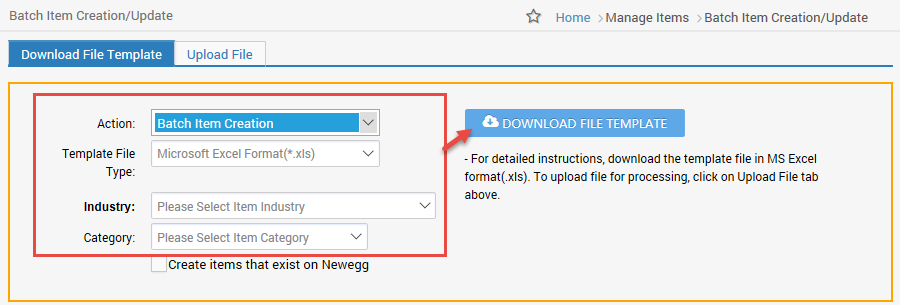
    2. Click Download File Template tab.
    3. Select Batch Item Creation.
    4. Select Template File Type (Recommend Excel).
    5. Pick an Industry and Category.
    6. Click DOWNLOAD FILE TEMPLATE.
  2. Input each variant item in the template:
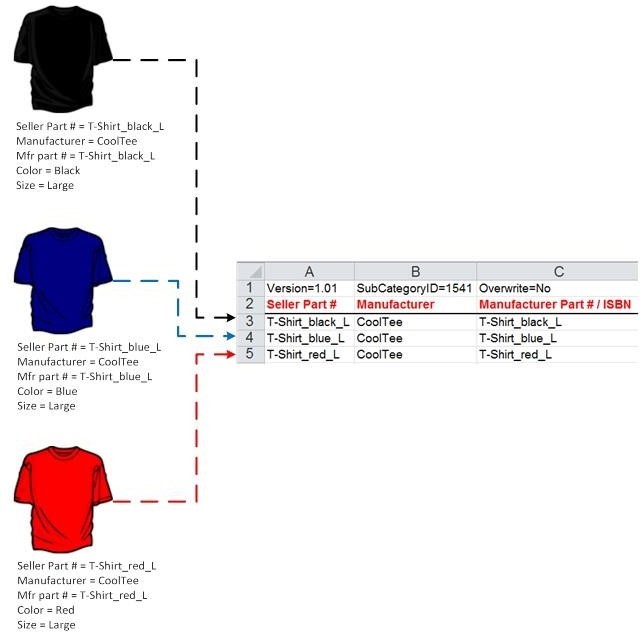
    1. Open file, refer to instructions and basic item info sheets for additional information.
    2. Input each variant on a separate row under the datafeed sheet.
    3. You must assign unique values for the seller part #, manufacturer part #, and UPC.
    4. All required header names in red font must be entered to complete.
  3. Set up the variant item’s relationship:
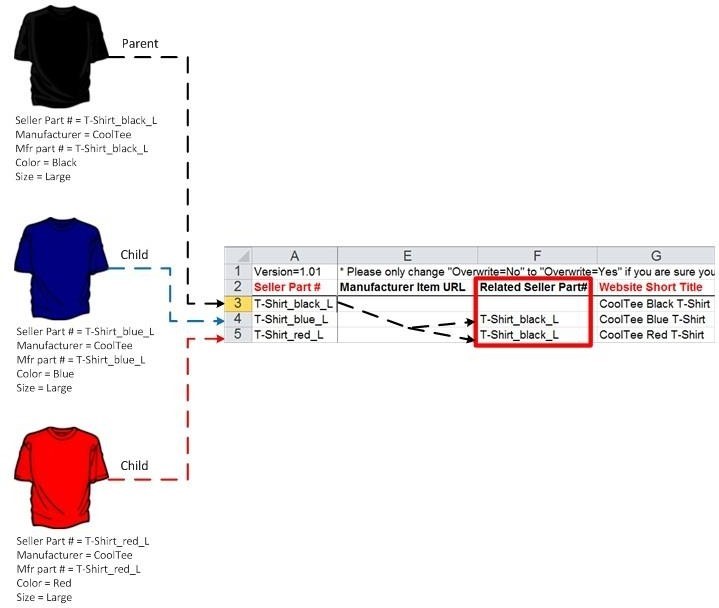
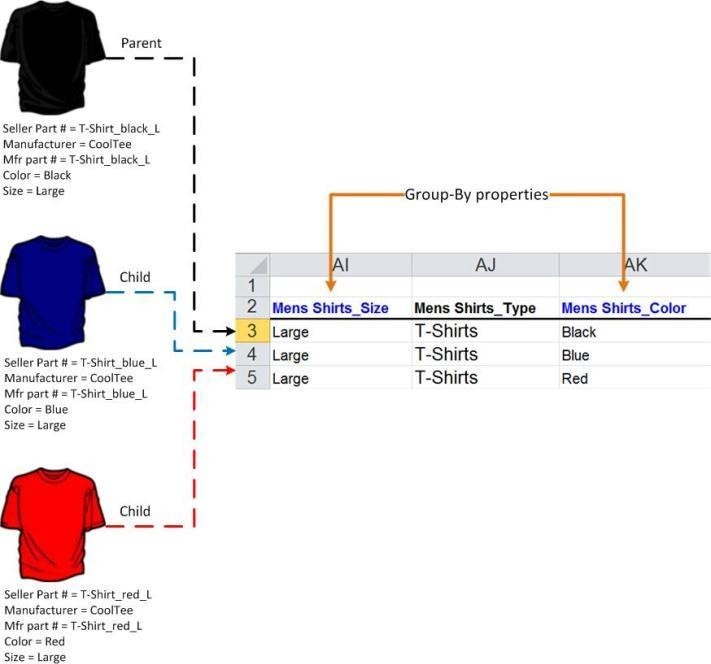
    1. Enter the parent SKU seller part # into the child SKU Related Seller Part # field.
    2. Leave the parent SKU Related Seller Part # field BLANK.
  4. Fill in ALL “group-by” properties:
    • A  group-by property is a variant attribute option.
    • Each subcategory has its own set of group-by properties.
    • The Data Feed Template in the MS Excel format will mark all of the subcategory group-by properties with header names in blue font.
    • The cell will provide a dropdown menu with all available “group-by” property values. Select the appropriate value for the “group-by” property.  If the value does not exist, please contact our Newegg Content team to request that it can be added.
  5. Uploading the template:
    1. Save file.
    2. Click Upload File tab.
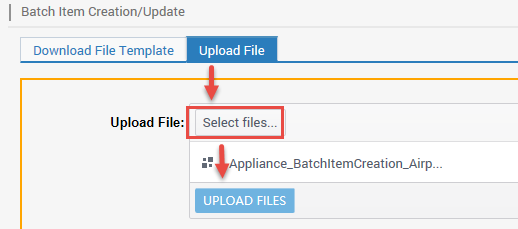
    3. Click Select files… to upload the file from local drive.
    4. Click UPLOAD FILES.
  6. Check if the template uploaded successfully or failed under Uploaded File Status and History:
    1. Click Upload File tab.
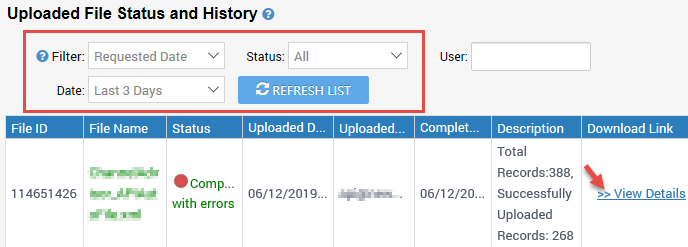
    2. By default, the Date field, Newegg provides the last 3 days of upload.  Adjust the filter accordingly.
    3. Click REFRESH LIST to check the Status of upload.
    4. Click View Details if there are any errors when the upload has been completed.
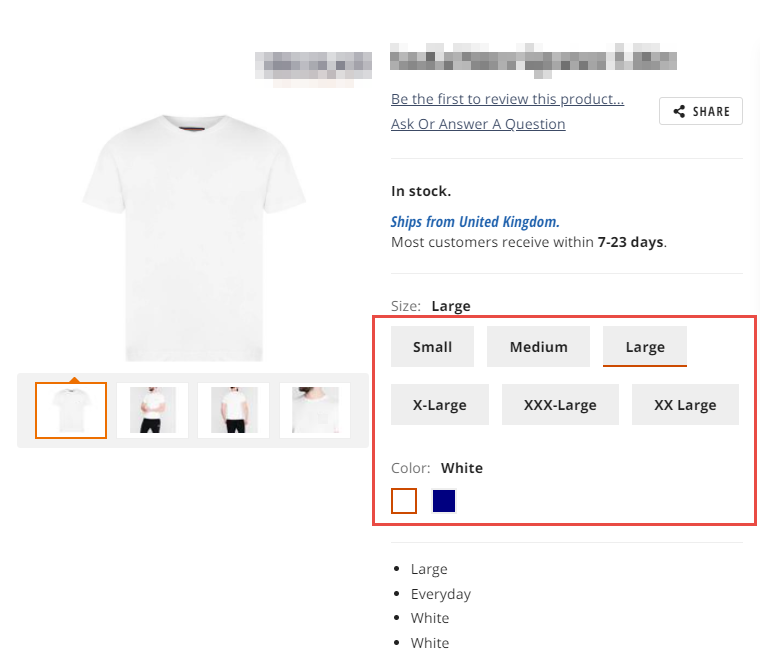
  7. On the product page, the items will show variation options.  Note: After successfully creating the variation, allow at least 24 hours for it to reflect.
 

How-To use Batch Item Grouping:

This section is ONLY for creating variations from items that already exist in your account that are active and that allow for grouping.

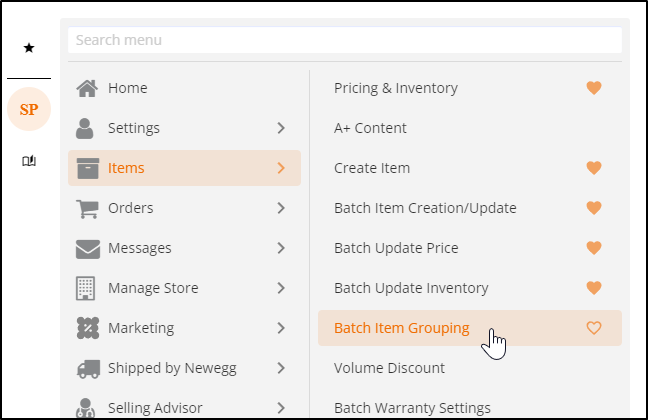
  1. Navigate to the SP > Items > Batch Item Grouping
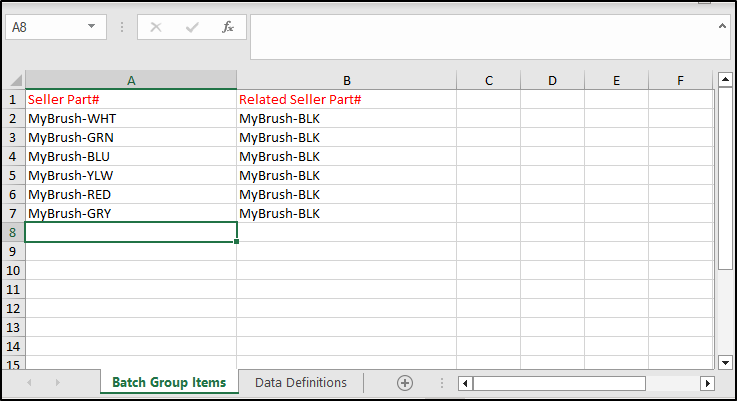
  2. Download the Batch_Group_Items template

  3. Add your pre-existing active items to the template
    Please note that you do not have to group the item with itself
    (Ex.  MyBrush-BLK / MyBrush-BLK   will be ignored)
  4. Click Select files… to upload the file from local drive.
  5. Click UPLOAD FILES.
  6. Click REFRESH LIST to check the Status of upload.
  7. Click View Details if there are any errors when the upload has been completed.

If you need assistance, please log in Seller Portal > Case List for support.

Updated on July 18, 2026
Tagged: batch create groupbatch create variantBatch Item Group

Was this article helpful?

Yes No

Related Articles

  • Create/Update Product Variant Groups 3.0
  • Create Individual Product Variations 3.0
  • Batch Item Deletion
  • Batch Update Items Contents (Basic Information)
  • Batch Update Items Contents (Basic and Subcategory Information)
  • Batch Create Existing Items
  • Seller Success Guide
  • Marketplace Policies
    • Prohibited Seller Activities
    • Prohibited Items List
    • Firearms, Weapons, and Knives Policy
    • Offensive Content Policy
    • Miscategorized SKU Policy
    • Inaccurate Content and International Version Products Listing Policy
    • Refurbished Items Policy
    • Restocking Fee Policy
    • Website Short Title Policy & Guidelines
    • Product Description Policy and Guidelines
    • Content Ownership – Item Creation & Modifying Existing Item Content
    • Product Image and Video Policies and Guidelines
    • Seller Logos
    • Search Engine Optimization (SEO) Guidelines
    • Customer Payment Chargebacks
    • Marketplace Chargeback Guide
    • MATCH List
    • Chargeback Reason Code
    • Shipped by Newegg (SBN) Inventory Reimbursement Policy
    • California Proposition 65 (CA Prop 65) Compliance & Warning Clause
    • California Energy Commission (CEC) Regulations
    • California Covered Battery-Embedded (CBE) List
    • 中华人民共和国的平台企业涉税信息报送要求通知
  • New Seller Account Registration
    • Seller Account Registration
    • Update Ownership and INFORM Act Information
    • Update Financial Information
    • Update Credit Card Information
    • Update Business Information
    • Updating Return Policy and Information
    • Update Return Policy & Info (B2B, CAN)
    • Update Shipping Methods and Rates
    • Update Shipping Methods and Rates (B2B, CAN)
    • Seller Logos
    • Create New Item 3.0
    • Create Existing Item 3.0
    • Seller Payment Disbursement
    • Seller Certificate of Insurance
    • 卖家账户注册
  • Account
    • Vacation Settings
      • Vacation Mode 3.0
    • Account Settings
      • Update Business Information
      • Update Financial Information
      • Add/Update Address Information
      • Add/Update Seller Notification Email Settings
      • Login Email & Password Reset
      • Add User
      • Manage User Access
      • Disable User
      • Product Subcategories Reference List
      • Update Credit Card Information
      • Update Return Policy & Info (B2B, CAN)
      • Update Ownership and INFORM Act Information
    • Membership Settings
      • Elite Seller Program
    • Data Feed Settings
      • API Access Authorization – Requesting API Credentials
      • Global Price Sync
    • Shipping Settings
      • Add or Update Fulfillment Center
      • Prioritize Fulfillment Center
      • Updating Return Policy and Information
      • Updating Inventory Return Address on Newegg.com
      • Update Shipping Methods and Rates
      • Update Shipping Methods and Rates (B2B, CAN)
      • Setup Newegg International Shipping Program
      • NISP
      • Remove Newegg International Shipping Program
      • Update Warehouse/Fulfillment Center (B2B, CAN)
      • Update Tax Settings (CAN)
      • Enable or Disable Newegg Return Service
      • Update Shipping by Item Level
  • Seller Portal Home Navigation
    • Seller Portal Interface & Navigation 3.0
    • Seller Quote Confirmation
  • Items
    • Pricing & Inventory
      • Updating Items 3.0
      • Update Active/Inactive Items 3.0
      • Update Pricing and Inventory 3.0
      • Create Individual Product Variations
      • Create Individual Product Variations 3.0
      • Create/Update Product Variant Groups 3.0
      • Favorite Listing 3.0
      • View Items 3.0
      • View Items
      • Customize Item List
      • Update Active/Inactive Items
      • Update Item Content
      • Update Price Information and/or Shipping
      • Check Available Quantity
      • Update Available Quantity
      • Delete Items
      • Setup Third-party Warranty per Item
      • Removed Listings
      • View Estimated SBN Fee
      • View Local & USD Currency
      • Add Sales Area
      • Automate Pricing
      • California Energy Commission (CEC) Regulations
      • Creating Items with Customized Upgraded Parts
      • Listing Quality Score (LQS): Improve Your Listing Quality and Sales Performance
      • Managing B2C–B2B Product Sync
      • Share Feature in Pricing & Inventory
    • A+ Content
      • A+ Content Portal User Guide
      • One-Click A+ Content Image Generation
    • Item Creation
      • Create New Item 3.0
      • Create Existing Item 3.0
      • Listing Quality Score
    • Batch Item Creation/Update
      • Batch Create New Items
      • Batch Create Existing Items
      • Batch Update Items Contents (Basic and Subcategory Information)
      • Batch Update Items Contents (Basic Information)
      • Batch Group Related/Variant Items
      • Batch Item Deletion
    • Batch Update Price
      • Batch Update Items Price, Shipping, Limit Quantity and Activation
      • Batch Update International Price
      • International Price Mirroring
      • Global Price Sync
    • Batch Update Inventory
      • Batch Update Items Inventory per Fulfillment Center
      • Batch Update Items Inventory, Price, Shipping, Limit Quantity and Activation (B2B, CAN)
    • How to Create Product Variations
      • Create/Update Product Variant Groups 3.0
      • Create Individual Product Variations 3.0
      • Create Individual Product Variations
      • Batch Group Related/Variant Items
    • Volume Discount
      • Create Volume Discount
    • Batch Warranty Settings
      • Setup Third-party Warranty by Batch
    • Pricing Safeguards
      • Account Safeguard Setting
      • Item Safeguard Setting
      • Price Alter
      • Batch Item Price Safeguard
    • Manage Your Delivery Time
    • Video Managment
      • Add Videos on Product Detail Page
  • Orders
    • Order List
      • Order List 3.0 User Interface
      • Ship Order 3.0
      • Edit Shipment and Updating Your Tracking Number
      • Cancel Items in Order 3.0
      • Newegg International Shipping Program Ship Order
      • Batch Print Order Packing List or Commercial Invoice
      • Issue Courtesy Credit
      • View Order Processing History
      • Newegg Authorized Carriers
      • Buy Shipping Labels
      • Attention: Inventory Rollback
      • Edit Multi-Channel Seller Order ID 3.0
    • Return List
      • Create Return Merchandise Authorization and Returnless Refund 3.0
      • Complete Return Request
      • Appeal Types and Use Cases
      • Edit Return Merchandise Authorization
      • View Return Process History
      • Edit Return Merchandise Authorization from Replacement to Refund
    • Pre-order List
      • Create and Manage Pre-orders
    • Batch Ship Order
      • Batch Process Unshipped Orders
    • Create Multi-Channel Order (SBN Management Only)
      • Create Multi-Channel Order
    • Signature Options
      • Newegg Shipping Label Service
      • Multi-Channel Order
    • Claims
      • View & Resolve Claims
    • Appendix Obtaining Additional Order Information Report
  • Messages
    • Messages 3.0
    • View Customer Message
    • Customer Message Reply/Send
    • Send Message to Customer
  • Manage Store
    • Manage Store (Non-Elite Sellers)
    • Manage Premium Store
  • Marketing Tools
    • Promotions
      • Submit Newegg Campaigns
      • Newegg Promotion Dashboard
      • Add Product Discounts (General Promotions)
      • Batch Create Product Discounts (General Promotions)
      • View and Update Product Discounts (General Promotions)
      • Create Promotion Code
      • View and Update Existing Promotion Codes
      • Batch Create Promotion Codes
      • Feature: Free Gift Auto Add-to-Cart (AATC)
      • Combo Promotion
    • Newegg Attribution
    • Campaigns
      • Campaign Types
    • Post Purchase Email
      • Manage Post Purchase Email (Enterprise Sellers)
    • Search Engine Marketing
      • Sponsored Products Ads – Seller Search Engine Marketing (SEM) Tool
    • Sponsored Ads
      • Automated Offsite Ads – Sponsored Ads
      • Create a Sponsored Brand Ad
      • Create a Sponsored Display Campaign
      • Create a Sponsored Product Ad Campaign
      • Create Sponsored Video Ads Guide
      • Sponsored Ads Negative Product Targeting
    • 直播推广
  • Shipped by Newegg
    • Shipped by Newegg (SBN) & Shipping Settings
    • Work on Shipment List for Newegg Warehouse – Shipped by Newegg (SBN)
    • View Inventory Dashboard
    • View Received History
    • View Replacement Reports
    • Updating Available Quantity for Shipped by Newegg
    • Share SBN Inventory between B2B/B2C
    • How to Create a Return Inventory Shipment
    • View Newegg Return Service Report
    • Enable Signature Services for SBN
    • Get Alerted when Shipped by Newegg Inventory is Low or Out of Stock
    • Automated Multi-Channel Order Fulfillment
    • Shipped by Newegg (SBN) Inventory Reimbursement Policy
  • Manage Offers and Quotes
    • B2C Offer Management
    • B2B Quote Management
  • Brands
    • Brands Enhancement
      • Add or Reference Manufacturer in Newegg Marketplace
      • Product Review
      • Claim Brand Ownership Request
      • Brand Authorization and Syndicated Reviews
      • UPC Exemption Application/Approval Process
  • Analytics
    • Sales Dashboard and Seller Traffic Report
    • View Sales
    • View Payment Reports
    • Reserved Balance
    • View Commission Rates
    • View Item Report
    • View Voided Orders Report
    • View Returns Report
    • View Sales by Region
    • View the Buybox Report
    • Unsold Listing Fees
    • Item Overage Fees
    • Return Report
  • Performance
    • View Seller Account Health Dashboard
    • Seller Review
    • Top Rated Seller
  • Integration and Service Partners
  • Seller Programs & Features
    • Program Introductions
  • Resources
    • Global Seller Payment Options
    • Agreements, Policies and Forms Information
    • Navigation List/Taxonomy Guide
    • User & Service Guides
    • Micromobility Device Products Testing and Certification Information
    • Product Recalls and Safety Information
  • Activate Global Shipping
    • Newegg Global Setup
  • Help
    • Newegg Chatbot
    • Seller Case Management
  • Manage Returns
    • Issue Courtesy Credit
    • Create Return Merchandise Authorization and Returnless Refund 3.0
    • Complete Return Request
    • Appeal Types and Use Cases
    • Edit Return Merchandise Authorization
    • View Return Process History
    • Edit Return Merchandise Authorization from Replacement to Refund
  • FAQ

Need Support?

Can’t find the answer you’re looking for? Don’t worry we’re here to help!

Contact Support

© Copyright NeweggMarketplace|Cookies Preferences