
Overview
The Case Management feature is now available in Seller Portal 3.0. It gives you a dedicated channel to submit issues, communicate with the Newegg support team, and track resolution progress — all in one place.
Getting Started
Step 1: Check Your Permissions
Your access level determines what you can do:
| Permission Level | What You Can Do |
|---|---|
| View Only | Browse the Case list; no actions allowed |
| View & Edit | Create, reply to, and close Cases |
Contact your account administrator if you need your permissions updated.
Go to Settings > User Permission Settings from the side menu, click View, and assign the required permissions to the sub-users who need access to this feature.
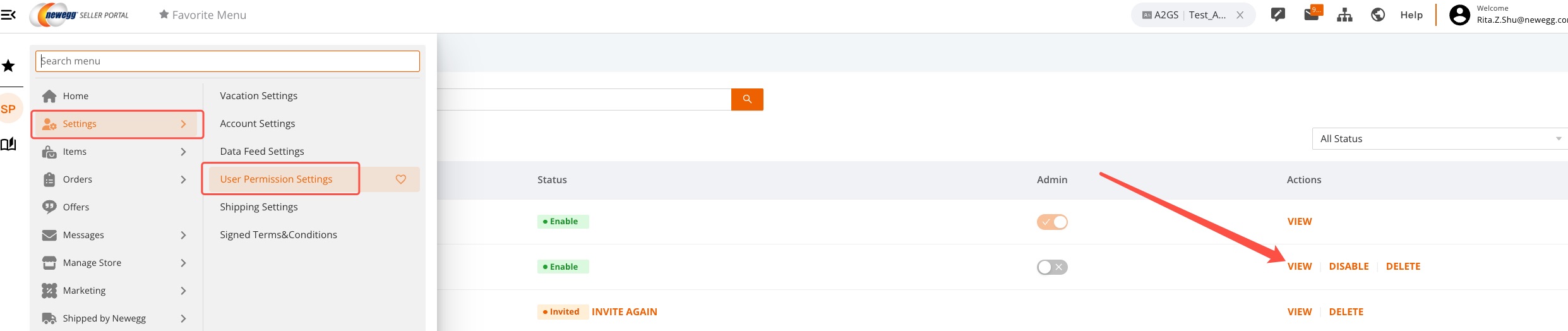
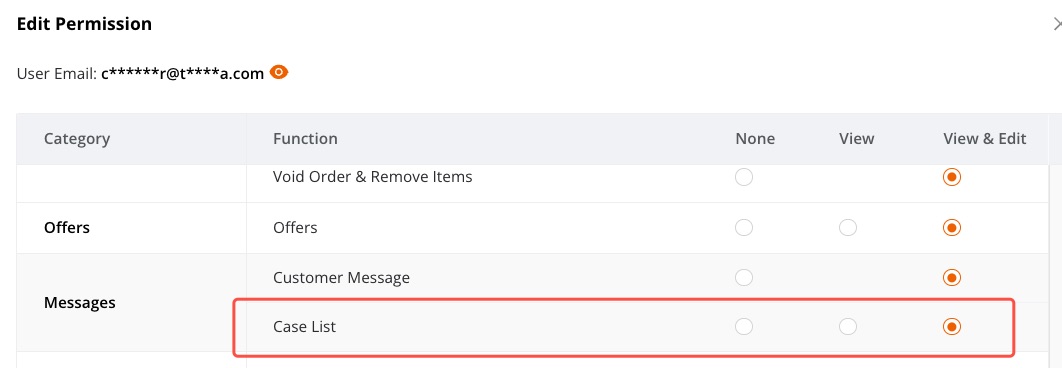
Step 2: Access the Case Management Page
There are two ways to reach the Case Management feature:
Option 1 – Via the Help Menu
Navigate to Help → Case List in the Seller Portal. This takes you directly to your Case List page where you can view existing Cases or create a new one.
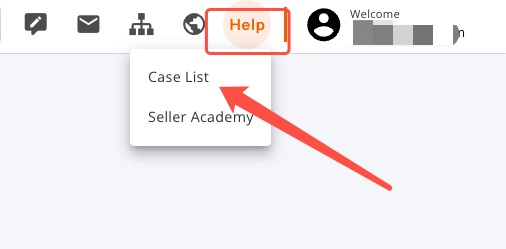
Option 2 – Via the AI Chatbot
If you’re using the built-in AI chatbot and the automated response does not resolve your issue, click the Support button at the bottom of the chat window. This will redirect you directly to the Case creation flow so a Newegg support agent can follow up with you.
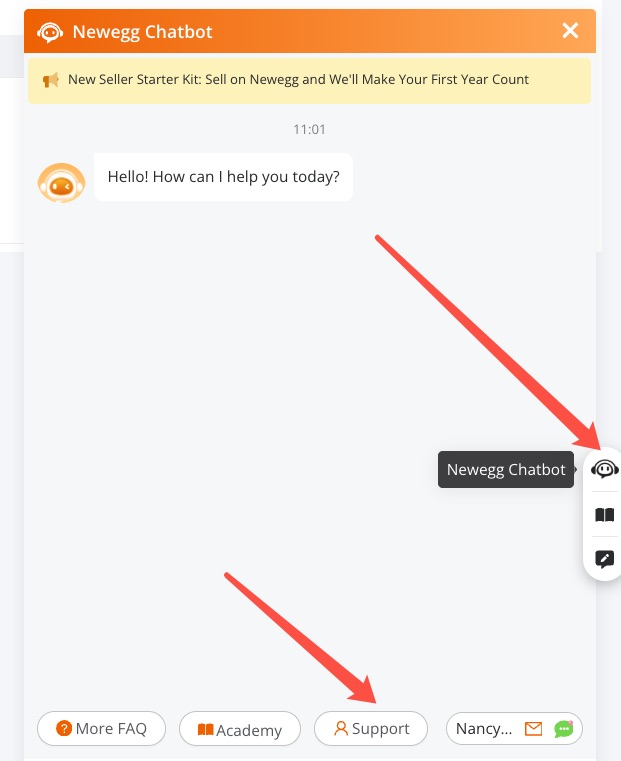
The Case List
The Case List is organized into three tabs:
- Awaiting Response – Cases waiting for a reply from Newegg
- Pending Action – Cases waiting for your reply (default view)
- Closed – Cases that have been resolved and closed
Search & Filter Options:
- Filter by Sub-account User (active accounts only)
- Filter by Time Range (e.g., Today, Last 3 Days)
Each row shows: Case ID, Submission Time, Submitter, AI-generated Subject, Status, and action buttons.

How to Create a Case
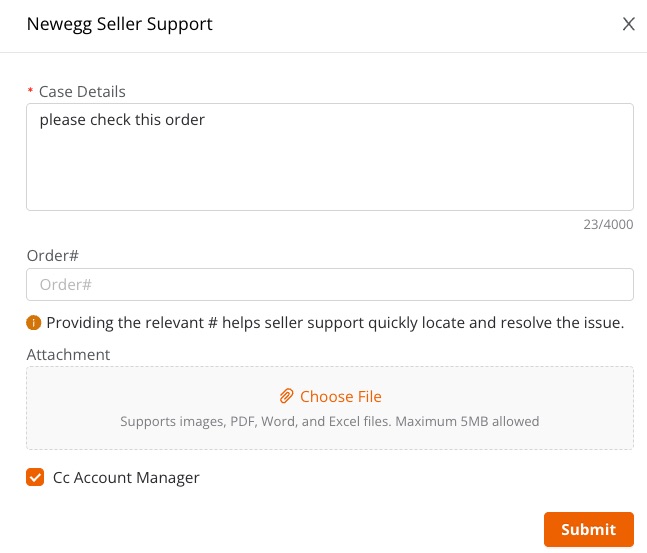
- Click the Create Case button.
- Enter a description of your issue in the Case Details field (required).
- If your issue is order-related, the system will automatically prompt you to provide an Order # or other relevant details.
- Optionally attach up to 5 files.
- Check Cc AM if you want your Account Manager to receive a copy of the notification.
- Click Submit. A confirmation email will be sent to you automatically.
How to Reply to a Case
- From the Case List, click the Reply button on any row.
- From the Case Detail page, click the Reply button next to the latest message.
- Both options bring you to the detail page with the reply input box ready.


How to View Case Details
Click any Case ID to open the detail page. You will see:
- The AI-generated short description and submission time
- Your original submission content and attachments
- The full reply thread between you and Newegg (newest messages shown first)
How to Close a Case
Click the Close button from either the Case List or the Case Detail page. The Case will be closed immediately.
Note: Once closed, a Case moves to the Closed tab. Make sure the issue is fully resolved before closing.