
Overview
The Share feature allows sellers to promote product listings on social media using AI-generated text and custom scene images. Each generation consumes 6 credits from your account.
How to Use
1. Locate the Share Button
Go to Pricing & Inventory. In each listing row, click the Share button on the right-hand action column.

2. Configure Your Post
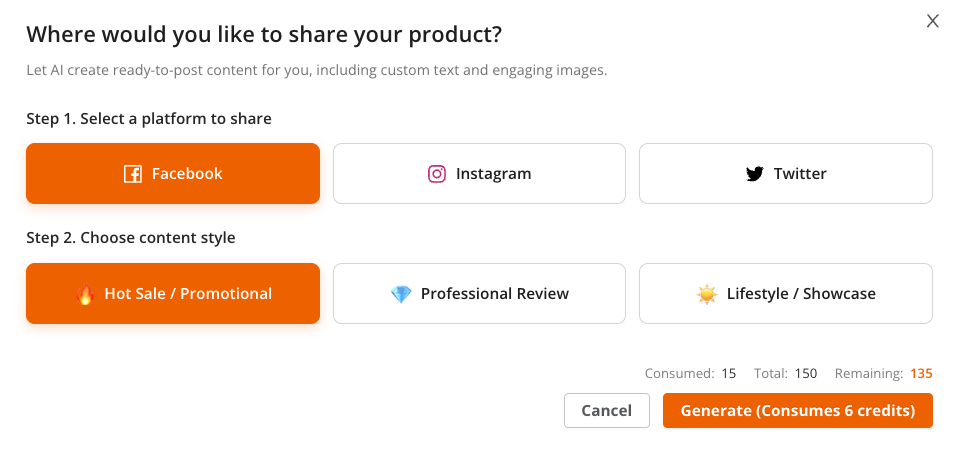
A dialog will appear. Make two selections:
Step 1 — Select a Platform: Facebook / Instagram / Twitter
Step 2 — Choose Content Style:
- 🔥 Hot Sale / Promotional — Urgency-driven, deal-focused content
- 💎 Professional Review — Feature-focused, authoritative tone
- ✨ Lifestyle / Showcase — Lifestyle-oriented, aspirational tone
The credit counter at the bottom shows your Consumed / Total / Remaining credits. Click Generate (Consumes 6 credits) to proceed.
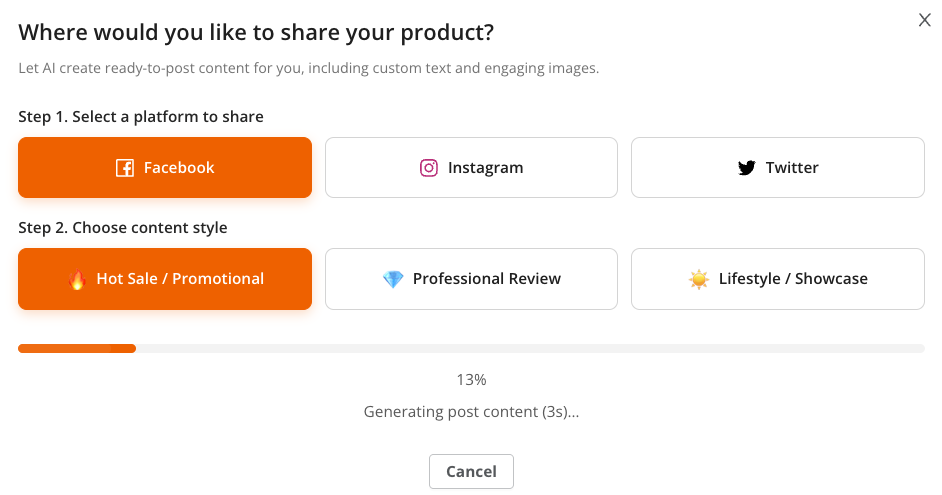
3. Wait for AI Generation
The system generates post text first, then scene images. The process takes approximately 60–90 seconds.
4. Review the Result
Once complete, the result screen shows:
Scene Images
By default, the Showcase image set is generated automatically. Sellers can optionally click the Selling Points or Specs tabs to generate additional image sets — each tab requires a separate generation and consumes 6 credits.
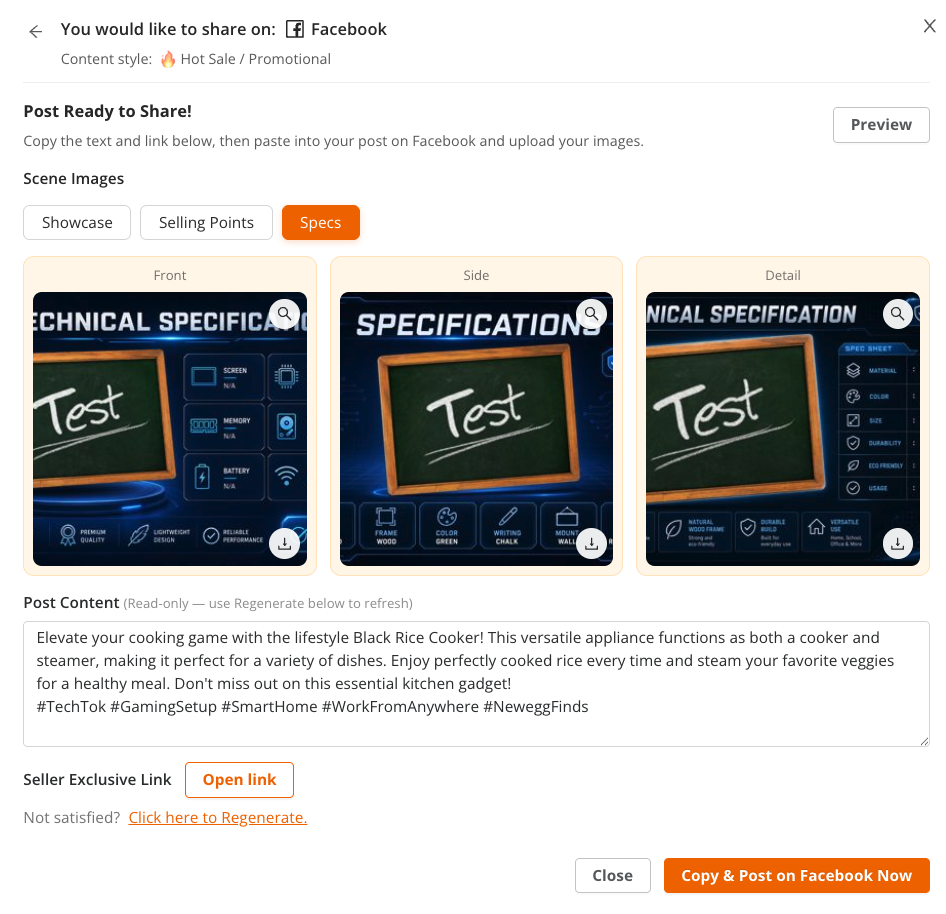
Each image set provides three angle variants: Front, Side, and Detail. Click the ⬇ icon to download any image.
| Image Type | What it Shows |
|---|---|
| Showcase | The product placed in a lifestyle scene (e.g., on a desk, in a kitchen). Focuses on visual appeal and creates an aspirational feel. |
| Selling Points | Graphics highlighting the product’s key benefits and features (e.g., “Durable Build”, “Eco Friendly”). Best for audiences who want to know why to buy. |
| Specs | A technical specifications layout showing product attributes (e.g., screen size, material, battery). Best for tech-savvy audiences who want detailed product information. |
Other elements on the result screen:
- Post Content — AI-generated promotional text with hashtags (read-only)
- Preview — Shows a mockup of how the post will look on the selected platform
- Seller Exclusive Link — Click Open link to view the product’s shareable Newegg URL
- Click here to Regenerate — If unsatisfied, regenerate new content (costs another 6 credits)
5. Post to Social Media
Click “Copy & Post on [Platform] Now” to copy the text to your clipboard and be redirected to the platform. Upload the downloaded images and paste the text to complete your post.
Note: The Seller Portal does not post to social media directly — you complete the posting manually on the platform.